

If you manage more than a handful of servers — or you spin them up from a template — this lets you install the InfraNest agent on every server with a single command, instead of copying a different one each time.
#Overview
- One enrollment key can be reused in a cloud-init file, an Ansible playbook, or a server image.
- When the install command runs on a server, that server appears in InfraNest automatically, with monitoring switched on.
- If InfraNest already recognises the server from your cloud provider, it's matched to that one instead of creating a duplicate.
- Running the command again on the same server won't add it twice.
- Each server gets its own password to report with, so switching the key off later doesn't stop servers that already installed with it.
#Create a key
- Go to Settings → Server agent.
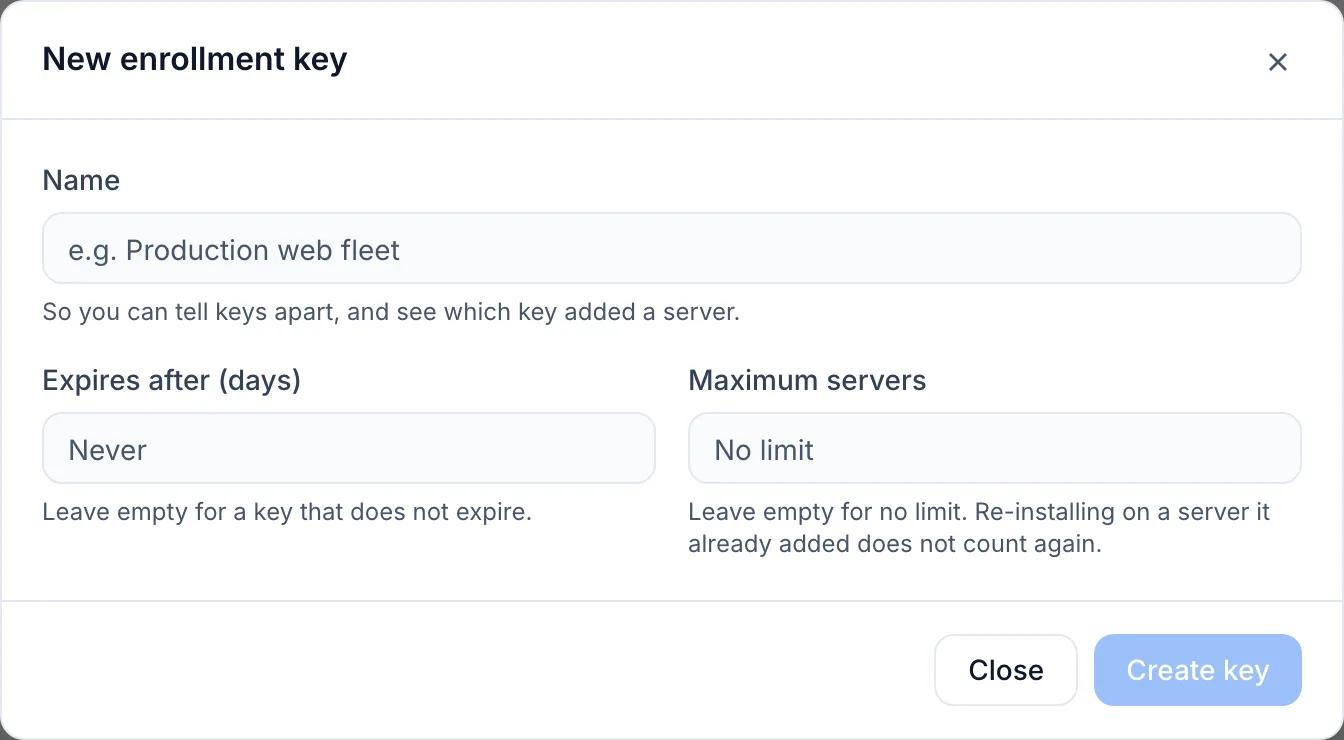
- Select New key.
- Give it a name you will recognise later, like Production web servers.
- Optional: set Expires after if the key should stop working after a number of days, and Maximum servers if it should only install on so many servers.
- Select Create key.
- Copy the key, or one of the ready-made commands for Linux, Windows or cloud-init. The key is shown only this once.
WarningThe key is only shown once when you create it. Copy it or one of the ready-made commands right away — you won't be able to view it again later.
#Use it
On Linux, run the command on each server, or add it to your cloud-init file or Ansible playbook:
curl -fsSL https://get.infranest.io/agent.sh | sudo sh -s -- --enroll sek_YOUR_KEY
On Windows, in PowerShell as administrator:
irm https://get.infranest.io/agent.ps1 -OutFile install.ps1
.\install.ps1 -Enroll sek_YOUR_KEY
Within a minute each server appears in Monitoring → Servers with live memory, disk and load. A server InfraNest already knew from your cloud provider stays where it was, on the Servers page too.
#Switch a key off
- Go to Settings → Server agent.
- Select Revoke next to the key.
New servers can no longer use a revoked key. Servers that already installed with it keep reporting as normal — to remove the agent from one of those, open the server and remove it there.
#Troubleshooting
If a server does not appear after running the install command, the command stops and tells you why before anything is installed:
- The key is not valid — it was copied incompletely. Copy it again, or create a new key.
- The key was revoked or has expired — create a new key.
- The key has installed as many servers as it allows — create another key, or one with a higher Maximum servers.
- Your plan's limit is reached — each new server counts towards your plan's servers and monitored servers, the same as one you add by hand.
TipEvery server added with a key is listed in Settings → Audit log, along with the key's name, so you can always trace which key brought in which server.
Was this article helpful?
Thanks for your feedback!
Thanks, this goes straight to the docs team.