

This article helps you pick the least disruptive moment to reboot, resize, or schedule maintenance on a server, based on how busy it actually is.
#Overview
- InfraNest watches how busy each server is throughout the week and works out its quietest time — the moment with the least load.
- This isn't always the middle of the night. A server that backs up overnight but sits idle on Sunday morning is quietest then, not at 03:00.
- The same quietest time is offered wherever you plan work on that server, so you don't have to guess.
#Find the quietest time on a server
- Open the server's Dashboard.
- Look for the Quietest time box. It shows when the server is least busy, for example Sunday 04:00, along with how busy it usually is then compared with its average.
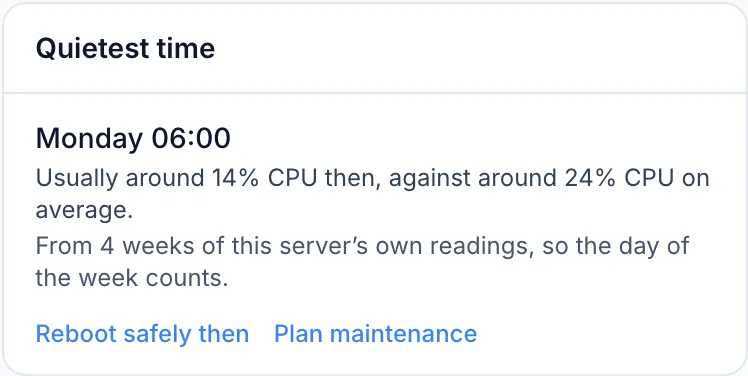
- From here you can click Reboot safely then to open a safe reboot already set to that time, or Plan maintenance to open a new maintenance window for this server.
#Use the quietest time when rebooting, resizing or moving addresses
- Start a reboot, resize, or address move for the server.
- In the When choice, look for Recommended — this is the quietest time InfraNest has worked out.
- If you pick a busier time instead, InfraNest tells you how busy it usually is at that time.
- You can still continue if you're happy with the time you chose.
#Use the quietest time in a maintenance window Pro
- Open Maintenance and start a new maintenance window, making sure it covers the server (or a monitor on that server).
- The form offers the quietest time for the servers involved.
- Click Use it to fill in the start time. For a weekly window, this sets the day and hour; for a daily window, it sets the quietest hour of the day.
- Review the rest of the window, then click Save to save it — nothing is saved until you do.
#Wait for a quiet moment in an automation
- Open Automations and create or edit an automation.
- Add a Wait step before the step that should run at a quiet moment, such as Reboot server or Resize volume.
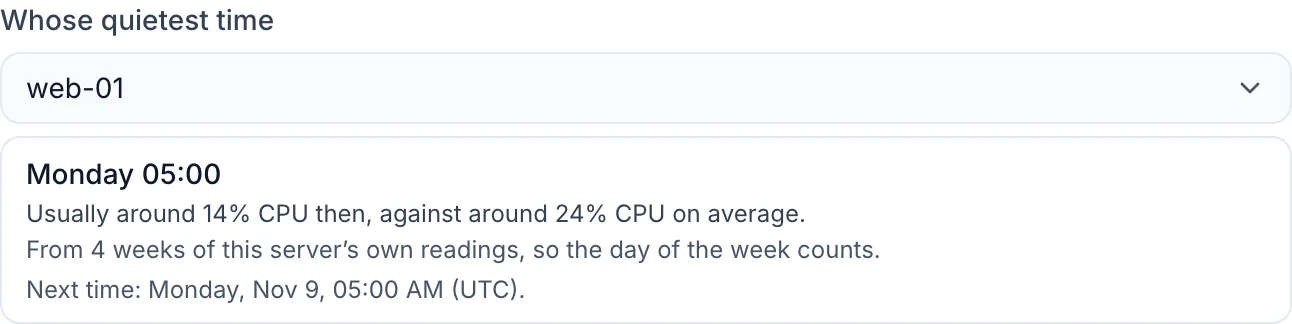
- Set Then wait for a quiet moment to Yes, until the server's quietest time.
- Under Whose quietest time, choose a server, or leave it empty to use the server the trigger is about. For a monitor trigger, that's the server the monitor watches.
Once you choose a server, the step shows the time it will wait for. If you've also set a wait time or hours, the step waits for those first, then for the next quiet moment after them.
WarningIf the automation runs without a server to look at, the Wait step stops with an error instead of carrying on at a busy time.
#How it is worked out
- With four weeks of readings from the server itself, the quietest time is a specific day and hour, based on what's normal for the server at each hour of the week.
- Before that, InfraNest uses the quietest hour of the day, based on the last 30 days of readings. The box tells you which one you're looking at.
- With too few readings, InfraNest suggests 03:00 and says so, since the middle of the night is quietest for most servers.
- When several servers are involved at once, InfraNest looks at their combined load, so one busy server isn't hidden by quieter ones.
Readings come from the agent when it's installed, or from your cloud provider's CPU graph otherwise. The agent gives a better answer.
NoteTimes are shown in your own time zone on the server's page, and in your workspace's time zone in automations and repeating maintenance windows.
#Tips
- The quietest time is only a suggestion — nothing runs at that time unless you schedule it yourself.
- After a resize or reinstall, the server is treated as a different machine, so InfraNest starts learning its week again. Until it has four weeks of data, you'll see the quietest hour of the day instead of a specific day and hour.
Was this article helpful?
Thanks for your feedback!
Thanks, this goes straight to the docs team.