

Install the InfraNest agent on a server to see its memory, disk space and load, and to get alerted before either one runs out — something no cloud provider reports on its own.
#Overview
- Your provider can tell us how busy a server is, but not how much memory is free or how full the disk is — those numbers only exist on the server itself.
- The agent is a small script you install once. It sends readings every minute, reads nothing but numbers and names, and cannot be used to change anything on your server.
- You don't need it for CPU, network or disk throughput — those already work on supported providers with nothing installed. Install it if you want memory, disk space, load average, uptime, and an alert when a server stops reporting altogether.
#Install the agent
TipCreating a new server? Tick Install the InfraNest agent (marked Recommended) on the create form and it installs itself on first boot — see Create a server.
- Choose Install the agent. You'll find it on the server's row in Monitoring → Servers, in the server's actions menu, and beside any alert rule that's greyed out because it needs the agent — all three open the same window. There is nothing to fill in: the token is created as soon as the window opens.
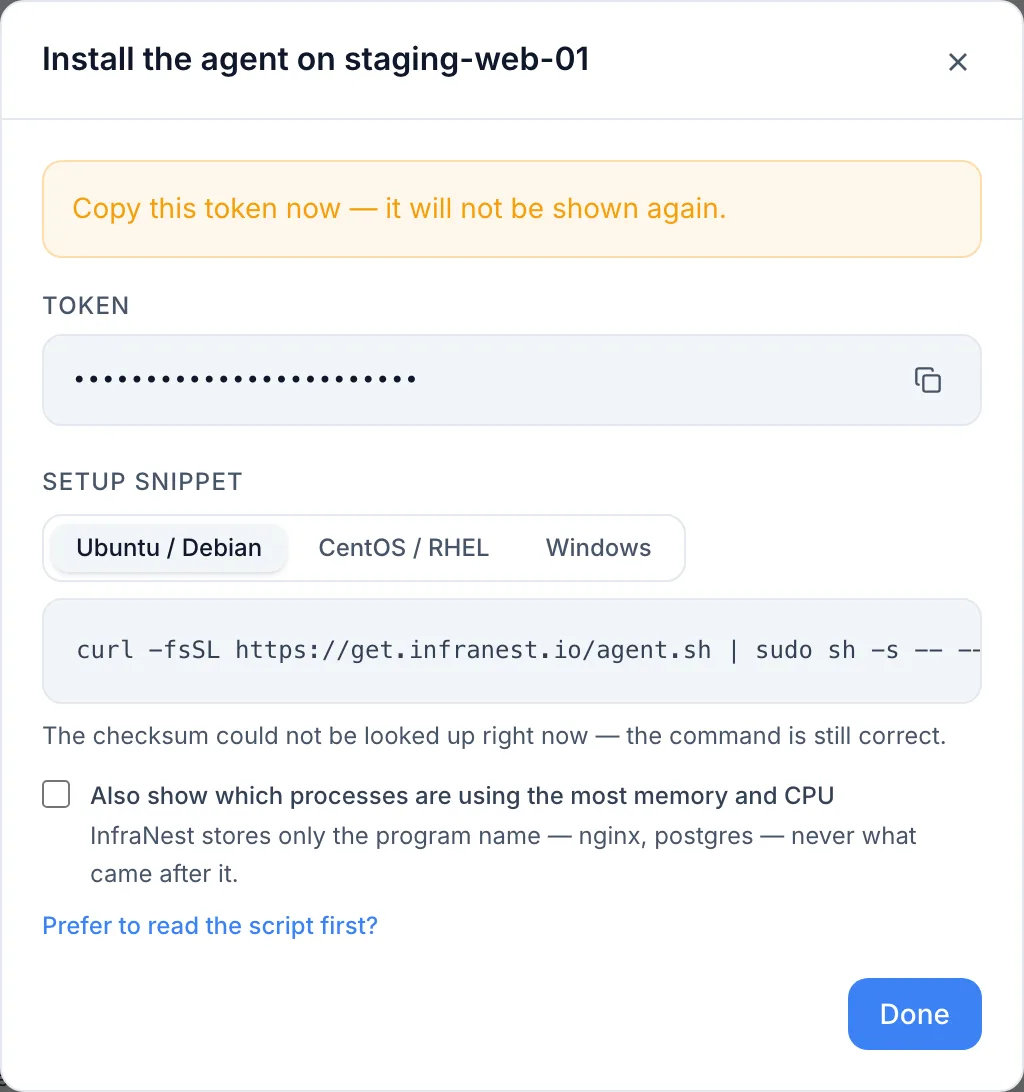
- The token is shown once. Below it is a ready-made install command with the token already filled in — pick the tab for your system (Ubuntu/Debian, CentOS/RHEL, or Windows) and copy it.
- Optionally tick Also show which processes are using the most memory and CPU — the command above updates as you tick it. This is off by default: InfraNest stores only the program name, never the full command line, and turning it on later means editing a file on the server and restarting the agent.
- Paste the command into a terminal on that server and run it. On Linux run it as root or with
sudo; on Windows run PowerShell as Administrator. - Wait about a minute, then reload the page. The greyed-out alert rules on Alerts & rules become available, and the Metrics tab starts showing memory, disk space and load.
To check it's working at any time, open the server in Monitoring and look at the Agent panel on its Overview:
- Reporting (green) — readings are arriving.
- Waiting for its first report — the agent was set up but hasn't sent anything yet. Give it a minute.
- Readings refused (amber) — the agent is reaching us, but we can't keep what it sends because the server's clock is wrong. The panel tells you how far off it is and gives you the fix.
- Not reporting (amber), with last heard from … — the agent used to report and has stopped.
The Monitoring → Servers list shows the same status for every server at once. A server whose agent has stopped shows an amber Not reporting badge in the Status column. Its figures are still shown, but greyed out with a small clock — hover to see how old they are.
An amber band above the list tells you how many agents have stopped across all your servers and names the ones on screen. Click Refresh or use the status filter beside the search box to see them all together.
#Is it safe to run on my servers?
It's worth knowing exactly what it does before you paste it anywhere. In one line: it only reads, and only sends.
- It only ever sends data out. It opens no port and listens for nothing.
- It cannot be told to do anything — there's no way for us to send it a command.
- It sends numbers, not contents: how full a disk is, not what's on it. Process names, never the full command line.
- It reads, it does not run anything, to find what's installed or listening.
- The token only works for one server, and only to send readings — it can't read or change anything else.
- It does not run as an administrator; it has its own limited account with no special powers.
- You can read the script first — it's short and plain.
NoteEach of these promises, with the check that enforces it, is on the public page What the InfraNest agent can and cannot do. The install window links to it too.
#See what it sent
- Open the server and go to System.
- Scroll to What the agent reads here and click Hide what this agent sent (or the equivalent show link) to see what arrived in the last 24 hours.
- Review each category — readings, programs and services, cron jobs, setup facts, why a service failed, error counts, job reports — along with how much arrived, what it never includes, and how long we keep it.
The same section lists each optional thing the agent can read — the system log, command lines, cron jobs, and a failed job's output — showing On or Off as the agent last reported, with the command to change it. Nothing changes until you run that command yourself.
#"Not accounted for" on the disk breakdown
The disk card lists the biggest folders on your fullest disk. Sometimes it adds a line explaining that some space is not accounted for, because the agent isn't allowed to read certain folders — commonly /var/lib/docker or /root.
That's not an error. Because the agent runs with a limited account rather than as an administrator, some folders are closed to it. It can see that they exist, but not what's inside.
#Should you grant it access?
Usually not. Most refusals are small, dull, and exactly how the system should behave — don't give the agent access to private keys or sudoers files just for a tidier breakdown.
If a genuine data folder is being missed and you want it counted, give the infranest-agent user read and execute access to that folder; the next scan (within an hour) will include it. For Docker specifically, running sudo docker system df on the server and sudo docker system prune to clean up unused space is usually the better move.
#How often it reports
The agent takes a reading every 60 seconds, but how many of those are kept depends on your plan — lower plans store one every few minutes, higher plans keep every reading. You don't need to configure this; InfraNest tells the agent its rate automatically.
This matters for alert rules: they need a window long enough to hold a few readings. InfraNest will tell you the minimum window allowed when you try to save a rule that's too short.
#What happens if the server can't reach us?
Nothing is lost. The agent keeps its readings on the server and sends them once the connection returns. It holds about eight hours' worth before discarding the oldest, so it won't fill your disk waiting.
To check its status directly on the server, run:
infranest-agent status
It answers without contacting us, so it works even when nothing else does. Two answers worth knowing:
- "InfraNest rejected this token." The token was deleted in InfraNest — that's how you turn the agent off. Create a new token and re-run the installer if this wasn't expected.
- "This machine is about 8m ahead of InfraNest." The server's clock is wrong, so readings are refused. Turn on time sync with
sudo timedatectl set-ntp true.
It never prints your token, so it's safe to paste into a support ticket.
#Turning it off
- Open the server's monitoring Overview and find the Agent panel.
- Delete the agent token there.
The server goes straight back to provider metrics, and the memory, disk-space and load rules stop being measured — InfraNest will tell you when that happens.
To remove the script from the machine as well:
- Linux —
sudo sh install.sh --uninstall - Windows (PowerShell as Administrator) —
.\install.ps1 -Uninstall
WarningDeleting the token immediately stops memory, disk-space and load monitoring for that server, and any alert rules relying on those metrics will no longer fire until the agent is reinstalled.
#Alert me when a server goes quiet
- Go to Monitoring → Alert defaults, or open a single server's Alerts & rules tab.
- Switch on The server has gone quiet under Is anything broken?.
- Choose how long the silence has to last before you're alerted.
Give it a few minutes rather than one — the agent checks in about once a minute, so a one-minute deadline can trip on a healthy server. The shortest allowed is five minutes (fifteen on plans where the agent reports every five minutes). Ten minutes is a comfortable choice on most plans.
NoteEverything on thresholds, durations, incidents and notifications works exactly the same way for the agent's metrics as for provider metrics.
Was this article helpful?
Thanks for your feedback!
Thanks, this goes straight to the docs team.