

Get alerts where you work
Pick where your team should hear about problems. You only see the steps for that tool, then the part in InfraNest.
1Pick your provider
Not listed? See all integration guides
2At Discord
Nothing to prepare at Discord: you connect it straight from InfraNest.
3In InfraNest
- Go to Integrations → Discord and select Connect (or Add account if you already have a Discord destination). You can also get here from Alerts → Destinations by selecting Add destination — both paths lead to the same place.
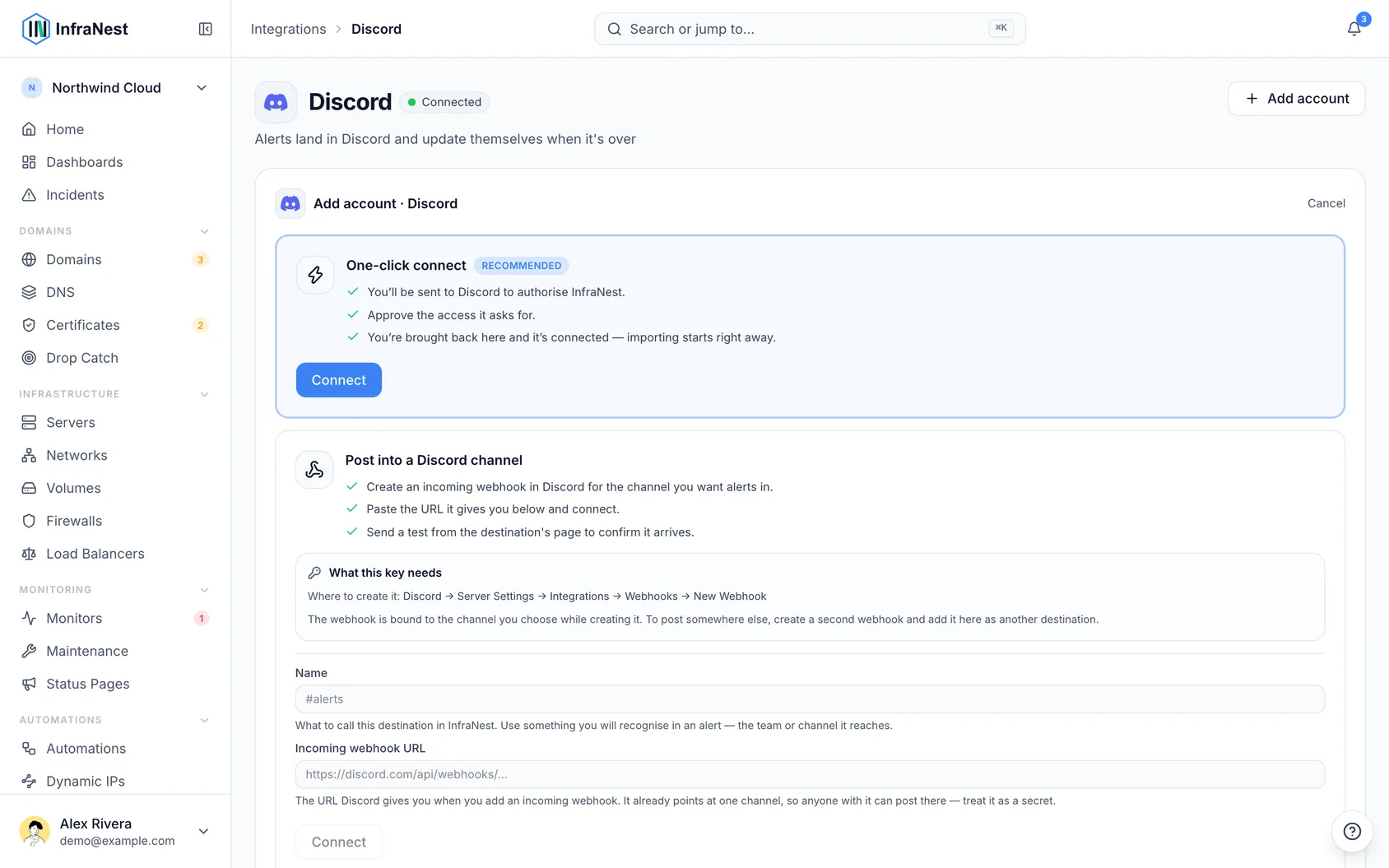
- If One-click connect is offered, select Connect, then on Discord's screen pick the server and the channel and select Authorize. Discord creates the webhook for InfraNest automatically, so there's nothing to copy. You'll need the Manage Webhooks permission on that server.
- To post into a channel with your own webhook instead:
- In Discord, open the channel's settings, then go to Integrations → Webhooks.
- Select New Webhook, give it a name (like "InfraNest"), and pick the channel.
- Select Copy Webhook URL.
- In InfraNest, give the destination a Name — the team or channel it reaches — and paste the Incoming webhook URL. Select Connect.
- Either way, InfraNest offers to Send a test. Do it, and check the message appears in the channel.
2At Email
Nothing to prepare at Email: you connect it straight from InfraNest.
3In InfraNest
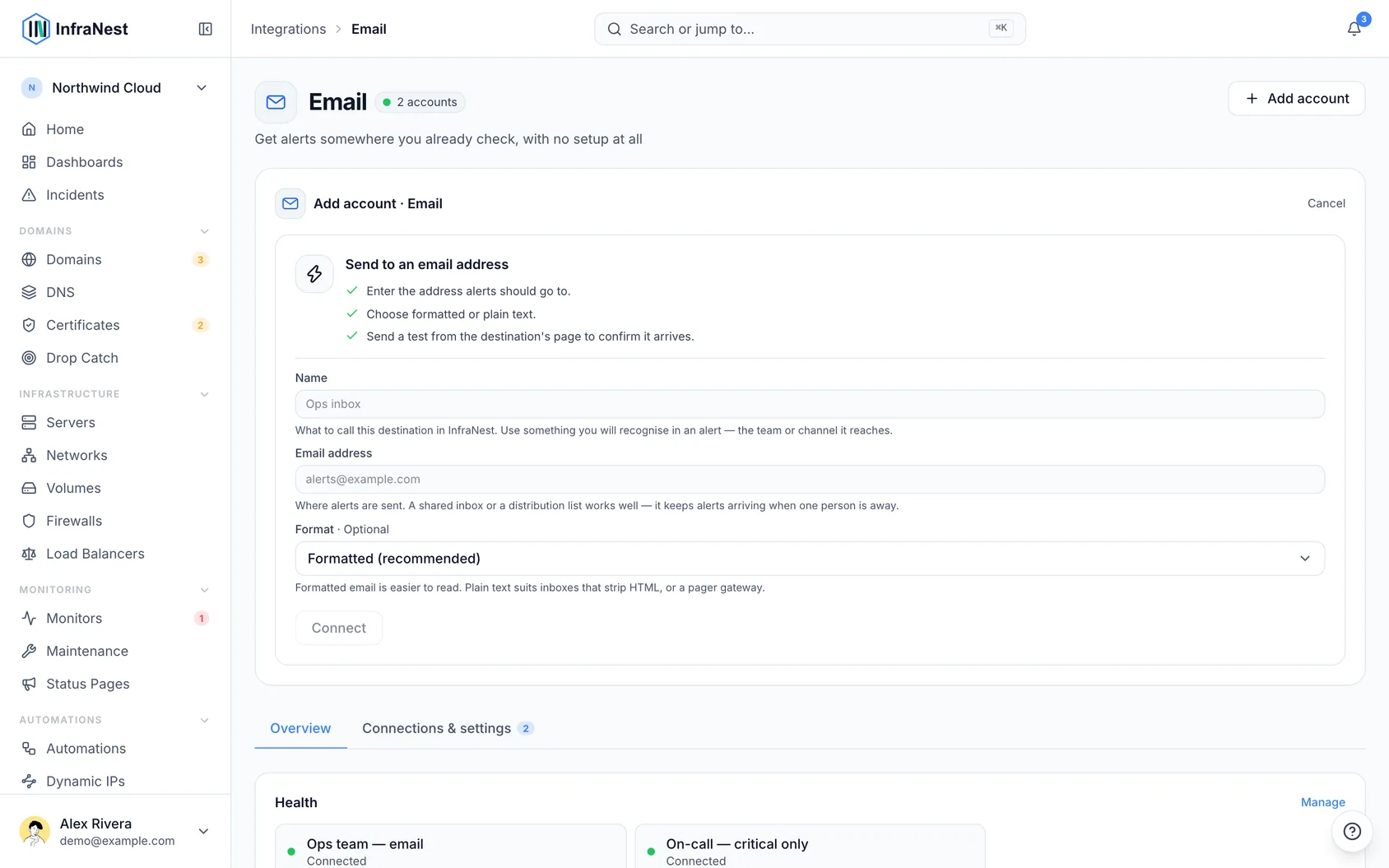
- Go to Integrations → Email and select Connect (or Add account if you already have an email destination). From Alerts → Destinations, Add destination takes you to the same place.
- Under Send to an email address, give it a Name, enter the Email address, and choose the Format: Formatted (recommended), or Plain text for inboxes that strip HTML or a pager gateway.
- Select Connect.
- InfraNest offers to Send a test straight away. Do it, and check the message arrives.
2At Microsoft Teams
You'll need a workflow URL for the Teams channel you want alerts in:
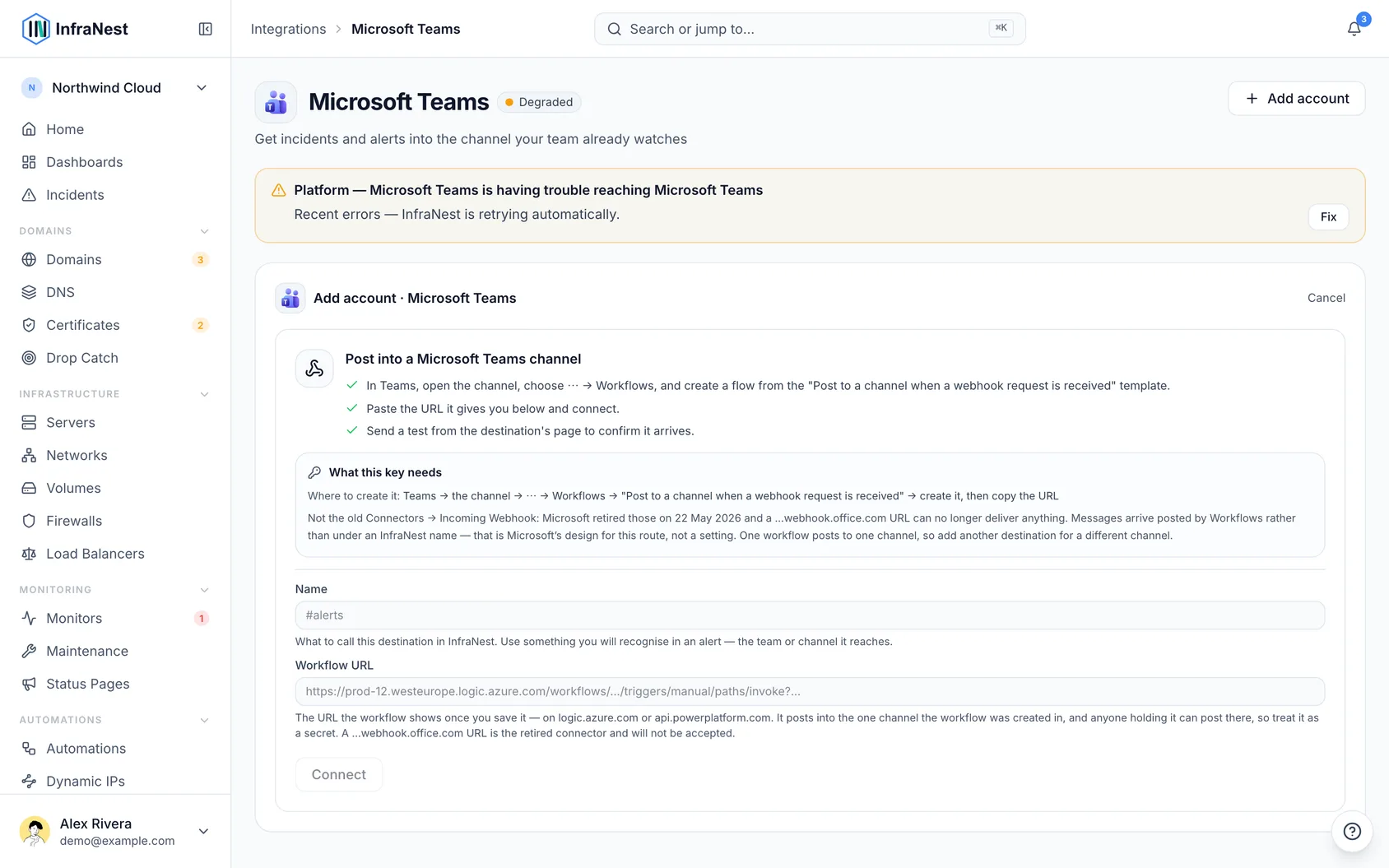
- In Teams, open the channel and select ⋯ → Workflows.
- Choose the Post to a channel when a webhook request is received template and create it.
- Copy the URL the workflow shows when you save it. It will be on
logic.azure.comorapi.powerplatform.com.
NoteThis is not the old Incoming Webhook connector. Microsoft switched those off on 22 May 2026, so a URL containing
webhook.office.comcan no longer deliver anything — InfraNest will not accept one. Many search results still describe that older route; the Workflows steps above are the current one.
3In InfraNest
- Go to Integrations → Microsoft Teams and select Connect (or Add account if you already have a Teams destination). From Alerts → Destinations, Add destination takes you to the same place.
- Under Post into a Microsoft Teams channel, give it a Destination name — the team or channel it reaches — and paste the Slack webhook URL field's Teams equivalent, the workflow URL.
- Select Connect.
- InfraNest offers to Send test straight away. Do it, and check the message appears in the channel.
2At PagerDuty
Nothing to prepare at PagerDuty: you connect it straight from InfraNest.
3In InfraNest
Connect with one click
- Go to Integrations and select PagerDuty.
- Set PagerDuty service region to European Union if your account is at
eu.pagerduty.com. Otherwise, leave it on United States. - Select Connect. In the PagerDuty window, sign in if asked and select Authorize.
- Back in InfraNest, choose the Choose a service to page.
- Review what InfraNest will set up, then select Finish this PagerDuty installation.
TipIf a step needs a PagerDuty role you don't have (usually the webhook, which needs an Admin), InfraNest tells you before you finish, sets up everything else, and gives you a link to send to an admin for that one step.
To page another service later, select Add account on the account.
Connect with an integration key
- Go to Integrations, select PagerDuty and open Use an integration key.
- Choose the PagerDuty service region, paste the Integration key, and select Connect.
- On the new account, select Send monitor alerts here.
To get acknowledgements and notes back from PagerDuty as well, follow If you connected with an integration key.
Check that it works
- On the account, select Send test incident.
- InfraNest triggers a real incident on the service (on-call may be notified) and resolves it right away.
- InfraNest shows whether PagerDuty accepted the incident and whether PagerDuty reported back.
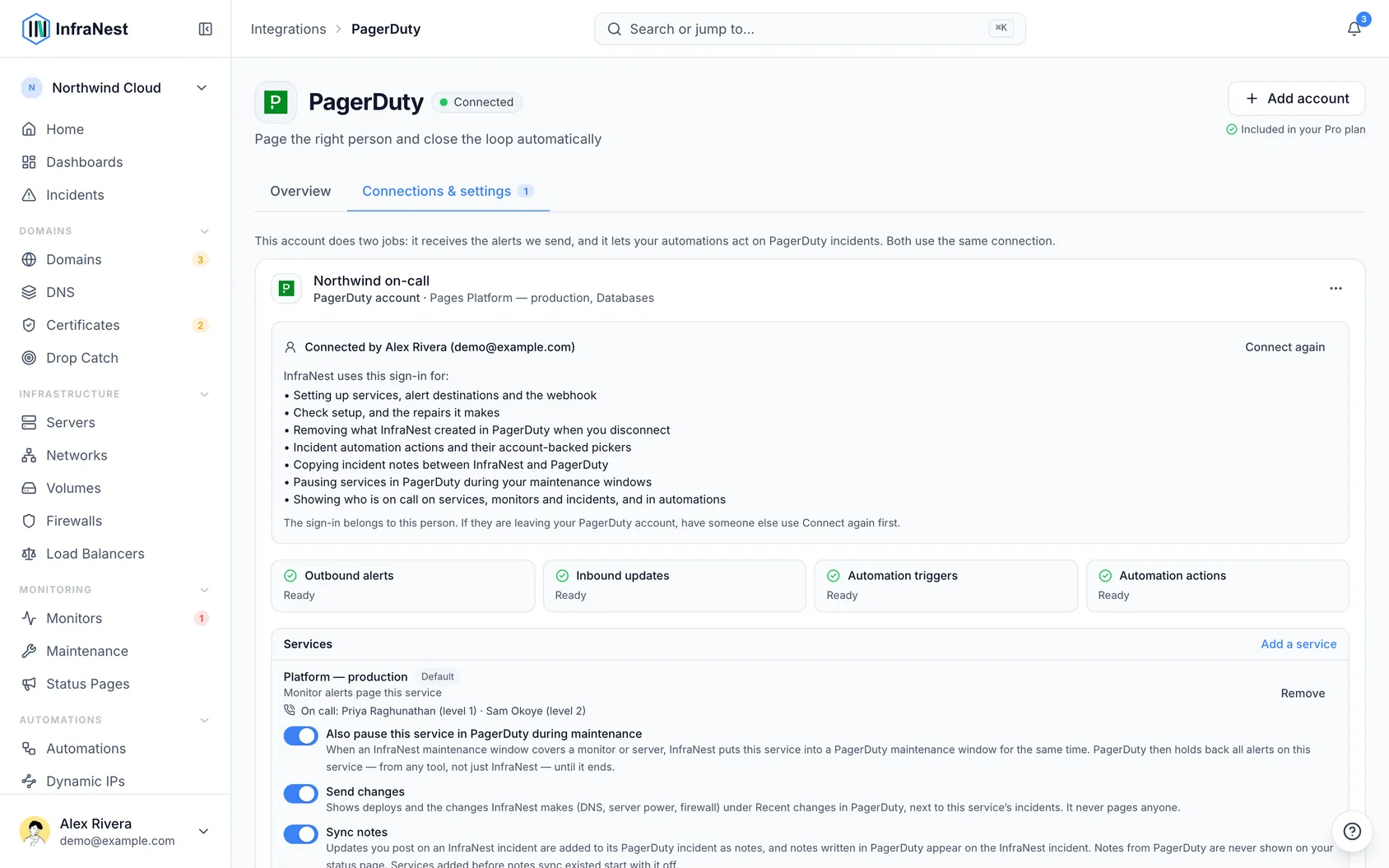
When everything is set up, the account shows Ready for Outbound alerts, Inbound updates, Automation triggers and Automation actions.
2At Slack
Nothing to prepare at Slack: you connect it straight from InfraNest.
3In InfraNest
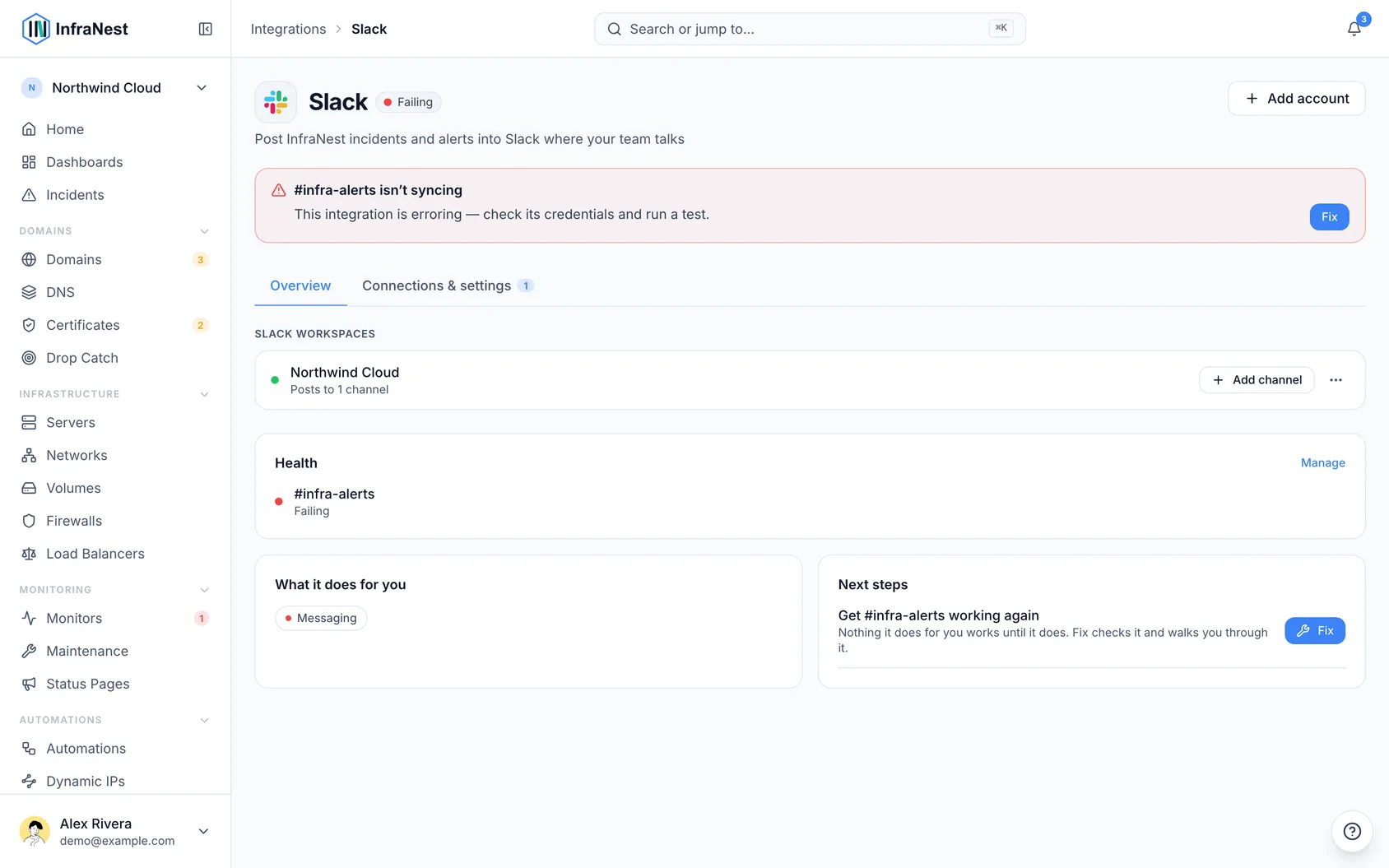
- Go to Integrations → Slack and select Connect.
- Slack asks you to add InfraNest to your workspace. Check the workspace in the top right, then select Allow.
- Back in InfraNest, pick the channel the alerts should go to. You can add more channels to the same workspace later with Add channel.
- Select Send a test next to the new destination to check that an alert arrives in the channel you expect.
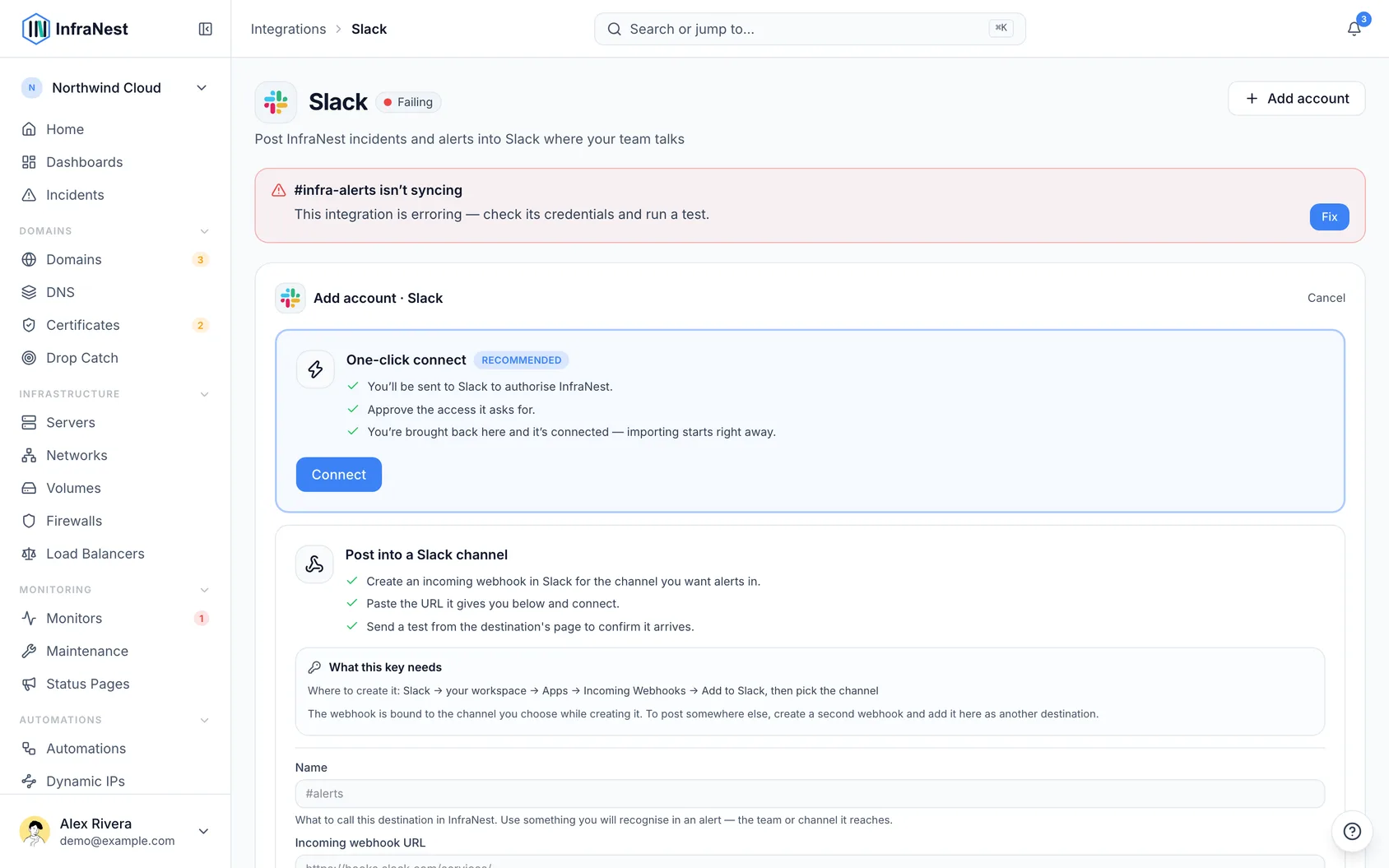
After you allow it, InfraNest sends you a welcome message in Slack. You're linked to your InfraNest account straight away, and you can pick the first channel and send a test alert from that message without coming back here. When a channel starts getting alerts, InfraNest introduces itself there once, so your team knows what the messages and buttons are.
TipYou can also type
/invite @InfraNestin any channel instead of starting from InfraNest. InfraNest then asks you, privately, whether to send your alerts there.
Private channels: a private channel only shows up in the list once you invite @InfraNest to it in Slack (type /invite @InfraNest in the channel). Public channels work without an invite.
2At Telegram
Nothing to prepare at Telegram: you connect it straight from InfraNest.
3In InfraNest
- Go to Integrations, then Telegram, and click Connect (or Add account if Telegram is already set up).
- You'll see three options. Choose Add a Telegram group — this is the recommended way for teams.
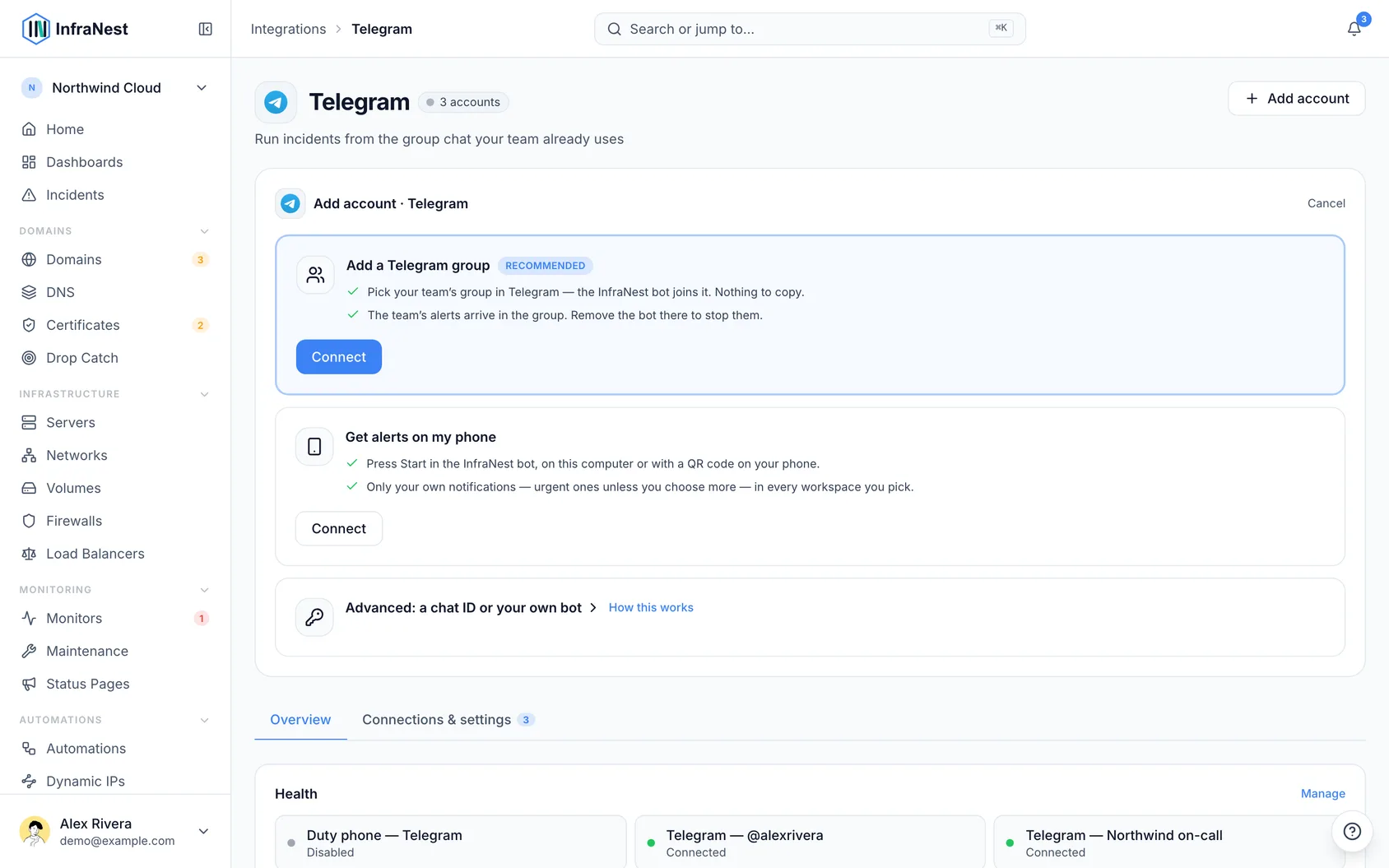
Click Connect under Add a Telegram group.
Open Telegram and pick your team's group:
- On this computer: click Open in Telegram.
- On your phone: scan the QR code.
The link works once, for 15 minutes. The dialog shows Waiting for you to pick a group… until you do.
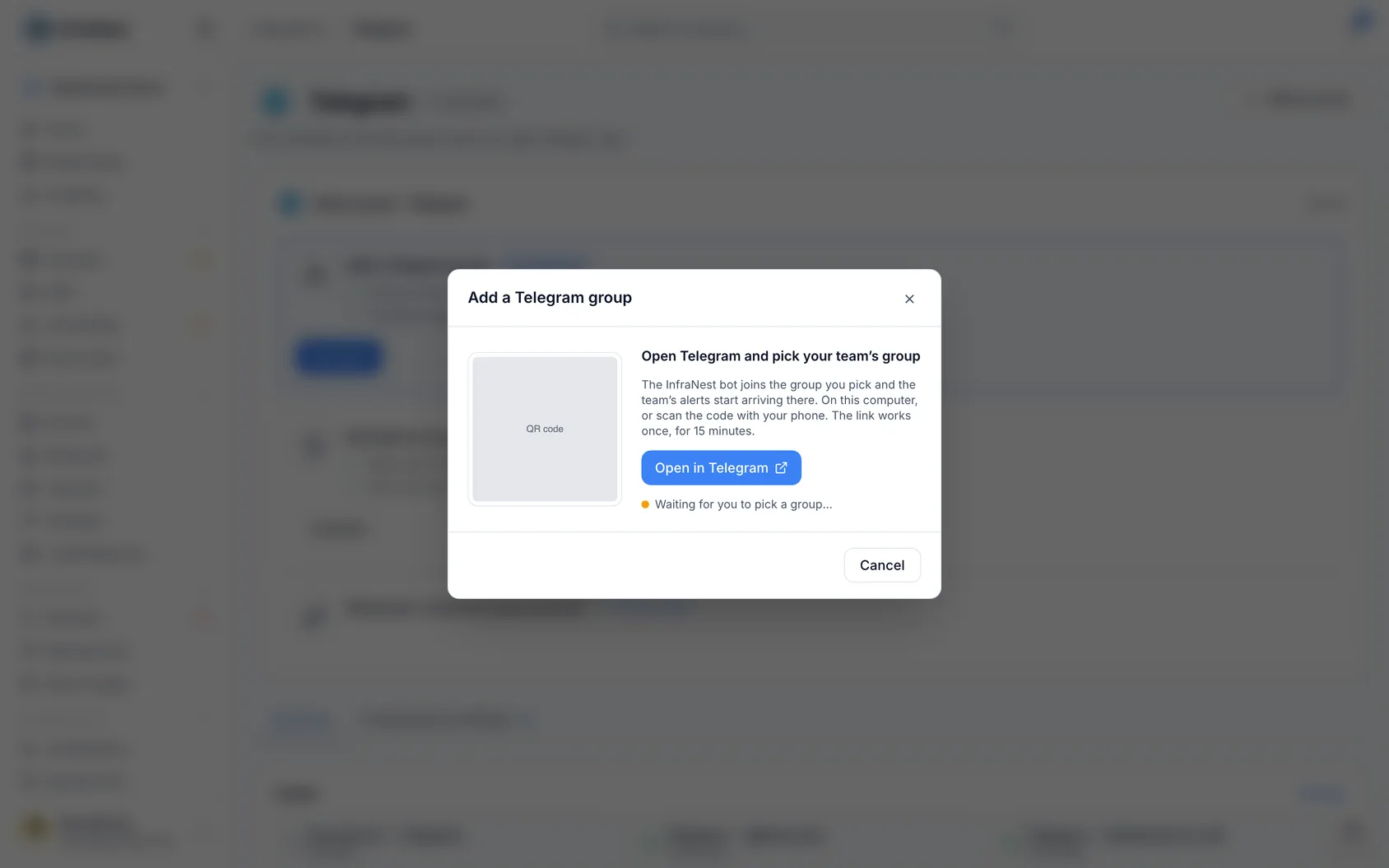
- Telegram will ask which group to add the InfraNest bot to. Pick your team's group and confirm.
- In the group, the bot posts a message confirming the link. In InfraNest, the dialog shows Linked: Telegram — Northwind on-call (or your group's name).
- Click Done. The group now appears as a destination, named after your group.
If your plan has no room for another chat, InfraNest will tell you before Telegram even opens. If Telegram says the group can't be added, something changed in the 15-minute window — the person who started it may no longer be able to add destinations, or the plan filled up. If the link expired, select Get a new link.