

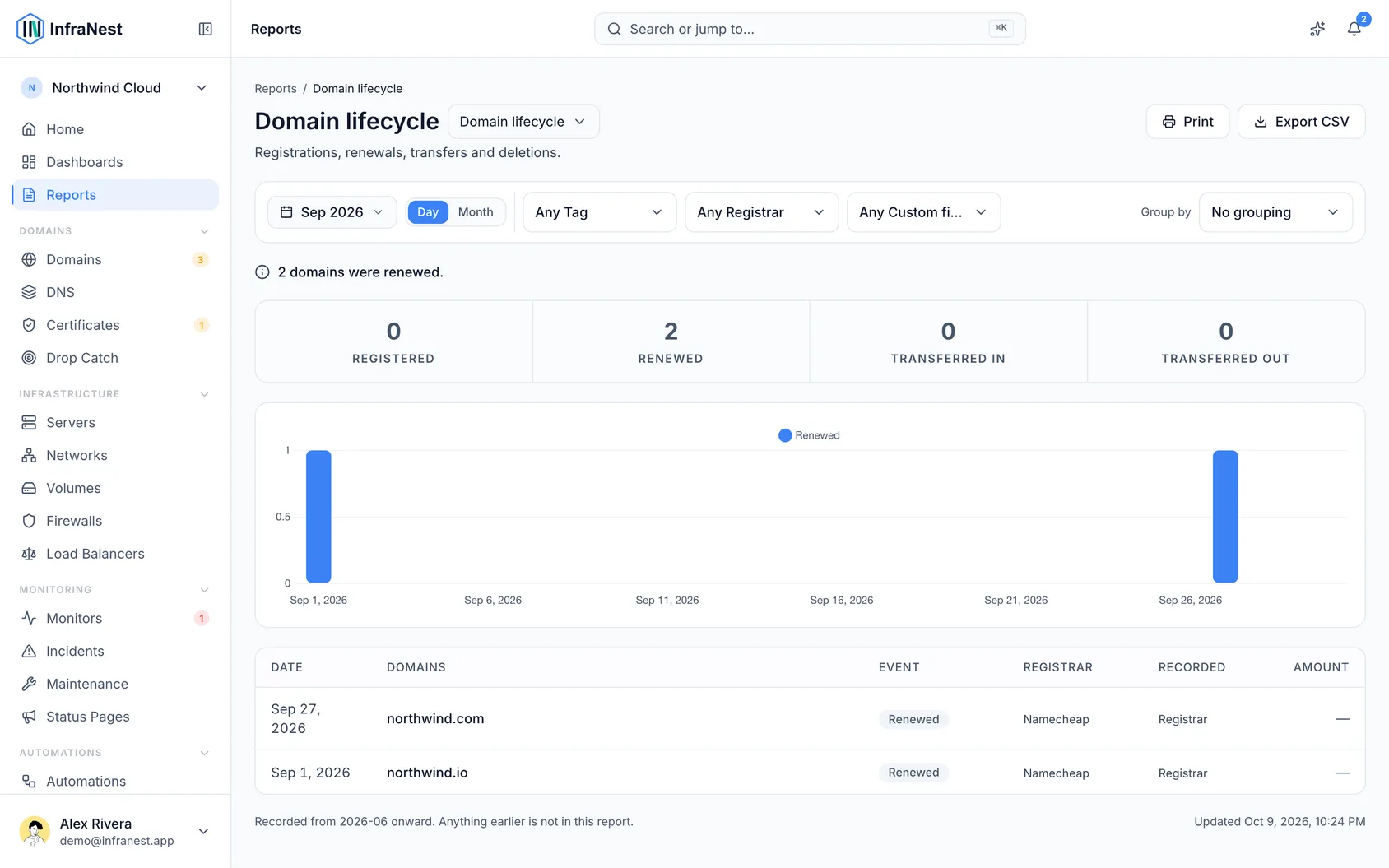
The Domain lifecycle report shows what happened to your domains over a month, quarter or year you pick — registrations, renewals, transfers in and out, expiries and deletions. It's for anyone who needs to check or report on domain activity over time, not just see what's active right now.
#Overview
- Shows counts per event type for the period you choose: registered, renewed, transferred in, transferred out.
- Includes a chart of when events happened, by day or by month.
- Lists every event as a row, with date, domain, what happened, which registrar, and the amount where there was one.
#Why this isn't just a filter on the Domains list
Your Domains list shows what you have right now. A domain you registered in January and transferred away in March won't be there any more — so filtering that list by date would quietly leave it out, and you'd have no way of knowing.
This report reads a separate record that keeps events even after the domain itself is gone. That's what lets it honestly answer a question like "what did I register in January."
#Check how an event was recorded
- Open the report and find the event you want to check.
- Look at the Recorded column to see how InfraNest knows about it:
- Registrar — they told us directly, usually by webhook.
- Detected — we worked it out. For example, a domain that stops appearing in your registrar's list for two syncs running is treated as gone.
- By you — you did it here in InfraNest.
NoteA detected departure is our best reading of what happened — not a confirmed statement from the registrar. Keep that in mind if you're relying on it for something formal.
#Read the amounts
- Check the amount column for renewals, registrations and transfers — it shows what they cost, where InfraNest has that information.
- For deletions and expiries, expect a dash instead of a figure. These cost nothing, and showing €0.00 would look like a measured value rather than genuinely nothing.
#Choose a period
- Pick the month, quarter or year you want to look at.
- If you pick a period before InfraNest started keeping this record, the report tells you so and names the date it starts from.
NoteAn empty period like this is empty for everyone, not just you — your filters haven't hidden anything. Domains that had already left before the record started can't be recovered; their history only ever existed in the audit log, which is cleared on a schedule.
#Filter by tag
- Apply a Tags filter to narrow the report to domains with a particular tag.
- Keep in mind that tags live on the domain, not on the event. If a domain has since been removed entirely, its tags went with it — so any of its events can't be matched by a tag filter.
- The report tells you how many events are affected this way, rather than quietly leaving them out.
#Export the report
- Set the period and any filters you want.
- Select Export CSV to download the events for that period as filtered.
TipEvery export is recorded in your Audit Log, so you can always confirm who pulled a report and when.
Was this article helpful?
Thanks for your feedback!
Thanks, this goes straight to the docs team.