

Search for a domain and register it through one of your connected registrars, without leaving InfraNest — including domains with accents or in another script.
#Overview
- Search once and InfraNest checks every connected registrar at once, showing the first-year price and the renewal price for each.
- Add several names, or check several endings for one name, before paying for anything.
- InfraNest checks each order for problems — missing contact details, an unsupported ending, no credit — before you pay.
- Choose where the domain points as part of registering it, including creating a ready-to-use DNS zone automatically.
#Register a domain
- Go to Domains and select Add domain.
- Enter the name you want. InfraNest asks every connected registrar at once and shows a row for each, with the first-year price and what it renews at.
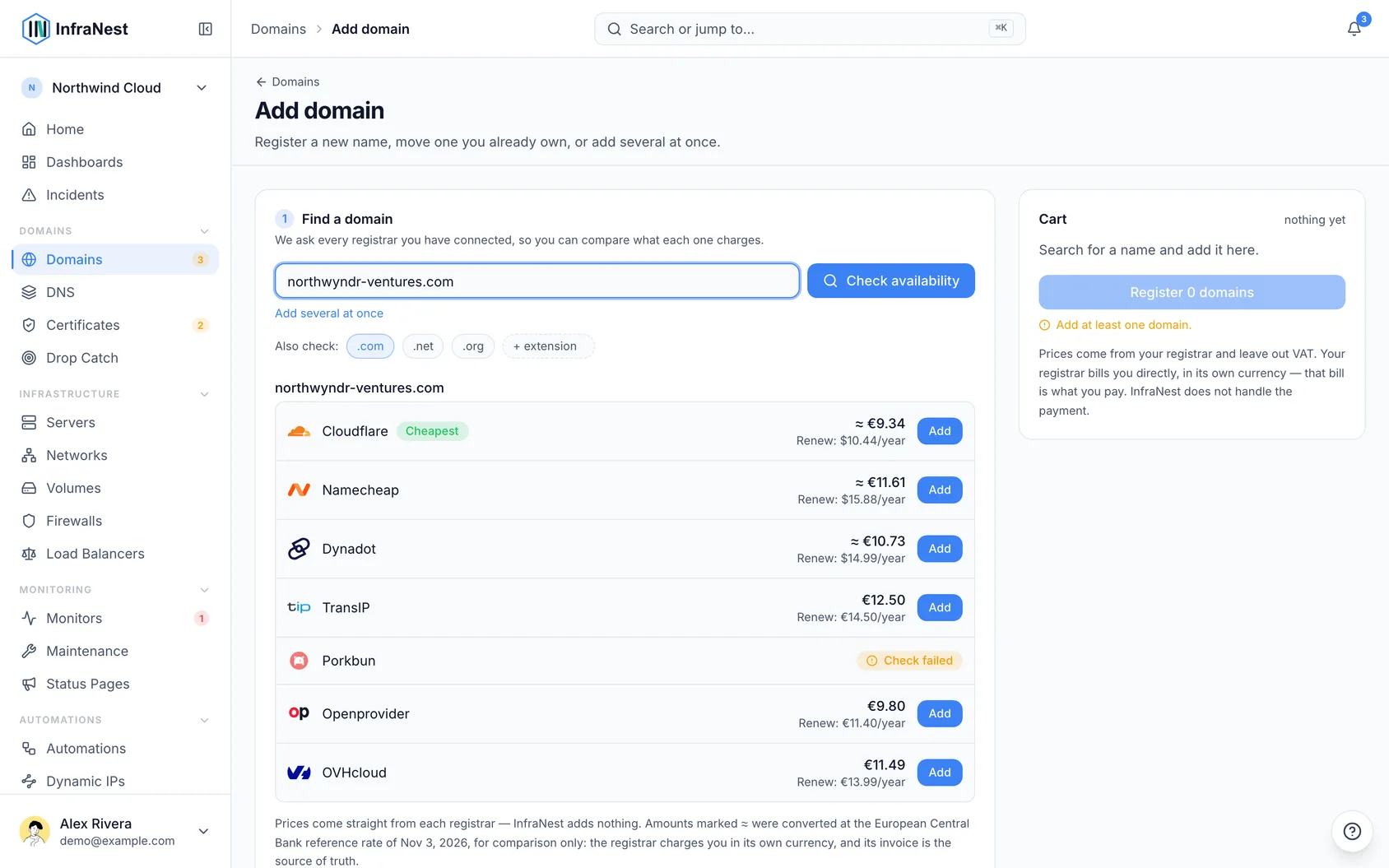
To compare endings, tick the extra ones under Also check —
.com,.netand.orgare offered, and you can type any other. Results are grouped one block per name.Type an ending that doesn't exist and InfraNest says so straight away, rather than adding a chip that could only ever come back empty. Endings with accents or in another script are fine — type
.рфor.中国as you normally would.Select Add on the registrar you want. It goes into the cart on the right. (Registrars that can manage but not register a domain are left out of this step.)
Add as many names as you like — searching again keeps what's already in the cart. To check a list of names at once, use Add several at once and paste them one per line.
As each name goes into the cart, InfraNest asks whether that order would actually work — before you pay for it. If the registrar you picked doesn't sell that ending, if the contact is missing something every registry insists on, if the ending needs an extra answer, if your plan has no room, or if a prepaid account is out of credit, it says so beside the line and the button stays off until it's sorted. Where the fix is at the registrar, there's a link straight to the right page.
If a check can't be run — a registrar's price list is briefly unreachable, say — nothing is blocked. You can still order, exactly as before.
Set the term, nameservers, WHOIS privacy and auto-renew once for everything you're registering, and choose the contact to use.
Some domain endings need extra details — for example .us, .ca, .uk or .eu. InfraNest asks for those once per ending, however many names of it are in the cart.
Check the cart — each registrar's charge is listed separately, because two registrars means two charges — then select the button at the bottom. It names what it will do and what it costs, for example Register 2 domains · €25.98. Each one runs in the background, and their statuses update as they complete.
NoteIf the button is greyed out, the summary lists exactly what's missing or blocking — a required field, no contact yet, a contact missing details a registry insists on, or the name having been taken since you searched.
#Names with accents or in another script
münchen.de, café.fr and пример.рф are ordinary domains and you can search for and register them here, typed exactly as you'd write them. Behind the scenes every registrar wants these in a technical form that looks like xn--mnchen-3ya.de, so that's how they appear in your portfolio and on the registrar's invoice — it's the same name.
#If a search comes back with nothing
InfraNest tells you which part it couldn't use, rather than a single "no results":
- "There is no such extension as .cmo" — the ending you typed isn't a real one. Check the spelling. InfraNest keeps a current list of every ending that exists, so it can tell a typo from a name nobody has registered yet.
- "Not a domain name, so it was skipped" — something in what you typed can't be part of a domain, usually a space or a stray character. This one is also shown while you paste a list, before you search, naming the lines it won't send.
Names that were fine are still checked, so a list of twenty with two typos in it still returns the other eighteen. Nothing you're refused here counts against your hourly search allowance.
#Already registered? Transfer it instead
If a name you search is taken, InfraNest says so and offers Add transfer on any registrar that can bring it in. Transfers go in the same cart as registrations, so you can register some names and transfer others in one go. The price shown on a transfer row is the transfer price, which usually includes an extra year.
You'll need the auth code (sometimes called an EPP code) from your current registrar for each transfer. InfraNest checks the usual reasons a transfer fails before you start — see Transfer a domain.
#Where the domain points
Every domain needs nameservers — they're what tells the internet which servers answer for your name. There are three choices, set once for everything you're registering:
- Use the registrar's nameservers. The domain parks safely and does nothing until you point it somewhere. Fine if you're buying a name to hold onto.
- Point somewhere else. Type the nameservers you already have, from whoever hosts your DNS. Most registries want at least two.
- Use one of your DNS providers. InfraNest creates the DNS zone in your own account at a provider you've connected — Cloudflare, Hetzner, DigitalOcean — and points the domain at it. Pick which account, and optionally a set of starting records so the zone isn't empty when it arrives.
#Using one of your DNS providers
This is the quickest way to get a new domain working: you end up with a zone you can add records to on the DNS page, already connected to the domain, without setting anything up by hand.
The zone lives in your account at that provider, not with InfraNest — we create it there on your behalf and manage it from here. Disconnect the integration later and the zone stays exactly where it is.
It happens once the registrar confirms the registration, not when you press the button — until then the registrar has an order rather than a domain. Usually that's a few minutes. If the registration doesn't go through, no zone is created, so a name you didn't end up buying never leaves anything behind in your Cloudflare account.
With some providers (Cloudflare and Amazon Route 53) the nameservers are decided when the zone is created, so the domain uses the registrar's own for those first few minutes and then switches. With others (Hetzner, DigitalOcean) the nameservers are always the same, so the domain points at them from the start.
NoteThe option is greyed out when there's nothing it could do, and says why underneath — you haven't connected a DNS provider yet, the ones you have only host DNS for domains registered with them, or your plan has no DNS zones left.
Already have DNS somewhere and want to keep it there for now? Choose Point somewhere else, or use the registrar's nameservers and move it later — see Add a DNS zone.
#Starting records
A brand-new zone is empty: it knows the domain exists and nothing else. Starting records fills it in for you, from the same DNS templates you'd apply on the DNS page — a mail provider's MX and SPF records, a security baseline, a starter set for a static site.
Pick one under the DNS account and the page lists exactly what it will create, record by record, before you buy anything. Worth reading: a template you saved from another zone can carry an address that belongs to a different site, and this is the moment to notice.
The records are created in the new zone in your own account at that provider, as soon as the zone exists. Anything the provider has already put there is left alone — nothing is overwritten — and you can change, add to or delete all of it afterwards on the DNS page.
Leave it on Just the zone to get the empty zone and fill it in yourself.
NoteStarting records are part of a paid plan. Without them the zone is still created, and you can apply the same templates to it from the DNS page afterwards.
#WHOIS privacy and auto-renew
Both are set once for everything you're registering.
- WHOIS privacy hides your name, address and phone number from public WHOIS lookups. Some endings do this by default, and a few registries don't allow it at all.
- Renew automatically lets the registrar renew the domain before it expires so it can't lapse by accident. You can change it later on the domain's own page.
They're applied as soon as the registrar confirms the registration, not at the moment you press the button — until then the registrar has an order rather than a domain. If the registrar you chose can't change one of them through its API, the switch is turned off and says so; set it in the registrar's own control panel instead.
#Premium domains
Some names are priced by the registry rather than by the registrar's normal rate card, and they're marked Premium in the results. Before registering one, InfraNest asks you to confirm: the amount actually charged can be far higher than the price shown — sometimes many times higher — and the renewal price can differ too. Check the exact price with the registrar first.
#"Price not confirmed"
Not every registrar can tell us whether a name is premium. Where none of yours could, the name is marked Price not confirmed and the row adds Standard rate — not confirmed for this name under the price.
That means the figure shown is the ordinary price for the extension, so it's only right if the name turns out not to be premium — and nobody was able to confirm that either way. You'll get the same confirmation step before buying. If the name matters to you, ask the registrar for its exact price first.
The label disappears as soon as any of your registrars gives a straight answer, so connecting a registrar that reports premium names is the simplest way to see fewer of them.
#Comparing prices across registrars
Registrars quote in their own currency, which makes a column of raw numbers hard to read. So each row shows the price converted to your workspace's currency as the large figure, with the registrar's own amount underneath — for example ≈ €11.94 above $12.98 charged.
- The converted figure is for comparison only. The registrar bills you in its own currency, and its invoice is what counts. Conversion uses the European Central Bank's reference rate, and the date is shown under the results.
- Cheapest is only shown when it is genuinely clear-cut. If two registrars are within a couple of percent of each other in different currencies, no badge appears — tomorrow's exchange rate could swap them round.
- Watch the renews at price, not just the first year. A cheap first year with an expensive renewal is common.
#Troubleshooting
#A registration failed
A registration that failed didn't get you the domain — so the name is usually still out there, and you can order it again.
Open the domain in your portfolio. The red banner at the top says what went wrong, and next to it is Order it again, which takes you back to the search with the name filled in. Search rather than reorder blind: it shows whether the name is still free, what it costs today, and which of your connected accounts can sell it — any of which may have changed since you first tried.
If the order failed because of something at the registrar — no payment method, not enough credit, an account not cleared for that ending — fix that first, or the same thing happens again. The banner names the reason, and where the fix is on the registrar's own site there's a link straight to it.
NoteOccasionally InfraNest will say the previous order is still open at your registrar. That means the first order hasn't failed after all — it's still being processed — and ordering again could buy you the same name twice. Give it a little longer and check the domain again.
#Bringing back a domain that left
A domain you transferred away stays in your portfolio as a record. It's yours to bring back whenever you like: open it, then Order this name again under Actions.
That takes you to the same search, which decides which of the two routes is open. If somebody still holds the name — usually you, at the other registrar — it's offered as a transfer in, and you'll need the auth code from wherever it lives now. If the name has since been released, it's offered as an ordinary registration.
#Tips
- A contact needs a street, postcode, city and phone number before a registry will accept it as the registrant. Contacts missing any of those are grouped under Missing details in the picker, and the page names what's missing. You can add a contact without leaving the page, so building a cart and then needing a contact doesn't lose your work.
- If a registrar doesn't offer a particular ending, you'll see a clear "not offered" note instead of an error. One registrar being unreachable only affects its own row — the rest of the results still appear.
- Searching is rate-limited per hour by your plan, and one name is one search — ticking four endings counts as four. Names InfraNest can tell are impossible never reach a registrar, so they cost nothing.
- Domains you register join your portfolio automatically.
- Need contact details first? See Manage domain contacts.
Was this article helpful?
Thanks for your feedback!
Thanks, this goes straight to the docs team.