You already ask Claude or ChatGPT to rewrite an email or explain an error message. Now you can also ask it about your own servers, websites, domains and DNS: "Is anything down?", "What changed before the shop broke?", "Which domains expire this month?" It looks the answer up in your InfraNest account and replies in plain words.
It works with Claude, ChatGPT, Cursor, VS Code, Gemini CLI and other assistants, on every InfraNest plan, including Free. Below are five everyday moments where it helps, what it can and can't do, and how to connect it in two minutes.
What is the InfraNest MCP server?
MCP (Model Context Protocol) is a standard plug that lets an AI assistant connect to other software. The InfraNest MCP server lets Claude, ChatGPT and other assistants look into your InfraNest account and, only if you allow it, take a few simple on-call actions. In Claude and ChatGPT it shows up as a connector. From here on we'll just say "your assistant".
1. Saturday evening: the webshop is down
You're at a birthday party when the alert comes in: checkout is returning errors. You don't have your laptop. You open Claude on your phone and type:
Is anything down right now?
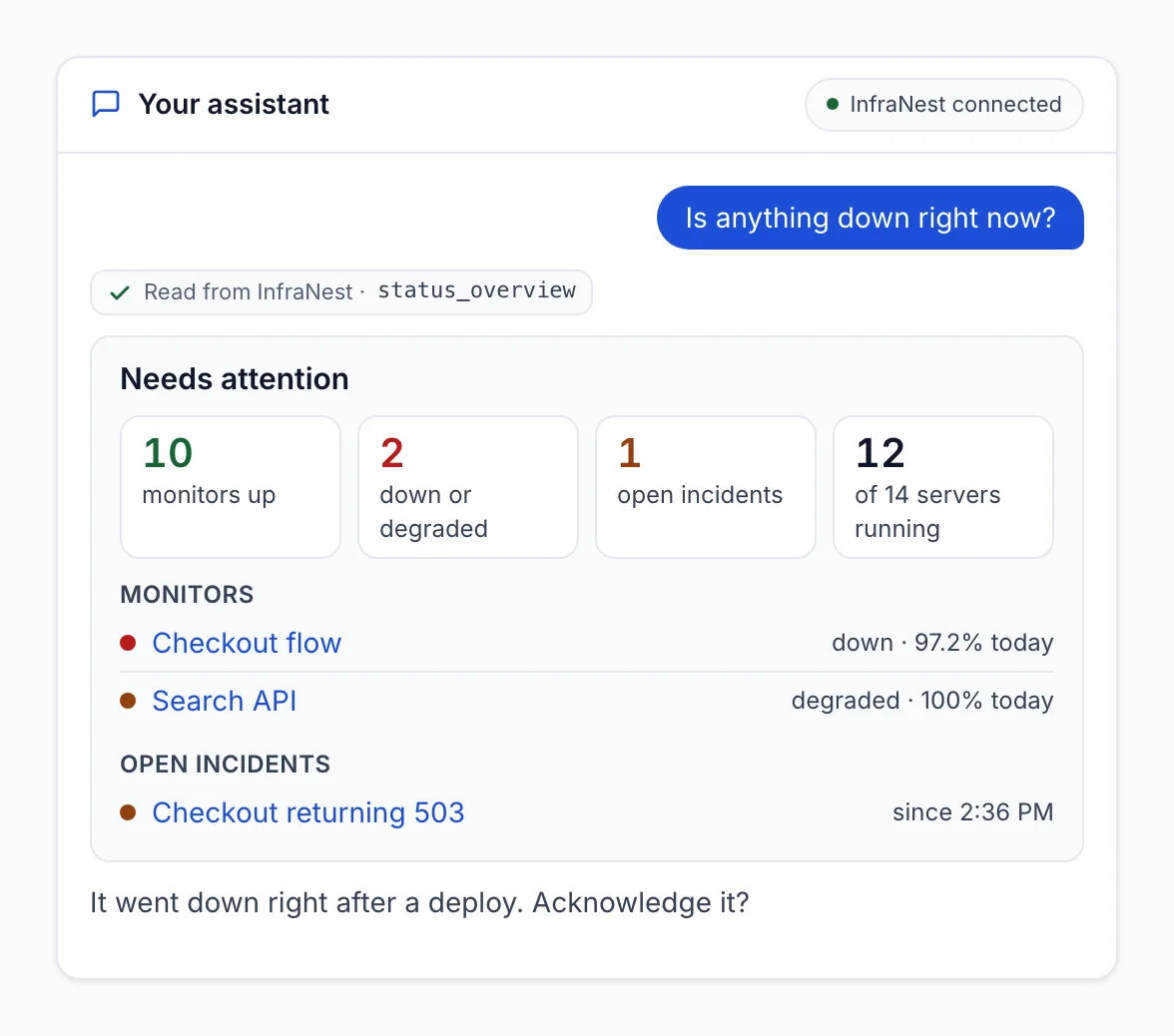
One question, one overview: which monitors are down, which incidents are open, how many servers are running.
Then the real question: why? On every incident page in InfraNest there's an Ask Claude or Ask ChatGPT button once you've connected one. It opens your assistant with the question already written: what caused this, what changed just before it, and what to do next.
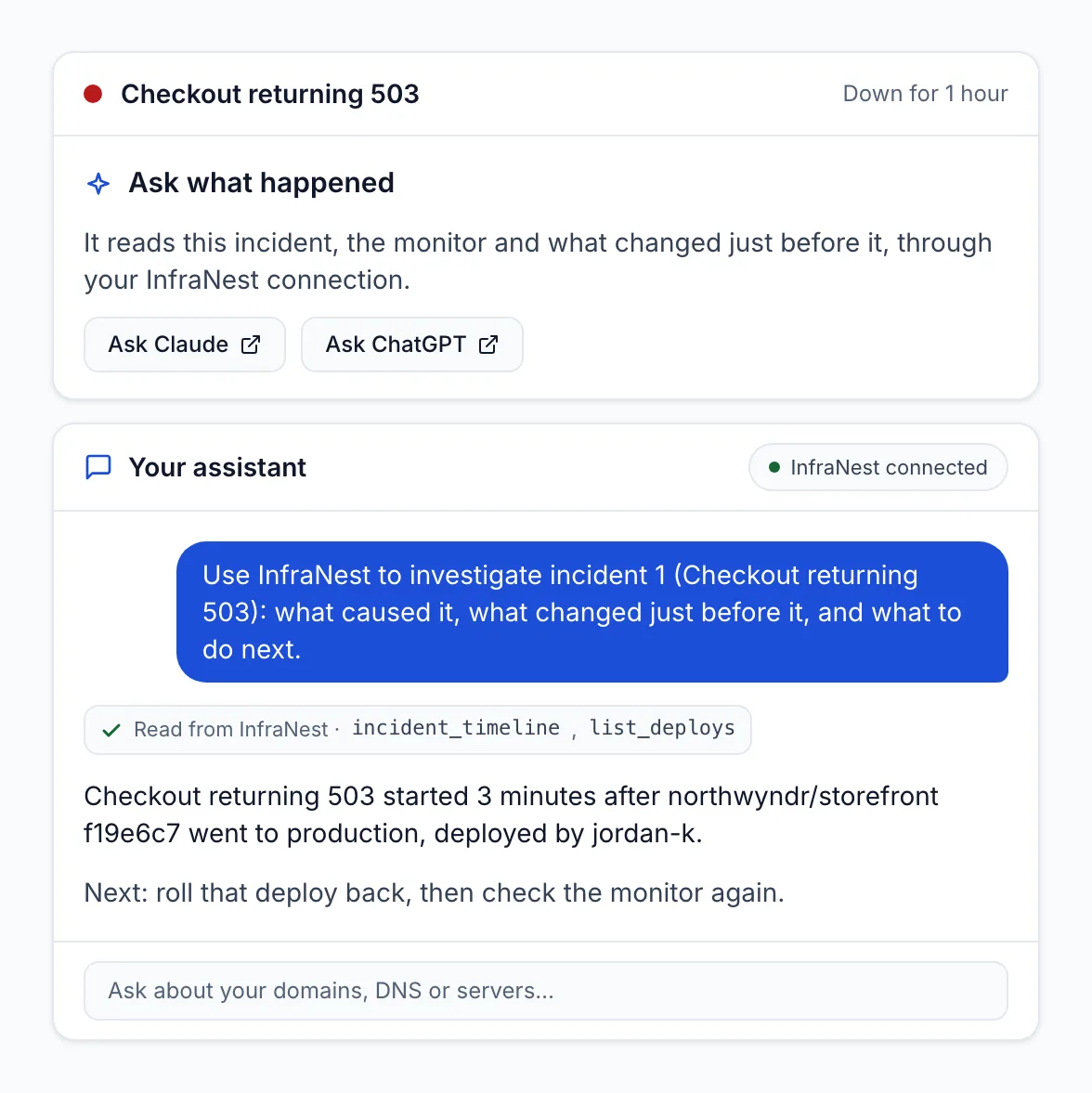
The assistant checks the incident, the monitor and what changed just before it, and finds the deploy that went out 3 minutes earlier.
To find "what changed", it looks in four places at once: changes people made in InfraNest (the audit log), deploys, DNS changes made in InfraNest, and DNS changes made directly at your DNS provider, outside InfraNest. That last one is often the answer nobody thinks to check.
2. Monday morning: what needs doing this week?
You look after the domains and websites of a dozen clients. Instead of clicking through every one, you ask:
Which of my domains need attention?
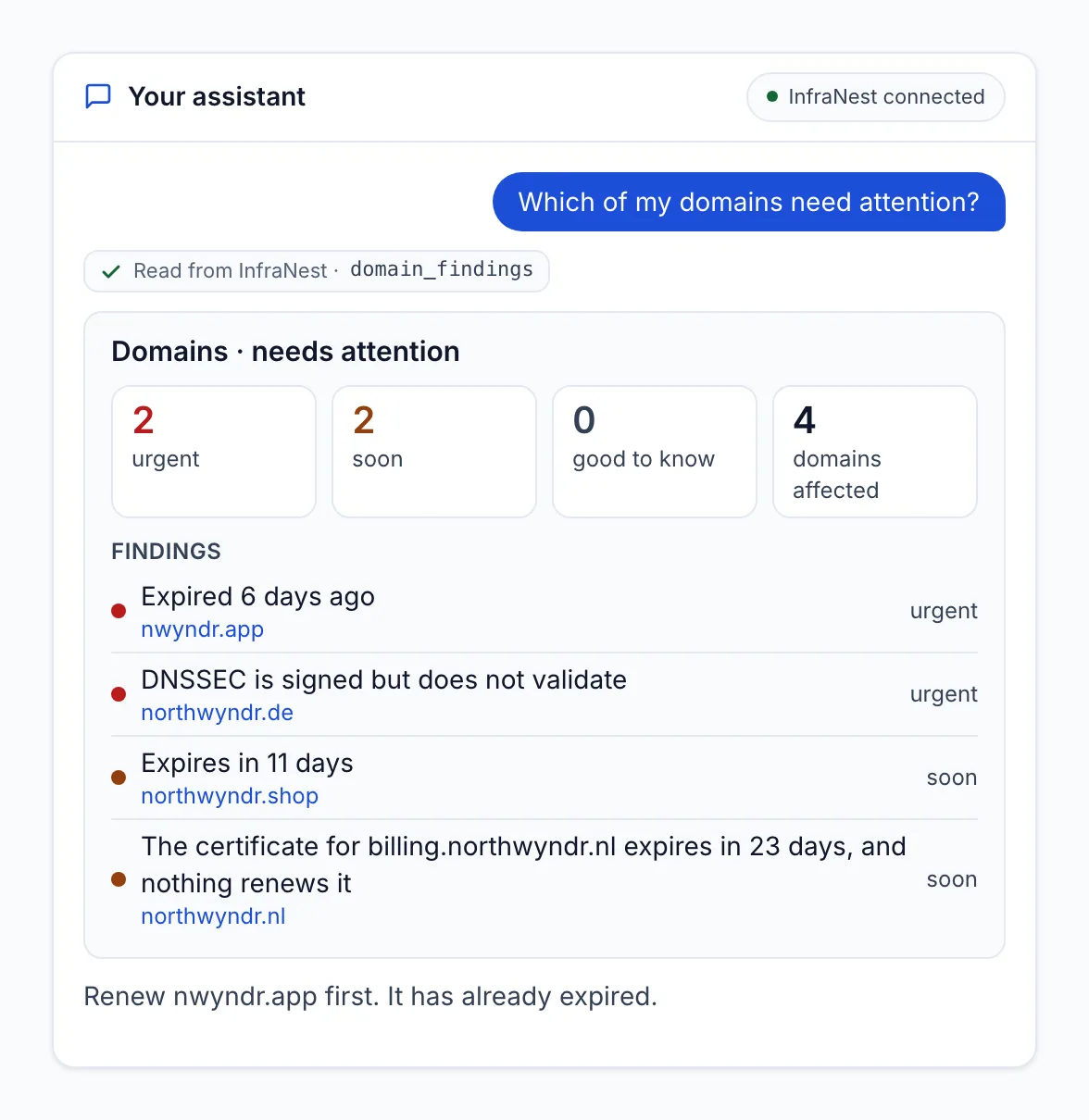
Expired domains, broken DNSSEC, certificates that nothing renews: urgent first, with the advice on what to do first.
You don't even have to remember to ask. InfraNest gives your assistant four ready-made questions (Health check, Investigate an incident, What changed recently and Monthly uptime report), and you can put the health check on a schedule: a routine in Claude, a scheduled task in ChatGPT.
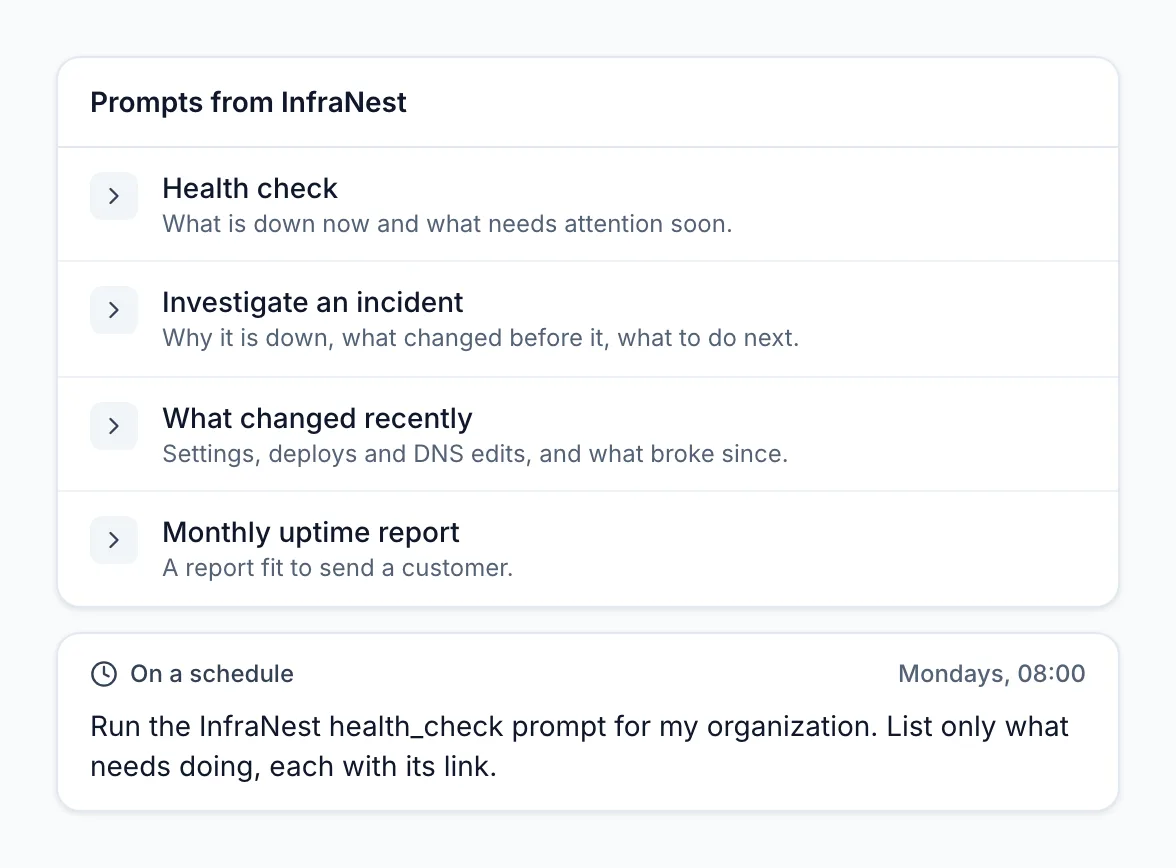
Every Monday at 08:00 your assistant runs the health check and lists only what needs doing, each with a link.
Look after several workspaces, for example one per client? Ask "is anything down for any of my clients?" and you get one line per workspace.
3. Before it becomes a problem: is a disk filling up?
Full disks are the classic "it worked yesterday" outage. Ask:
Which servers are running out of disk?
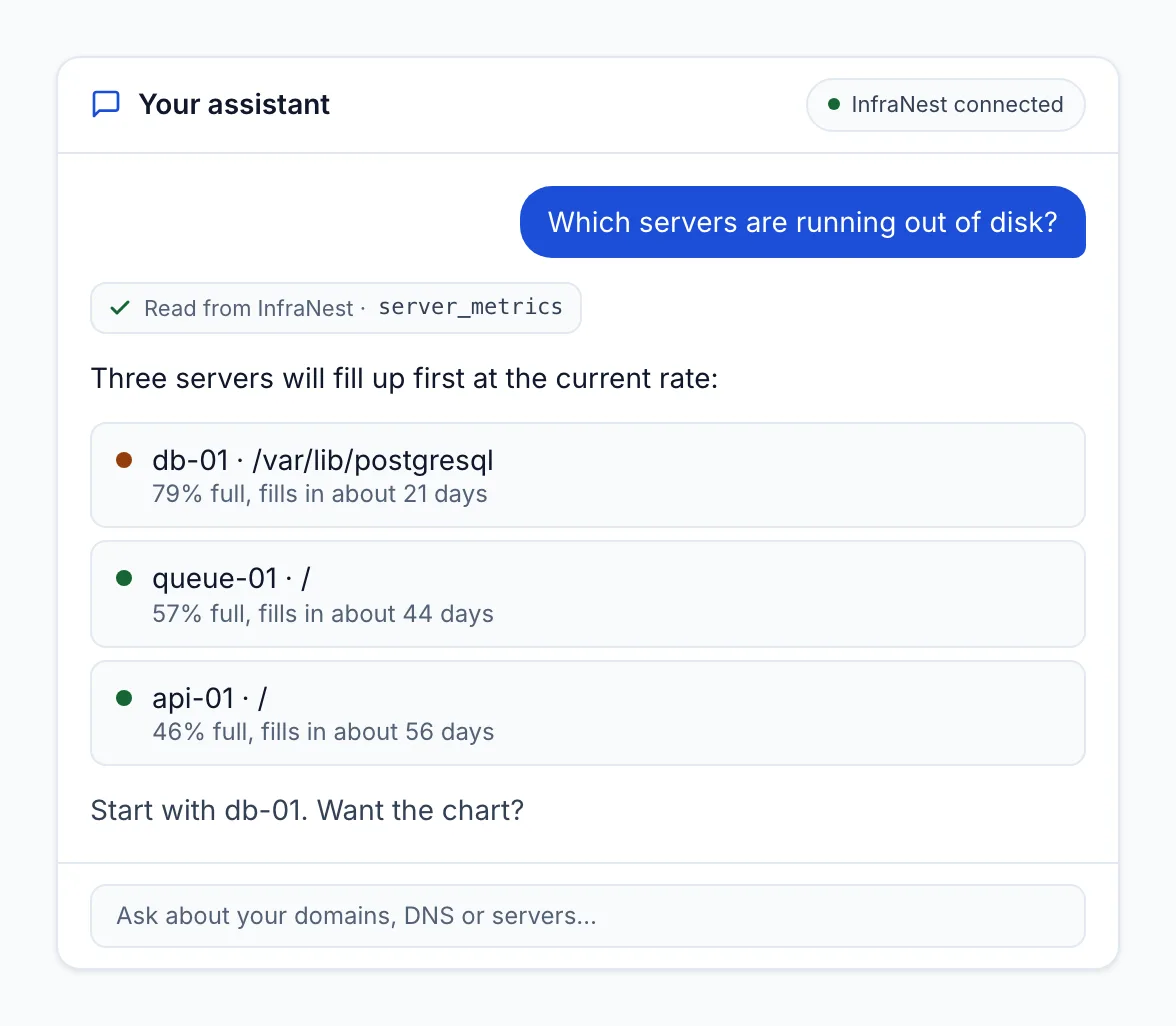
Not just how full a disk is, but when it will be full at the current rate, so you can plan instead of firefight.
4. A client asks: "How did our site do?"
Agencies and freelancers know this one. The client wants to know how reliable their website was. Ask for today's picture, or use the Monthly uptime report prompt for a report you can send as is: uptime against the target, each incident with its cause, and planned maintenance.
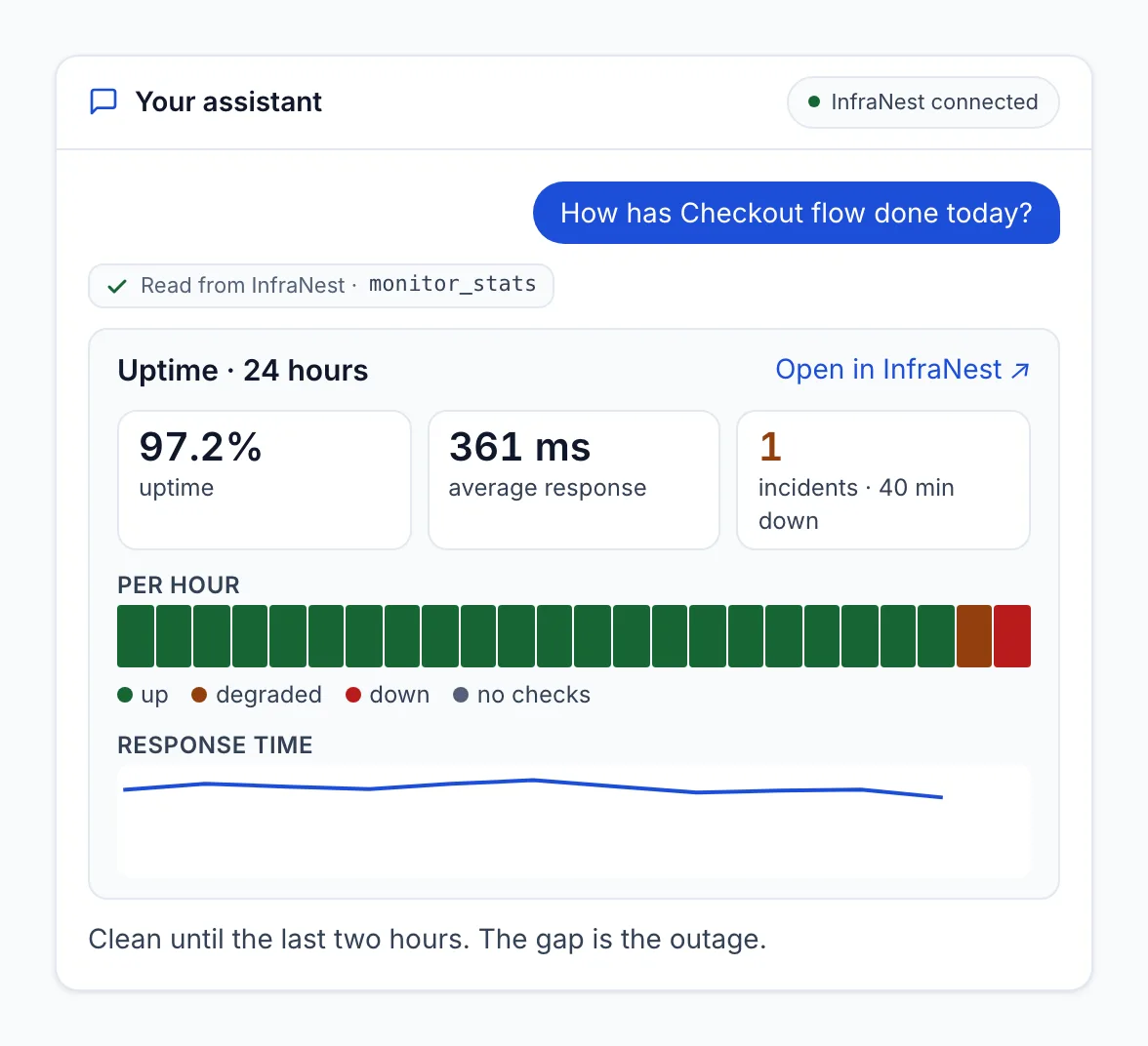
In Claude and ChatGPT the answer comes as a card or chart, with a link to the same page in InfraNest.
5. You're on call: "I'm on it"
When you're handling an incident, you can also let your assistant do the small on-call jobs:
I'm on Checkout flow. Acknowledge it and tell the team we're rolling back.
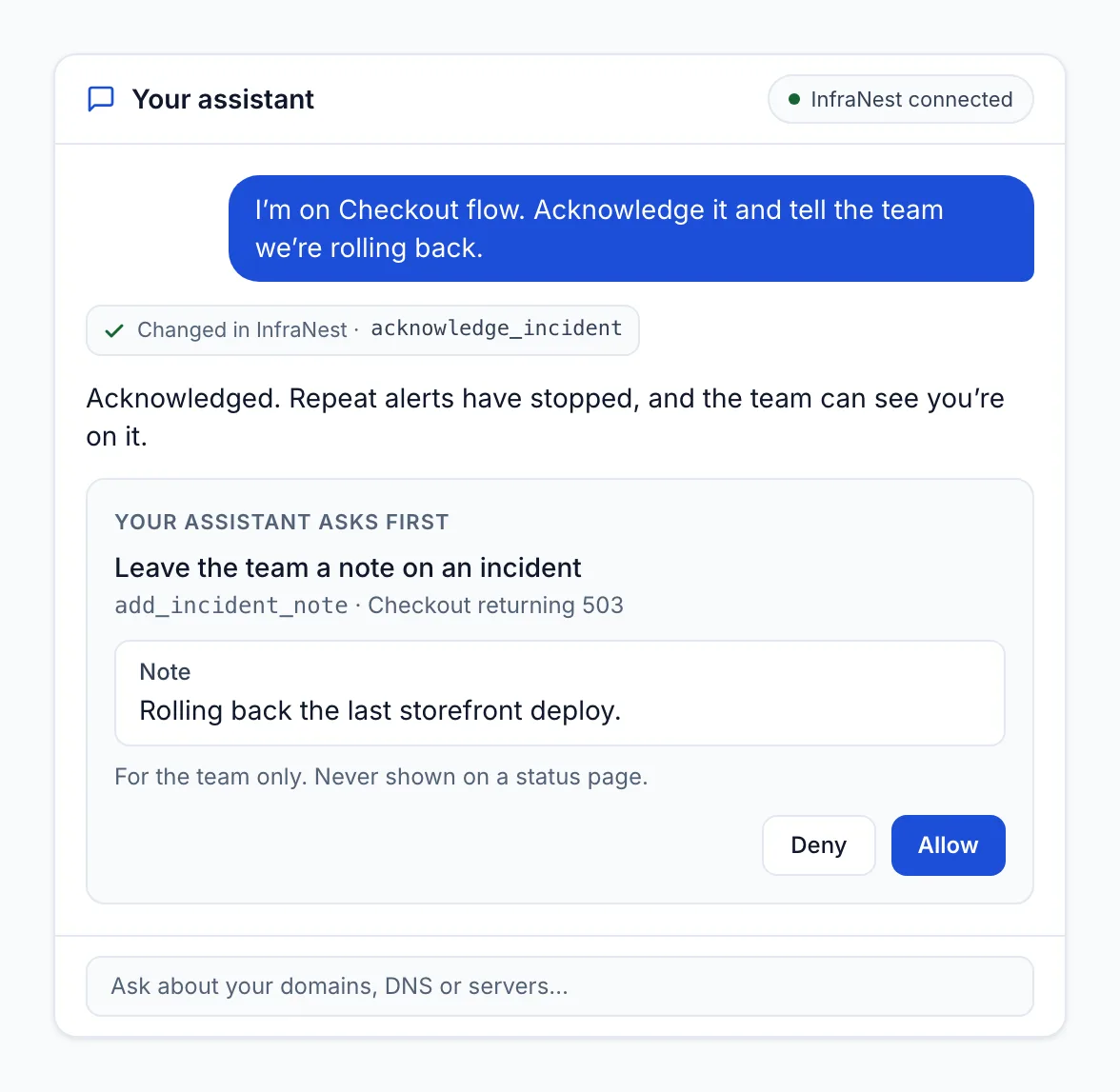
Your assistant asks before every change. The note is for your team only and never appears on a status page.
Acknowledging stops the repeat alerts and shows the team someone is on it. It can also file the incident as an issue in your connected Jira, Linear or GitHub (see how InfraNest opens Jira and Linear issues).
What it can do, and what it can't
It reads. Servers, monitors, incidents, DNS zones and records, domains, certificates, status pages, maintenance windows, the audit log and uptime reports.
It acts only when you allow it. If you switch on Also let it act when you connect, it can also:
- acknowledge an incident (and take that back)
- leave your team a note on an incident
- file an incident in your connected Jira, Linear or GitHub
- silence a monitor for a while (it keeps checking) and switch the alerts back on
- check a monitor again right now
- start or end a maintenance window (Pro and up)
It asks you before each one, and every change shows up in your audit log.
What it can never do: delete anything, change DNS records or settings, or see secrets such as domain transfer codes, certificate files or tokens.
Is it safe?
You decide what it may see. When you connect, InfraNest shows you exactly what the assistant asks for, and you pick the one workspace it may use. It only sees what your own role there allows. "Also let it act" is off until you switch it on.
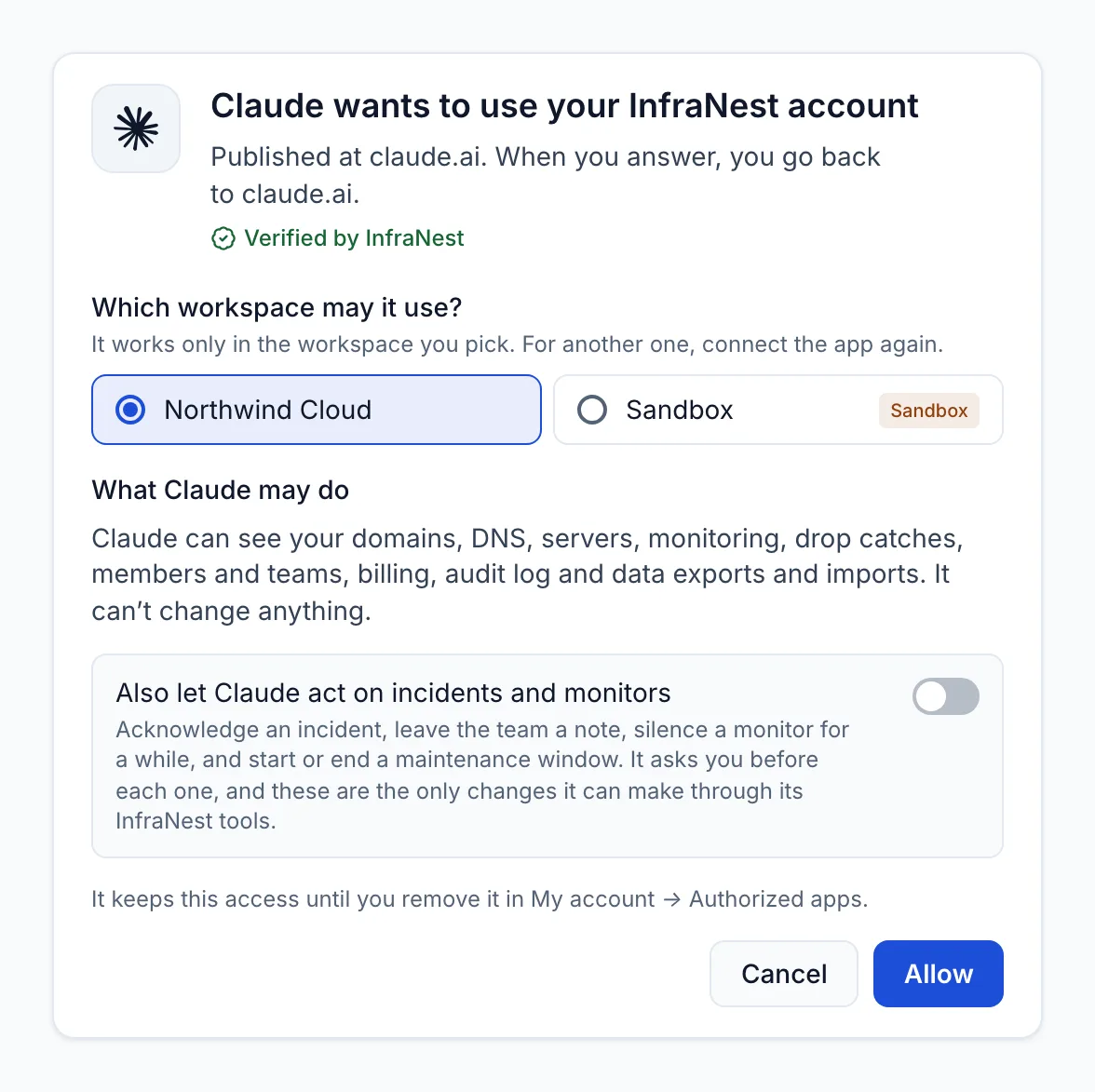
You choose the workspace, see what it can read, and decide whether it may act.
Changed your mind? Remove it any time under My account → Authorized apps.
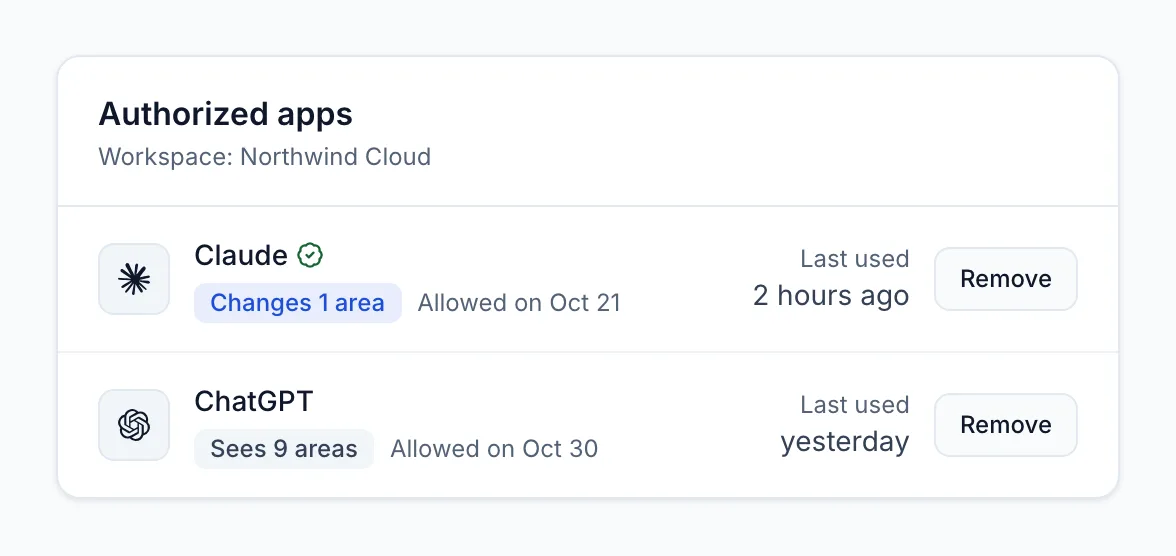
Every connected assistant, what it may do, when it was last used, and a Remove button.
Two more things worth knowing:
- You choose the assistant. Your questions and the answers go to the assistant you use (Claude, ChatGPT or another), under that provider's terms. Pick the one your company is happy with.
- Read before you act. Things in your data, like a DNS record or a monitor name, can be written by someone else. Treat what the assistant suggests as advice, not an order.
Want to try it without touching real data? InfraNest has a sandbox with sample servers, domains and incidents.
How to connect Claude or ChatGPT to InfraNest
Claude connector (claude.ai, and then also the desktop and phone apps)
- In Claude, open Settings → Connectors and choose Add custom connector.
- Name it InfraNest and use this address:
https://api.infranest.io/mcp - Select Add, then Connect. InfraNest opens: pick your workspace and select Allow.
ChatGPT connector: add a custom connector (also called an MCP server) in ChatGPT's settings with the same address, then allow it in InfraNest. Where you find this depends on your ChatGPT plan.
Cursor, VS Code, Claude Code, Gemini CLI and other MCP clients: see the step-by-step setup for each assistant. Assistants that sign in, like Cursor and VS Code, need no token. For those that need one, create an API token under My account → Developer (Pro and up).
Then just ask. A good first question: "Run the InfraNest health check."
What it costs
Connecting Claude, ChatGPT or another assistant that signs in works on every plan, including Free. API tokens, for assistants that don't sign in, come with Pro and Business. Starting a maintenance window from your assistant needs Pro or Business too.
Learn more
- AI assistants (MCP) in InfraNest: the full overview
- Use InfraNest from an AI assistant: the help article
- developers.infranest.io: setup for every assistant
- infranest-mcp on GitHub: every tool and prompt, listed
Next week: the InfraNest API, our new developer site and the open-source tools around them.
Frequently asked questions
#What is an MCP server?
MCP (Model Context Protocol) is an open standard that lets AI assistants such as Claude and ChatGPT connect to other software. The InfraNest MCP server lets your assistant read your servers, monitors, incidents, DNS, domains and certificates, and with your permission take a few on-call actions.
#Does it cost extra?
No. Connecting Claude, ChatGPT or another assistant that signs in works on every InfraNest plan, including Free. Only assistants that need an API token require Pro or Business.
#Can the assistant change my DNS or delete a domain?
No. It can never delete anything or change DNS records or settings. With your permission it can only do a small set of on-call actions, such as acknowledging an incident or starting a maintenance window, and it asks you before each one.
#Which assistants work with InfraNest?
Claude, ChatGPT, Cursor, VS Code, Claude Code, Gemini CLI and other assistants that support MCP. Setup steps for each are on developers.infranest.io/ai-assistants.
#How do I disconnect an assistant?
Go to My account → Authorized apps in InfraNest and select Remove. If you connected with an API token, delete that token under My account → Developer.
Was this article helpful?