

Incidents are InfraNest's way of tracking outages from start to finish — this page is for anyone who gets alerted when something breaks, or who needs to tell their team or customers what happened.
#Overview
- When a check fails for real, InfraNest opens an incident with its impact and cause, and closes it automatically once the service recovers.
- You can Acknowledge an incident so repeat alerts stop, add a note for your team, or post a status update for your customers.
- Incidents can also come from things no monitor watches, like an expired certificate or a lapsed domain.
- Everything lives on the Incidents page in the sidebar, with each incident's own page showing its full story.
#See and filter your incidents
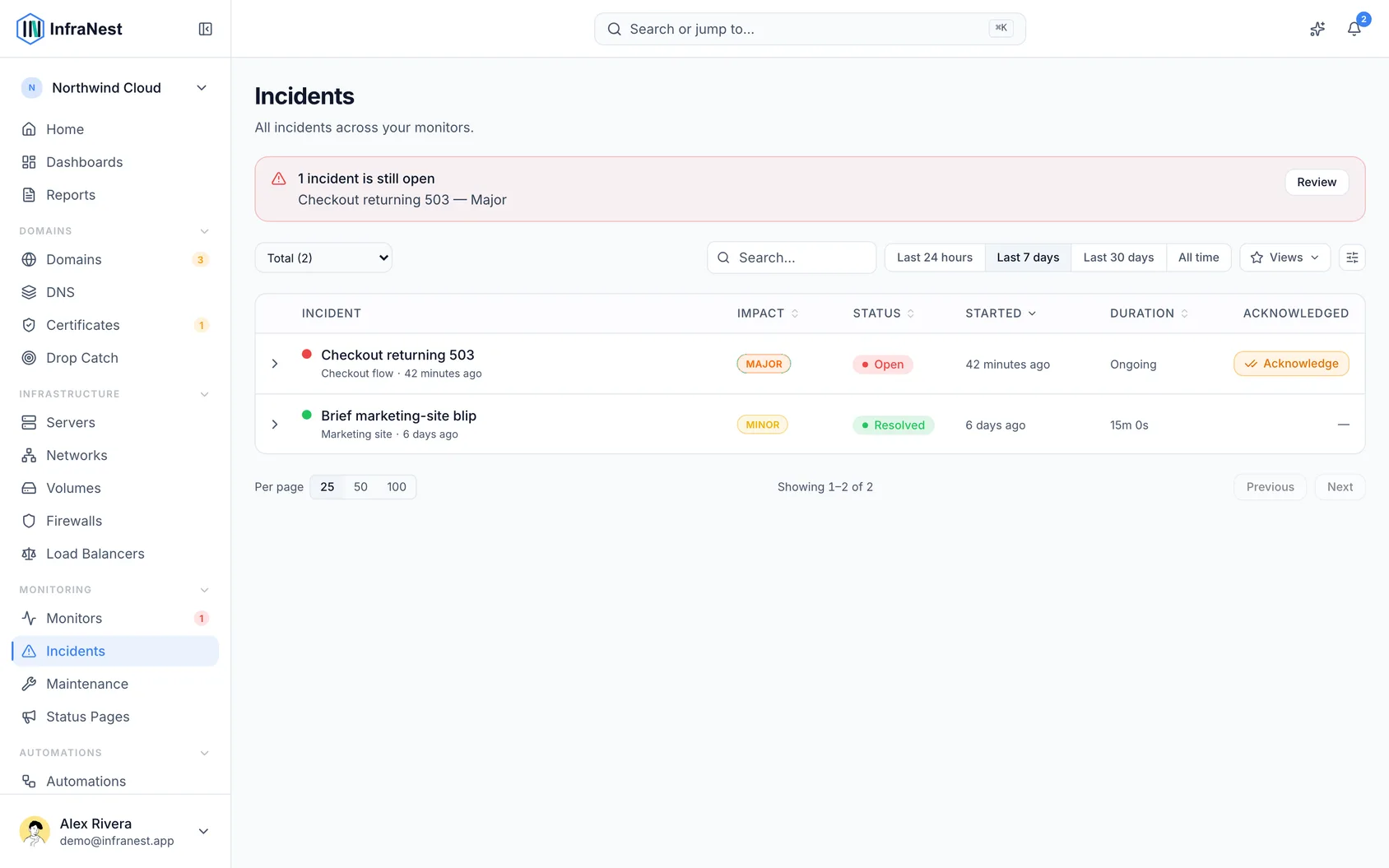
- Open Incidents in the sidebar.
- Use Filter to narrow the list to open, acknowledged or resolved incidents.
- Check the three summary cards at the top for how many incidents happened, how fast they were fixed, and whether they followed a change — covering the last 90 days.
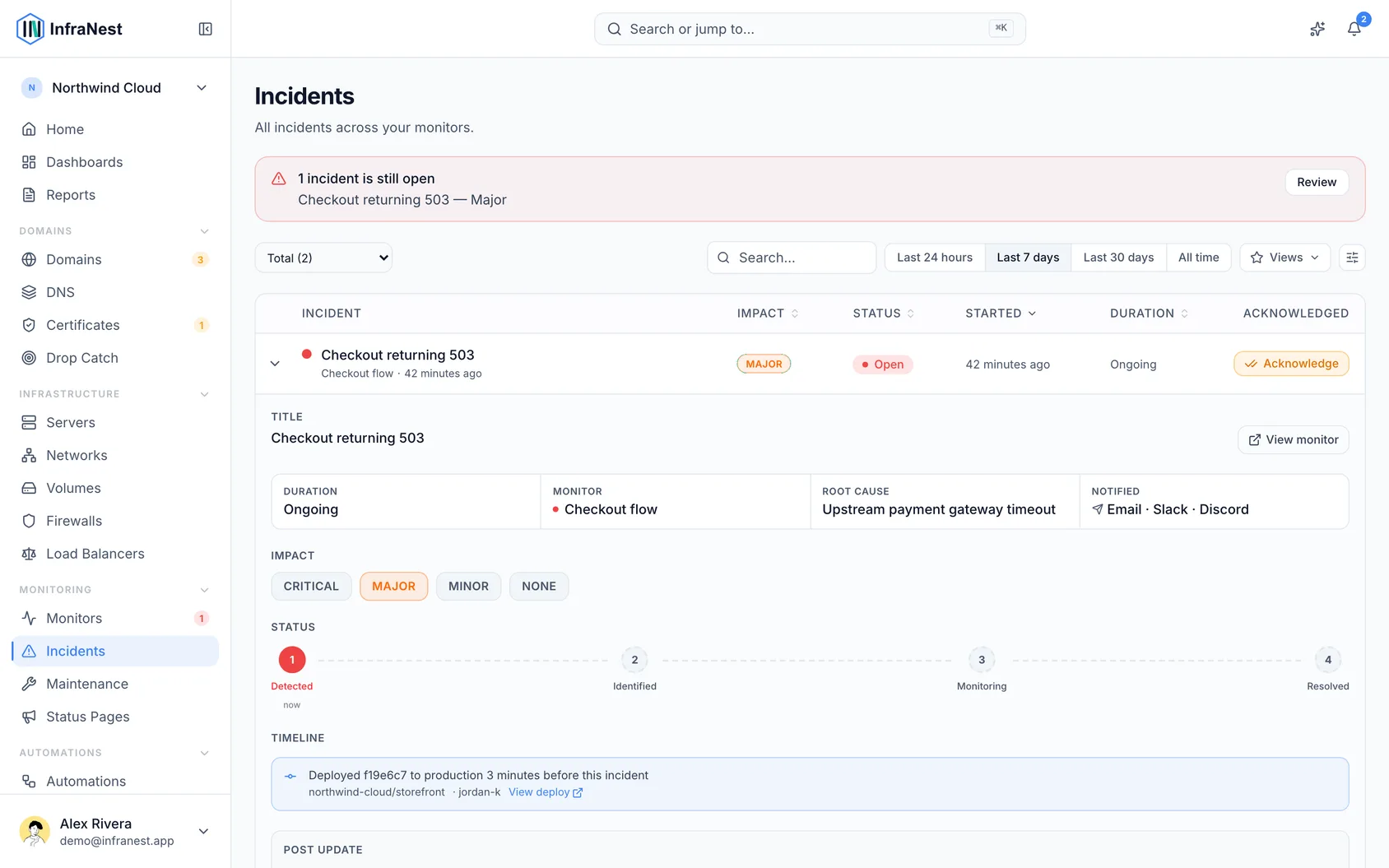
- Click anywhere on a row to open that incident's full page, or click the arrow on the row to unfold its impact, status and timeline without leaving the list.
- Use Acknowledge right on the row to take an open incident without opening it.
#Report an incident yourself
- On the Incidents page, press Report an incident.
- Search for the server, domain, certificate or DNS zone it is about.
- Give it a title and pick an Impact.
- Press Declare to open it. You're marked as handling it.
NoteYou can also do this from a certificate, domain, DNS zone or server page by pressing Declare an incident.
#Acknowledge and update an incident
- Open the incident from the Incidents page.
- Press Acknowledge so your team knows someone's on it — this stops repeat alerts.
- Add a Team note to say what you're doing, such as "restarting the database, back in 5". Notes stay internal and never appear on your status page.
- If the monitor is on a status page, press Post an update to tell your customers. InfraNest often has a draft update already written for you — read it, edit if needed, then press Post to the status page.
- If you need to step away, press Hand over, pick a teammate, and confirm. They're notified straight away.
#Avoid alert storms with dependencies
If one failure would make several checks fail at once, set a check to depend on another. When the parent is down, the children's alerts are suppressed, so an upstream outage becomes one incident instead of ten.
#Connect a provider's status to your monitors
- Add a Third-party monitor for the provider's status page (for example Cloudflare, Hetzner, AWS or another supported provider).
- Pick the parts you rely on, such as the regions your visitors use.
- Open the third-party monitor's page to see whether its problems Affect you, are Not your outage, Don't affect you, or whether InfraNest Can't tell yet.
- To link something InfraNest can't see on its own, open the third-party monitor and choose Add resource under What of yours sits behind it.
NoteSome providers — Porkbun, Dynadot, Openprovider and SSL.com — don't publish status InfraNest can read. InfraNest still notices when calls to them fail for many workspaces at once.
#Write and publish a review
- Once an incident is resolved, press Write the review on its page.
- Check that What happened and Impact are filled in correctly, and edit if needed.
- Write Why it happened, or press Draft the why with Claude if it's connected, to get a starting draft.
- Add each planned change under What we change, one per line. With a tracker connected, press Create issue to file it directly.
- Under Also publish to, tick where the review should go — a docs tool, Confluence, Notion, Linear, or Your status page. For your status page, you'll see the exact public text first.
- Press Finish review to publish. Future edits update each published copy automatically.
#Say whether it was real
- Once an incident is over, answer Was it a real problem? on its page.
- Choose Real problem, False alarm, or Expected.
- Optionally add a cause from the suggestions, or press Something else… to type your own.
- Use Change later if you need to update your answer.
TipMarking repeated false alarms helps InfraNest suggest better monitor settings under Watch better on the Monitoring overview.
#Share a summary
- Open the resolved incident's page and find the Summary section — it's already written from the recorded timeline.
- Press Edit the draft to change the wording, then Save, or press Save as it is to keep it as written.
- Press Copy as text for an email or chat, or Copy as Markdown for a ticket, wiki or status page.
#Tips
- Turn on Post drafts without asking under When to draft so real outages (3+ minutes, seen from 2+ locations) get status updates posted automatically, both when they start and when they resolve.
- On a phone, an open incident shows what matters first: what's down, the likely cause, one big action button, and Acknowledge / Hand over side by side.
#Troubleshooting
- A monitor is down with no open incident — for example after restoring it from the recycle bin while still failing — its next check opens one automatically, dated from when it actually went down.
- An incident keeps flapping — if a monitor keeps going down and coming back, InfraNest groups the blips into one incident after the third outage within an hour, and stays quiet until it's stable for an hour.
- It's really your provider's fault — check the third-party monitor's page for Affects you / Not your outage, or look for a Likely not you note directly on the incident.
Was this article helpful?
Thanks for your feedback!
Thanks, this goes straight to the docs team.