

Monitoring keeps an eye on your websites, APIs, servers, DNS and certificates, confirms real outages before alerting you, tracks incidents, and can publish a public status page. It's for anyone who needs to know when something in their infrastructure breaks — before their customers do.
#Overview
- Watch many kinds of target — websites, APIs, TCP ports, SSL certificates, DNS records, keywords, redirects, ping, cron heartbeats, and even other companies' status pages.
- Check from multiple regions, and only alert after several checks in a row have failed, so a single blip doesn't wake you.
- Track incidents automatically, with a timeline and acknowledgement, and avoid alert storms with monitor dependencies.
- Schedule maintenance so planned work doesn't page you.
- Route alerts to your destinations — email, Slack, Telegram, Teams, Discord or a webhook.
- Publish a status page on your own domain.
#Read the Monitoring overview
- Open Monitoring. It opens on Overview.
- Check the line at the top: it tells you whether everything is up (and how many monitors, servers and locations that covers), whether maintenance is running, or whether something is slow or down and why.
- During maintenance, use End maintenance or Extend 30 minutes right there.
- Below that, see your sites grouped by domain with their last 24 hours, plus what's coming up and what you could watch better. Click a domain to open its monitors.
NoteThe counts, 30-day uptime and Your key monitors only cover your own monitors. Services you depend on, like Cloudflare or Stripe, get their own line instead — a problem there isn't counted as a problem with your site.
If your plan checks from a single location, that line names it (for example Checked from Amsterdam) instead of counting locations.
#Add a monitor
- From Overview, click Add monitor at the top right.
- Use the arrow beside it for other options, including A service you depend on to watch a provider's status page such as Cloudflare or Stripe.
- Find Display on a screen and Alert defaults under ⋯ beside Add monitor.
#Add a service you depend on
- Click the arrow next to Add monitor and choose A service you depend on.
- Look under Suggested for you for services your own DNS records, integrations, servers, domains or certificates already point to, each with the reason given.
- Click Follow to add a service in one click — the parts you already use are ticked, and the zones, domains or monitors that pointed at it are linked automatically.
- If a suggestion isn't relevant, dismiss it; it's hidden for everyone in your workspace. Use Show dismissed suggestions to bring it back.
- On a service's page, if nothing of yours is linked yet, check Does one of these depend on …? and click Link next to anything that matches.
- To link a status page component instead, choose Link what depends on it, then Status page components.
- Open the service's Settings tab to choose what you follow — the whole service or only some of its parts — using Search and the Suggested for you list.
TipWhen you start using something new at a followed provider — a new zone, or a server in a new region — the page offers it with a Follow button. Nothing is followed automatically without you.
#Fix what Watch better finds
- On Overview, scroll to Watch better at the bottom. It lists gaps or problems in your monitoring, each with a fix button.
- Review each row — for example, a busy site with no monitor, monitors with no alert destination, or a monitor that keeps raising false alarms.
- Click the suggested button (such as Add monitor, Send to my email, Add a keyword check or Add heartbeat) to apply the fix. You confirm every change first.
- If a suggestion doesn't apply to you, click Not needed — it won't be suggested again for anyone in your workspace.
- Changed your mind? Click Undo on the confirmation message, or Show again under the list.
#Review your monitors list
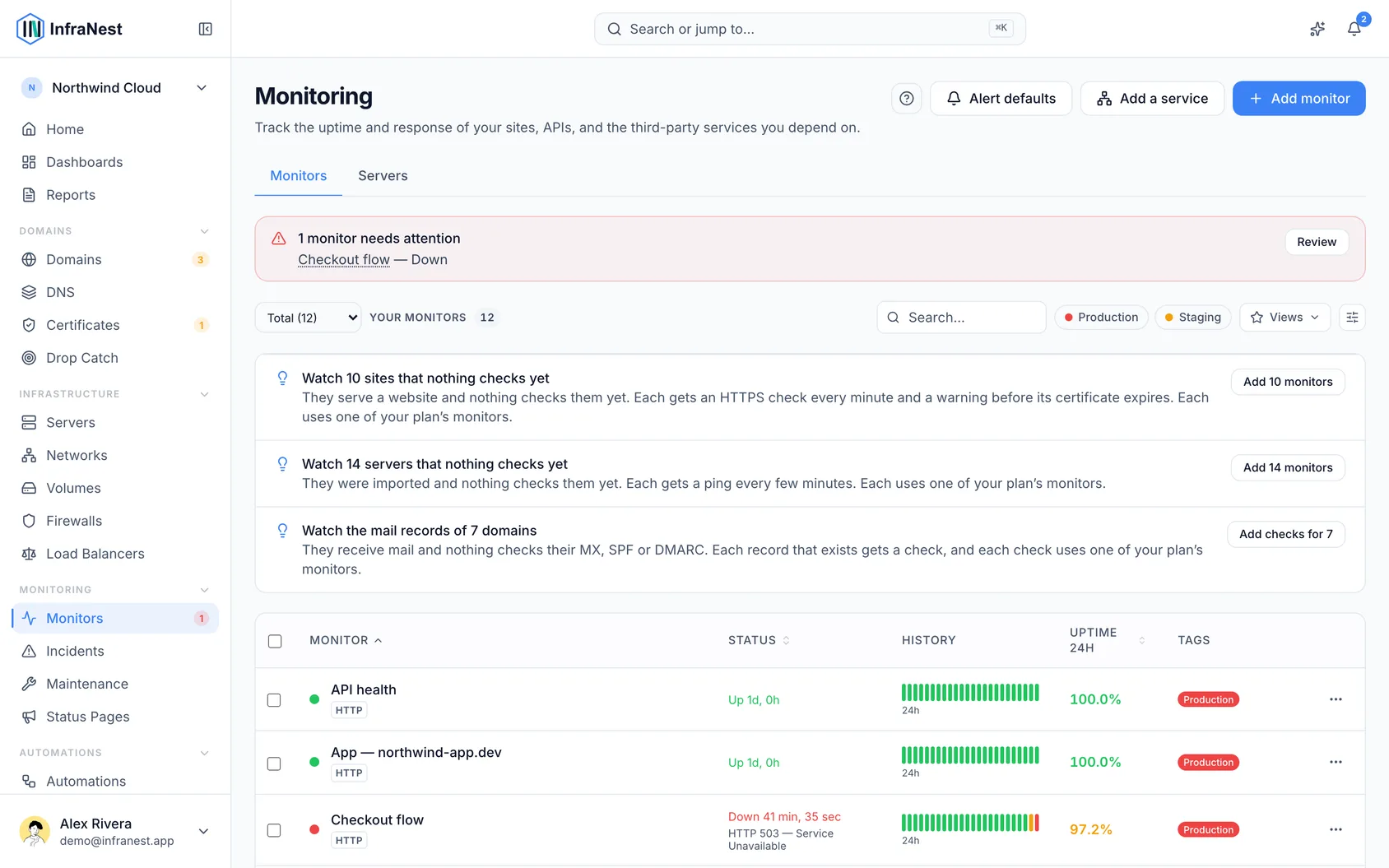
- Open the Monitors tab to see the full list of checks with their current status — up, down, degraded, under maintenance, or not yet checked — and uptime.
- Click anywhere on a row to open that check and see why it last failed, its latest checks and its history. Cmd-click (Ctrl-click on Windows) or middle-click to open it in a new tab.
- Hover any of the small daily bars on a row to see how that day went.
- To see the last 24 hours instead of 30 days, choose Last 24 hours above the list — InfraNest remembers your choice.
#Understand Where it breaks
- Open a monitor's page and look at Where it breaks.
- Read down the layers — domain, DNS, certificate, load balancer, servers, database, application — each ticked when it works and red when it fails.
- Check the line at the top, which names the layer where the problem actually starts.
- For load balancers and web servers, review the extra detail shown (for example, how many servers answer, or what a server returns when asked directly).
- For databases, note that this row only appears when InfraNest has proof your servers use it — a dependency, agent-seen connections, or a firewall rule.
#How uptime is counted
- Uptime only counts confirmed outages — the time an incident was actually open. A single failed check that the next check contradicts doesn't lower it.
- A new monitor isn't given a history it doesn't have: a period longer than the monitor has existed shows Not enough data yet, and a partly-covered period says how much it covers (for example Measured over 3h). In the list, a monitor less than a day old is marked New.
- Paused time doesn't count as up or down — while a monitor is paused, or in the recycle bin, nothing is checked.
- Status pages show uptime only over the days they actually have data for.
#Tips
TipSwitch the Where it breaks map body from List to Map to see how your visitors, monitors, load balancers and servers connect, and drag the Replay bar to see how it looked at any point in the last 24 hours.
Was this article helpful?
Thanks for your feedback!
Thanks, this goes straight to the docs team.