

Put your monitoring on a TV so your whole team can see what's up and what's not, at a glance — no sign-in or menus needed.
#Overview
- Display on a screen turns your monitoring into a big, simple view made for a TV or shared screen: large text readable across a room, live updates, and a dark background.
- You can open it yourself on your own device, or create a screen link so an office TV can show it without anyone being signed in.
#Open it on this device
- Go to Monitoring.
- Click ⋯ at the top right and choose Display on a screen.
- Click Open the wall.
- It uses your own sign-in and shows everything you can see in the workspace.
- Press Esc to go back to Monitoring.
#Make a screen link for a TV
A TV in the office shouldn't be signed in as a person. A screen link opens the wall with nobody signed in.
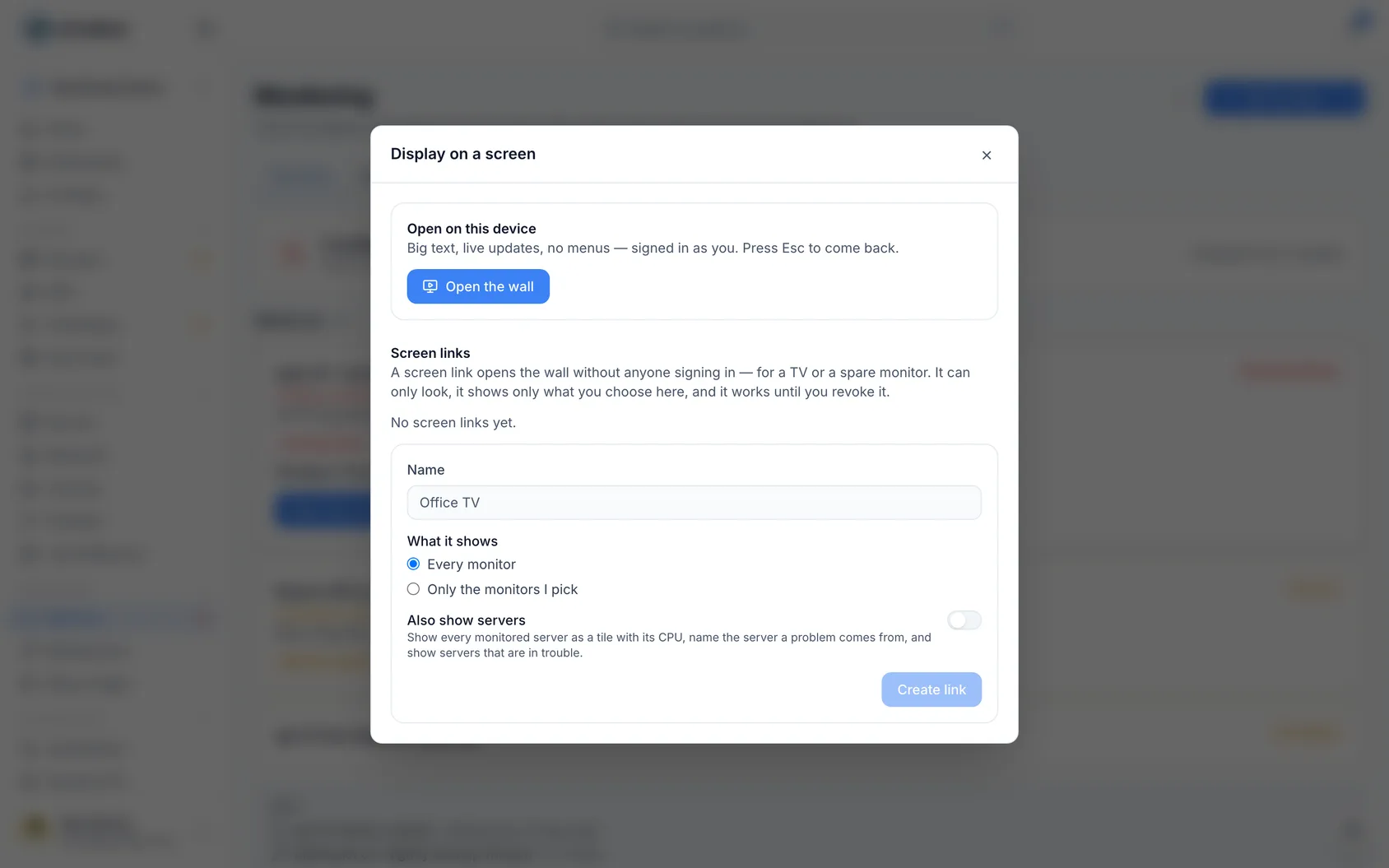
- In Display on a screen, under Screen links, give the link a name, such as "Office TV".
- Choose What it shows: Every monitor, or Only the monitors I pick.
- Switch on Also show servers if the screen may show your servers: every monitored server appears as a tile with its CPU, the server a problem comes from, and servers that are in trouble. You only see this switch if your role can see servers.
- Click Create link, then copy the link and open it on the screen.
WarningThe link is shown only once. InfraNest keeps only a fingerprint of it, so nobody — not even you — can look it up again. If you lose it, revoke it and make a new one.
#What a screen shows
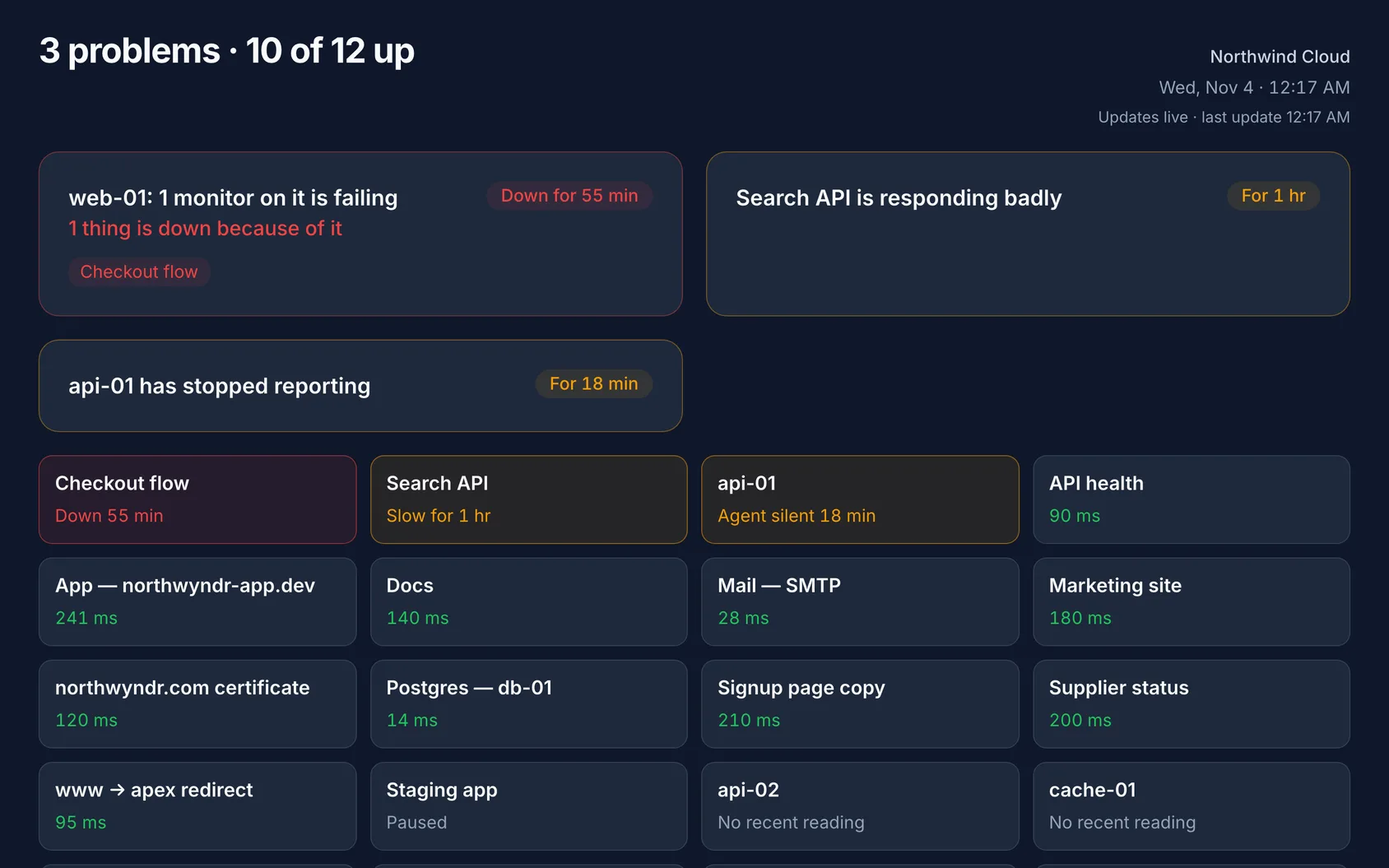
- One line at the top: how many problems there are, and how many monitors are up.
- What is wrong right now, shown as the same problem cards you see on the Overview: what failed, what it took down, and for how long.
- Every monitor as a tile, trouble first.
- With servers shown, every monitored server in the workspace appears as a tile too — not only the servers behind the monitors the link shows. A tile shows the server's CPU, or its memory when that is the one running high. A server running hot (CPU above 75% or memory above 85%, below the usual alert lines) turns amber before it becomes a problem, and a server whose agent has stopped reporting says Agent silent and for how long.
A screen link never shows incident notes, who changed what, or links into InfraNest. Nothing on it can be clicked to change anything.
#When the network drops
The screen keeps showing its last update and says "Not updating — showing 14:06". It tries again every 30 seconds and as soon as the network comes back.
#Revoke a link
- Click Revoke next to the link.
- Click Revoke for good.
The screen stops showing anything at its next update, and says the link no longer works.
#Tips
NoteAnyone in the workspace can open the wall on their own device, but making and revoking screen links needs permission to change monitoring. Making, revoking and opening a link are all recorded in the audit log — opening is recorded once a day per link.
Was this article helpful?
Thanks for your feedback!
Thanks, this goes straight to the docs team.