

Monitor your websites, APIs, certificates, DNS records, and more, so you're the first to know when something breaks. This guide is for anyone setting up or managing checks in InfraNest.
#Overview
- Monitors run automated checks on a schedule and alert you when something goes wrong.
- You can monitor many types of targets: websites, APIs, certificates, DNS records, servers, and more.
- Each monitor can be fine-tuned with its own interval, alert thresholds, regions, and alert destinations.
#Add a monitor
- Go to Monitors and select Add monitor.
- Choose the type of check you want (see the list of monitor types, such as HTTP / website monitoring, Ping monitor, DNS monitoring, and others) and enter its target — for example a URL.
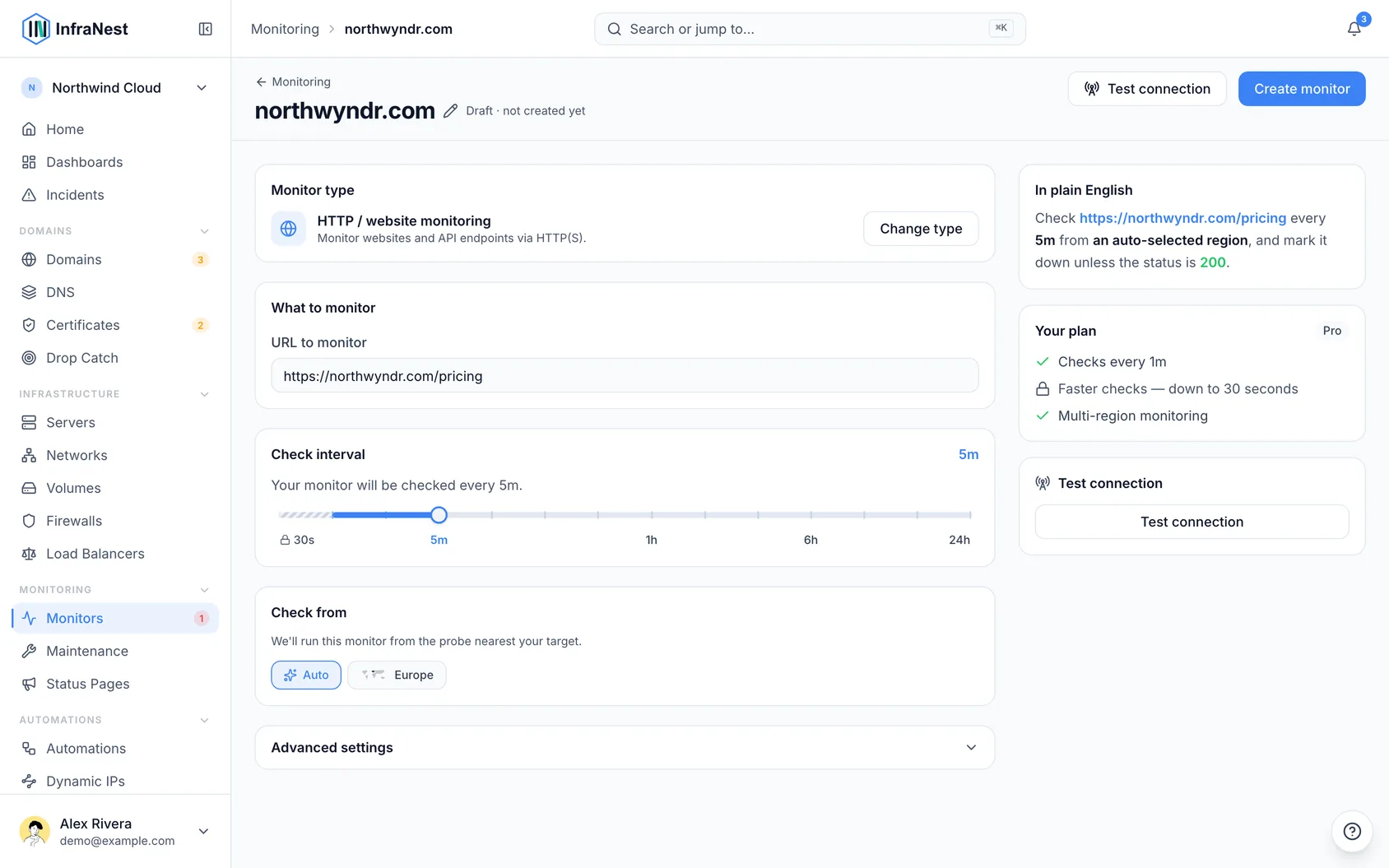
- Set the Check interval and any type-specific settings, like the expected content or DNS value.
- Fine-tune if you want:
- Slow response time alert — mark the check as degraded when it's up but slower than the threshold you set.
- Failed checks before alerting — how many checks in a row must fail before you're alerted. Higher values ignore brief blips.
- Probe regions and IP version (Prefer IPv4 (recommended), Prefer IPv6, IPv4 only, or IPv6 only).
- Notification policy — where alerts for this check go.
- Use Test connection to check your settings, then select Save.
TipFor Ping monitor, Port monitoring, and DNS monitoring checks, the target is a hostname, like
example.com. If you paste a full web address such ashttps://example.com/page, onlyexample.comis kept.
TipThe Create monitor form suggests a Monitor name from the URL as you type it. Change it any time; once you do, it stops following the URL.
#Manage a check
- Go to Monitors and select the check you want to review.
- Open the monitor to see Latest incidents, Latest checks, and its history.
- Use Enable or Disable to turn the check on or off.
- Use Silence alerts and choose Silence for a set duration if you expect downtime or don't want alerts right now.
- Set a Dependencies link to another monitor using Add parent or Add child if this check relies on something else.
#Troubleshooting
- If Test connection fails, double-check the target address and any type-specific settings, like Expected status codes or Keyword to find in response.
- If you're not getting alerted, check Notification policy and make sure the right destinations are chosen under Choose destinations.
- If a monitor looks stuck, use Refresh to pull the latest results, or Retry a failed check.
Was this article helpful?
Thanks for your feedback!
Thanks, this goes straight to the docs team.
Still stuck? Contact support
Related articles
Monitors & checksMonitor a cron job or scriptMost checks reach out to something of yours. A heartbeat monitor works the other way around: your backup script, cron job or scheduled task calls in to…Monitors & checksMonitor an API behind a loginA health page that answers "OK" tells you very little when the part that matters sits behind a login.Monitors & checksMonitor typesInfraNest can watch ten different kinds of target. Pick the one that matches what you want to check.Monitors & checksMonthly uptime reportGet uptime per monitor for a single calendar month — the figure you can send a client, because it stops changing once the month is over.