

Set the uptime you promise a client — like 99.9% a month — and track whether you're on pace to hit it during the month, instead of finding out on the 1st when it's too late to do anything.
#Overview
- Choose an uptime target for any monitor, or for a whole status page.
- A progress card shows the downtime allowed this month, how much is used, and how much is left.
- You can alert on every outage as usual, or switch to alert only when the target is at risk.
- Targets use the same minute-counting rules as the Monthly uptime report, so all the numbers agree.
#Set a target on a monitor
- Open Monitoring and click the monitor.
- Find the Uptime target card, under the last 90 days.
- Click Set a target.
- Pick the uptime you promise: 99%, 99.5%, 99.9%, 99.95% or 99.99%. Choose Other… to type your own, anywhere from 90% to 99.999%.
- Choose How this monitor alerts (see below), then click Save.
To take a target away, click Change, then Remove target.
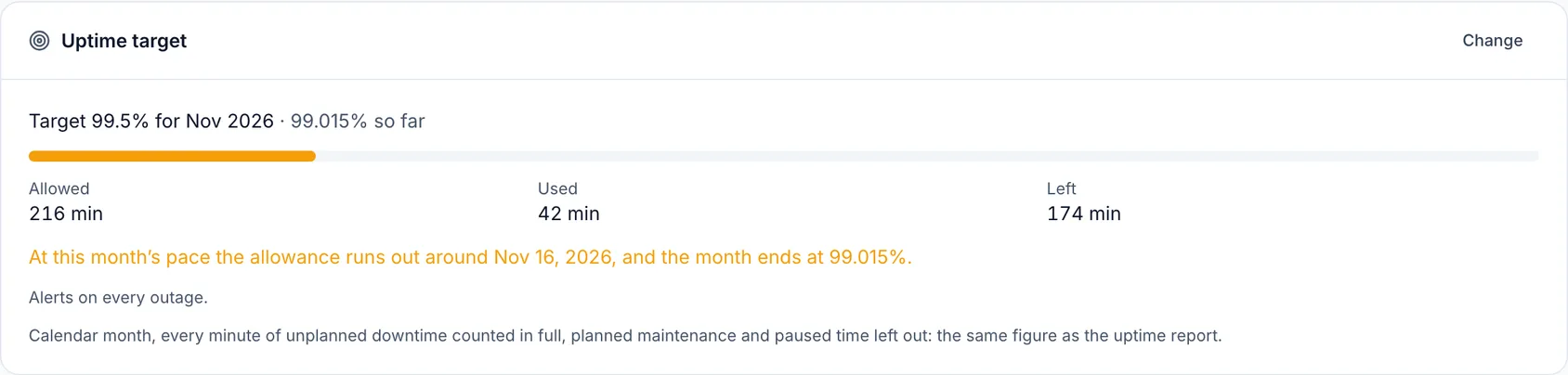
#What the card tells you
A target allows a share of each calendar month as downtime. 99.9% of a 30-day month is 43.2 minutes; of a 31-day month, 44.6.
- Allowed — the minutes of downtime the target allows this month.
- Used — the minutes the monitor has been down so far this month.
- Left — what remains before the target is missed.
- The bar fills as the allowance is used. It turns orange when the month is heading for a miss, and red once the target is missed.
- Under the bar, one sentence says where the month ends at its pace so far: within the target, or the day the allowance runs out.
#How the minutes are counted
Exactly as the Monthly uptime report counts them, so the card, the report and its CSV always show the same number:
- Calendar month. The allowance starts again on the 1st.
- Every minute counts in full. Only confirmed outages count — ones that opened an incident — and a minor one counts as much as a major one.
- Planned maintenance doesn't count, and neither does time the monitor was paused.
#Alert when the target is at risk, not on every outage
A target gives you a second way to be alerted. Under How this monitor alerts, choose:
- On every outage — as before: an alert each time the monitor goes down, and when it comes back.
- Only when the target is at risk — no alert per outage. Instead, one alert when the allowance is being used fast enough to miss the target, and one more if it runs out.
The second one is quieter where it should be, and louder where it matters:
- A short blip doesn't wake anyone. Two minutes down in an otherwise good month leaves plenty of allowance, so nothing is sent.
- A slow drain doesn't go unnoticed. A site that drops for a minute every few hours never looks like an emergency, but it adds up. Once it adds up fast enough to miss the target, you hear about it — for example: "At this rate shop.example.com misses 99.9% around 18 November — 31 of 43.2 minutes of downtime allowed this month are used."
The alert goes to the same people and destinations an outage alert would. Incidents still open, your status page still shows outages, and automations still run — only the per-outage alert is left out.
NoteOnce the warning has gone out, every outage alerts again until the month ends. On the 1st, the monitor goes back to alerting only when the target is at risk. The card on the monitor page always says which way it alerts right now.
If your plan no longer includes uptime targets, the monitor alerts on every outage, and the card says a target is saved but not tracked. Click Remove target there to take it off.
#Set a target on a status page
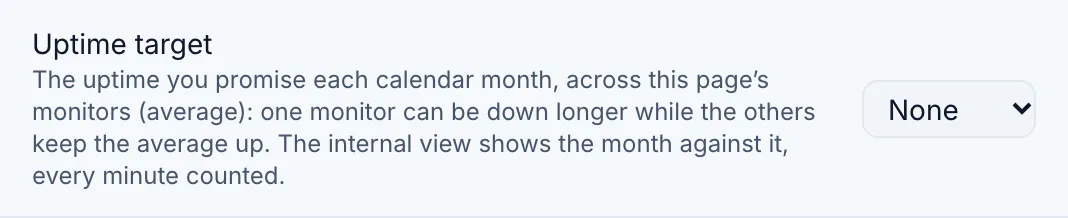
- Open Status pages and click the page.
- Click Settings, then Appearance.
- Under the switches, pick an Uptime target.
- To show it to visitors, turn on Show the target on the page. It is off by default.
The target is measured across this page's monitors (average): the month's figure and the minutes used are the average of its monitors, the same basis as the page's own figure and the monthly report. It is not a promise that no monitor is ever down — one monitor can be down well past the allowance while the others keep the average within it. To hold a single service to a promise, set the target on its monitor as well. Everywhere the page's target is shown — the settings, the team view of the page (the month against the target, with the minutes used and allowed) and, if you publish it, the public page — it is labelled "across this page's monitors (average)".
#Why the status page shows two different numbers
Your status page's own uptime figure is weighted by impact: a minor incident's downtime counts at 30%, which is the usual convention for status pages. The page says so under the figure.
A target is a promise, so it uses the stricter count — every minute in full, over the calendar month. When you publish the target, visitors see it labelled that way, so the two numbers are not read as one number disagreeing with itself.
#In the monthly report
When any monitor has a target, the Monthly uptime report adds a Target column — the target, whether it was met or missed, and the minutes used of those allowed — and a tile counting the targets missed. The CSV export and the emailed monthly report carry the same.
#Which plans include it
Uptime targets are part of the paid plans.
TipIf your plan doesn't include uptime targets, the Set a target button shows a lock; click it to see which plan does. A target you set before is still shown and can always be removed.
Was this article helpful?
Thanks for your feedback!
Thanks, this goes straight to the docs team.