

A status page is a branded public page that shows your customers whether your services are up, degraded, or down — this article is for anyone setting up or trying to understand InfraNest's status pages.
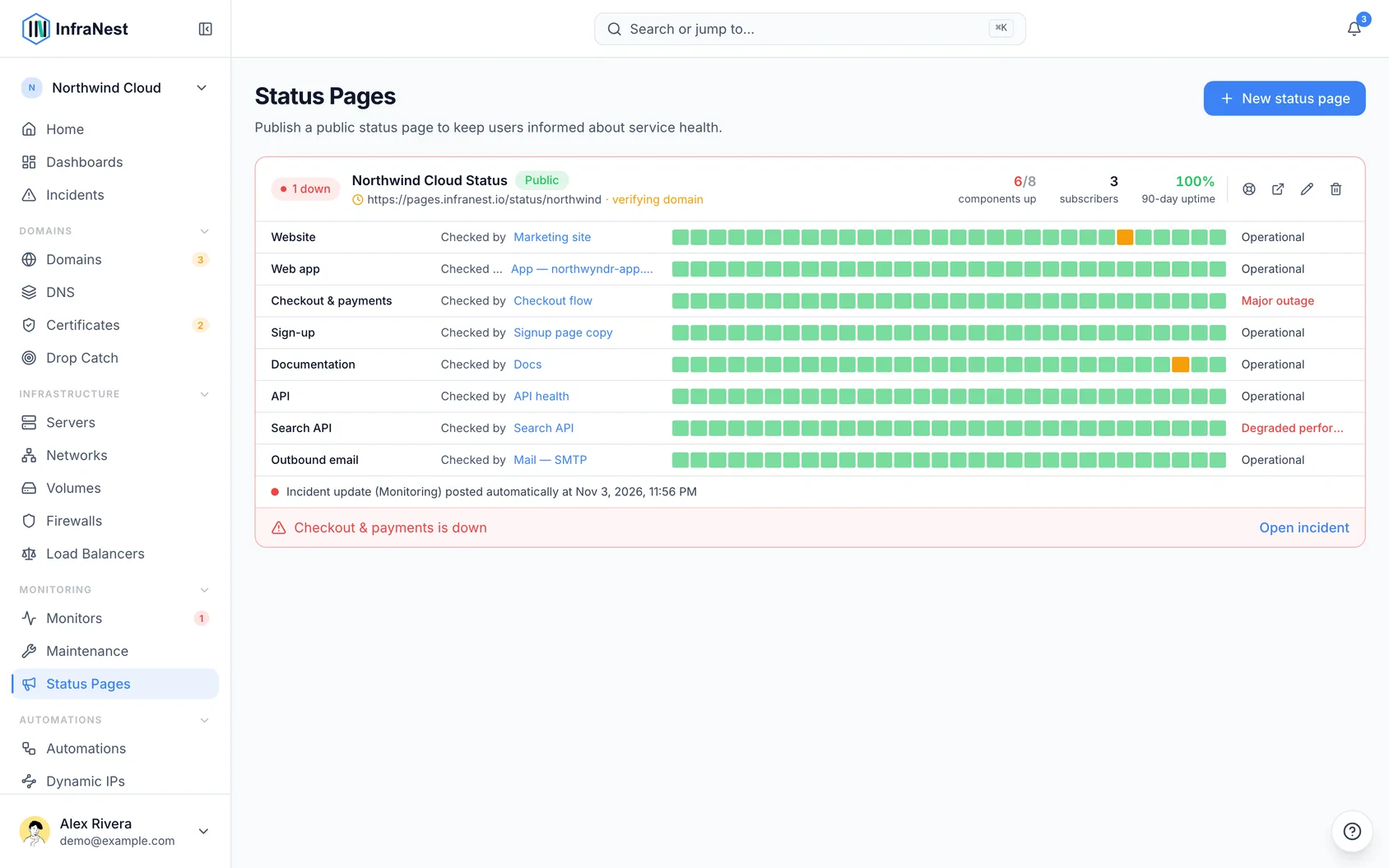
#Overview
- Turns your monitoring into a branded public page, on your own domain with automatic HTTPS.
- Shows the overall status, uptime, incident history, and planned maintenance.
- Updates itself from your monitoring and can email subscribers automatically when there's an incident.
- Means your status page is the single public source of truth when something breaks, instead of your inbox filling with "is it just me?" messages.
#What it can show
Each of these is a toggle you control:
- Overall status banner (operational, degraded or outage).
- Uptime percentage for each service.
- Incident history with timelines.
- Announcements you post.
- Planned maintenance (shown as planned, not downtime) — only windows you wrote a public notice for, and only that notice. A window's name and description stay with your team, and windows InfraNest opens for a reboot or resize are never shown.
- Third-party services you depend on, alongside your own.
#Understand incident links
- Every incident on your status page gets its own address automatically, something like
status.yourcompany.com/incidents/482— you don't need to turn this on. - Paste that link into a support ticket, chat message or email. Whoever opens it lands straight on that incident: what it affects, when it started, how long it has run, and every update posted about it, in order.
- At the foot of the incident it says how the problem was found — usually that monitoring caught it, and from how many of the regions checked.
- The link keeps working after the incident is resolved, so the ticket you sent it in can stay open after your status page has moved on.
- The link also appears on every row of your incident history, and in the emails your subscribers receive.
NoteIf your page is password protected, the incident link asks for the same password before it shows anything — including the title.
#Check whether a component is telling the truth
- Open the list of status pages — each page shows its components.
- For each component, check how its status is set:
- Checked by a monitor, showing its last 30 days.
- Set by hand — nothing checks it, so visitors see "operational" regardless of how the service is actually doing. If one of your monitors has a matching name, use Connect to link it in one click.
- Pinned by hand — it has a monitor, but somebody set its status by hand, so the monitor no longer changes it.
- Next to each component, see what visitors currently see, such as Operational or Partial outage.
- Under the components, check what the page last told visitors and when — an incident update (marked posted automatically when no person posted it) or an announcement.
WarningInfraNest checks your page's own address every day. If your custom domain stops pointing at the page, or its certificate is about to expire, has expired, or is for another name, you'll see it flagged in the list and under Needs you — before your visitors see a browser warning. A public page with components nothing checks is listed there too.
#Check who's reading your page
- Open your status page in InfraNest.
- Go to the Overview tab.
- Review how many times the page has been opened over the last 7, 30 or 90 days, and how that compares to the period before.
- Check how many separate people that was, how many clicked Subscribe, and which day was busiest — usually the day something broke.
#Tips
TipNumbers start from the day status pages arrived for your account — a page set up last year has no history before that; it doesn't mean nobody was reading it.
- Visitor counts are approximate on purpose: counted without cookies or identifiers, so colleagues sharing a connection and browser may count as one person, while one person on two devices may count as two. Views are exact; the "people" figure is an estimate.
- Anything that announces itself as a robot — search engine crawlers, uptime checkers, link previewers, and InfraNest's own monitoring — is left out, so the numbers reflect people, not machines.
Was this article helpful?
Thanks for your feedback!
Thanks, this goes straight to the docs team.