

Let your visitors follow your status page's ups and downs directly, and post notices when something's happening — this is for anyone running a status page who wants to keep their audience in the loop.
#Overview
- Visitors can sign up by email, or by connecting a Slack, Microsoft Teams or Discord channel, to get notified automatically when there's an incident or update.
- You can see and manage everyone who's subscribed from the Subscribers tab.
- You can post Announcements on your public page for maintenance notices, incident summaries, or general messages.
#Turn on email subscriptions
- Go to the Subscribers tab on your status page.
- Find the switch that turns subscriptions On. With it On, the subscribe box appears on your public page and new visitors can sign up; with it Off, the box disappears and nobody new can join.
- While you're there, set a Reply-to address. Outage emails are sent from InfraNest's address so they arrive reliably, but replies go to whatever address you set here. Leave it blank and replies will bounce.
NoteSubscriber addresses can only be used to send your status updates — this isn't a marketing list. The subscribe form and the confirmation email both tell visitors this, using your page's name automatically.
#Manage your subscriber list
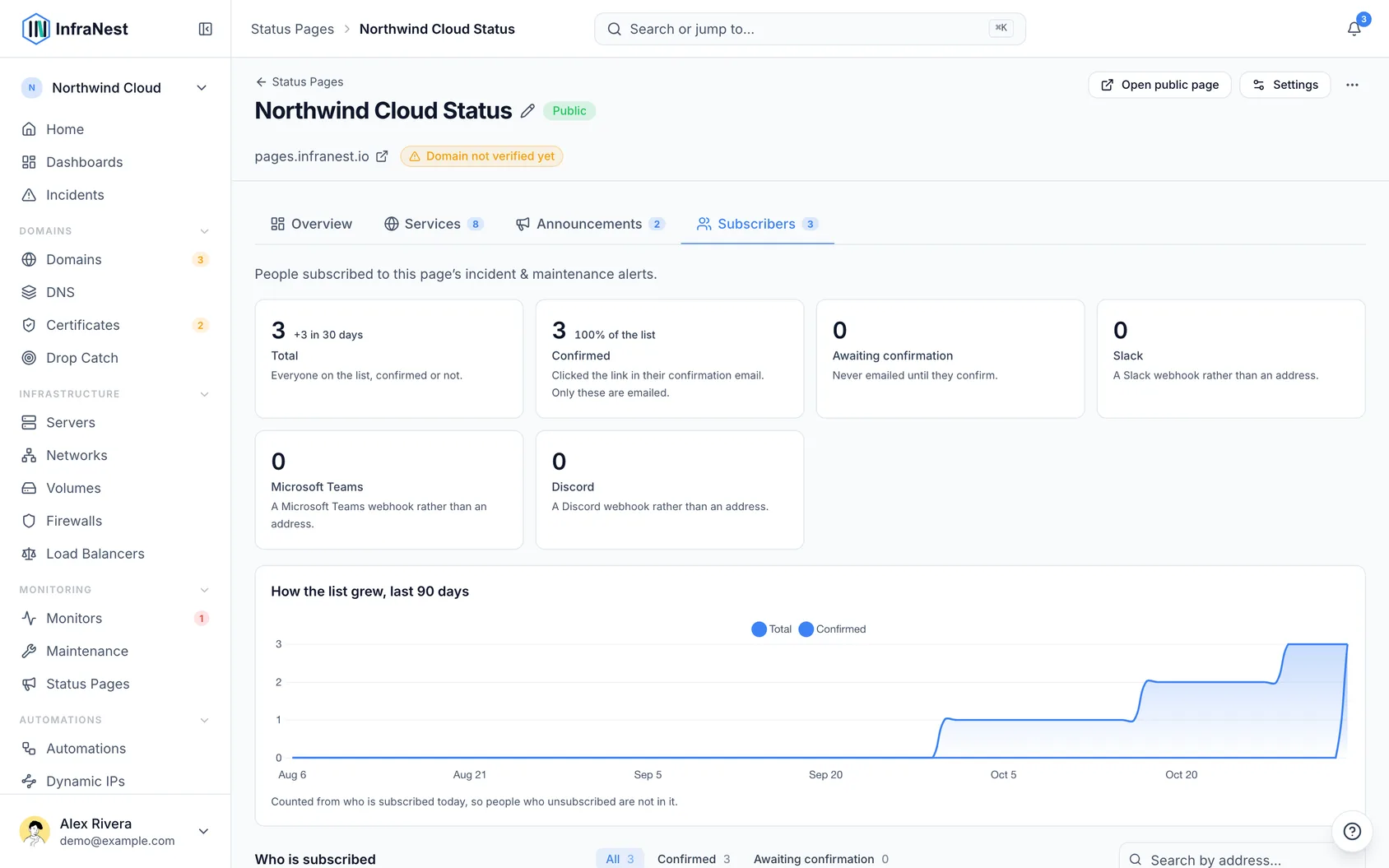
- Open the Subscribers tab to see how many people have subscribed, how many haven't confirmed yet, a chart of list growth, and the full list of subscribers.
- Use Search by address… to find a specific person.
- Click the × on a row to Unsubscribe this person — this does exactly what their own unsubscribe link would do.
- Use Remove all from the same tab to clear the whole list.
An address that stops working is marked automatically — "Address does not exist" or "Blocked by their provider" explains why someone never received your outage email. Someone who simply hasn't confirmed yet shows as "Not confirmed yet" instead.
TipThe subscriber chart only counts people currently subscribed, so it answers "is this growing" rather than "how many did I have in June."
#Connect a Slack, Teams or Discord channel
- On your public page, under the email box, find Post to Slack, Teams or Discord and open it.
- Paste the channel's webhook URL. It starts receiving updates right away — there's no confirmation step, since creating the webhook already proves you administer that channel.
- To get the webhook URL:
- In Slack: go to Apps → Incoming Webhooks → Add to Slack, pick the channel, then copy the address (it looks like
https://hooks.slack.com/services/…). - In Discord: open channel settings → Integrations → Webhooks → New Webhook, pick the channel, then copy the address (it looks like
https://discord.com/api/webhooks/…). - In Teams: open the channel, go to ⋯ → Workflows, create a flow from the Post to a channel when a webhook request is received template, and copy the URL shown when you save it.
- In Slack: go to Apps → Incoming Webhooks → Add to Slack, pick the channel, then copy the address (it looks like
- We detect which of the three services it is from the URL, and the confirmation message tells you which one connected.
WarningThe old Teams Incoming Webhook connector was switched off on 22 May 2026. A
webhook.office.comaddress will be refused — use the Workflows method above instead.
In your Subscribers tab, connected channels show as Slack, Microsoft Teams or Discord with a short code rather than the URL, since the URL itself could post into your channel. There's also a tile for each channel so you can see at a glance where updates are going.
A channel that stops working gets marked, just like a dead email address:
- "Webhook no longer exists" usually means someone removed the app from Slack, deleted the webhook in Discord, or turned off the workflow in Teams — create a new webhook and connect it again.
- "Could not be reached" means the chat service had trouble reaching you; this often clears itself once an update gets through.
To disconnect a channel, remove its row from the Subscribers tab.
#Post an announcement
- Go to your status page and start a New announcement.
- Type your message in the message box.
- Select text and use the formatting buttons above the box to style it:
- Bold or italic to make a word stand out
- Link to point visitors somewhere, such as a post about the maintenance — paste the address over the highlighted
https://. Links open in a new tab. Any web address pasted on its own also becomes a link automatically; long ones are shortened to just the site name. - Bulleted list to turn lines into a list
- Check How it should read at the bottom of the form to preview the notice exactly as visitors will see it. Anything you type that isn't supported, such as headings or images, will show as plain text.
- Save your announcement to make it Live on the page, or use Schedule one to publish it later.
#Troubleshooting
- A subscriber says they never got an email: check their row in the Subscribers tab — if it's marked "Address does not exist" or "Blocked by their provider", the address itself is the problem, not your announcement.
- A chat channel stopped getting updates: look for the "Webhook no longer exists" or "Could not be reached" mark on its tile. For "Webhook no longer exists", create a fresh webhook and connect it again. "Could not be reached" often resolves itself — we only mark a channel after more than one failure, so a single bad minute won't trigger it.
Was this article helpful?
Thanks for your feedback!
Thanks, this goes straight to the docs team.