

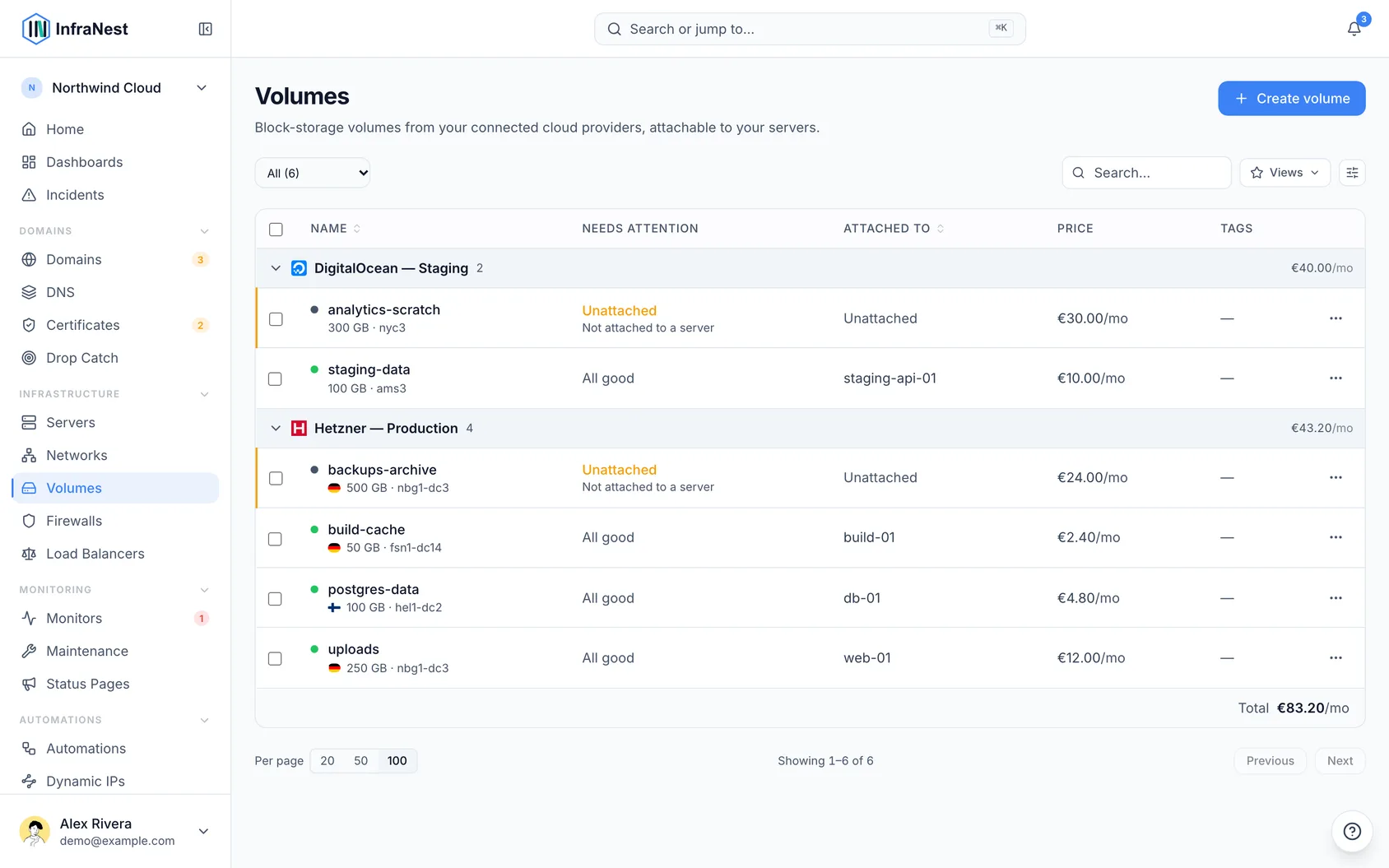
Volumes are extra block storage you can attach to your servers, for anyone who needs more room than a server's own disk provides.
#Overview
- Create, attach, resize, detach or delete storage separately from your servers.
- See how full a volume is and get a heads-up before it runs out of space.
- Protect volumes from accidental deletion and track what they cost.
#Manage volumes
- Go to Volumes.
- Use Create to make a volume, then attach it to a server, resize it, detach it, or delete it as needed.
#What a volume's page shows
Open a volume from the list to see its full page:
- The header shows its status, size, provider and location, and its monthly cost when known. The main action sits beside it; everything else is under Actions.
- Overview starts with anything that needs your attention, then Used by — the server it's attached to, the folder it appears at on that server, and any automations that act on it. Below that is a Details card with its facts and the switches to change them.
- Storage shows its size, with Resize, and the server it's attached to, with Attach or Detach.
- Snapshots lists any provider snapshots of the volume, with what each stores and costs, and lets you delete one. This tab only appears where your provider supports it — DigitalOcean today, not Hetzner. To restore a snapshot, create a new volume from it in your provider's own control panel.
- Activity lists what was done to the volume, by whom and when.
#How full is it?
Your provider knows how big a volume is, not what's stored on it. When the server it's attached to runs the InfraNest agent, the volume's Overview shows how full it is — for the folder the volume is mounted at, not the server's own disk — and, once there's a week of readings, roughly when it will be full at its current rate. That's shown in days when it's close, otherwise in weeks or months. When it's within two weeks of full, or already over 90% full, the page flags this at the top and offers to grow it.
Without the agent, the page says that how full it is needs the agent, rather than guessing.
A volume attached to no server is pointed out too: you're paying for storage nothing can read.
#Make a volume bigger
- Open the volume and select Resize.
- Enter the new size in GB and confirm.
A volume can only get bigger, never smaller — that's your provider's rule, not ours, which is why the box won't accept a number below the current size. If you need less storage, create a smaller volume, copy your data across, and delete the old one.
The new size is applied by your provider in the background, so it may take a minute or two to appear. Some providers charge for the extra storage straight away.
WarningResizing grows the disk, not the filesystem on it. Until you extend the filesystem yourself on the server, it will still show the old amount of free space. Your provider's documentation explains how to do this for your setup.
If a DigitalOcean volume's connection was made before InfraNest could attach, detach and resize volumes, those controls are switched off until you reconnect: open Integrations, choose the DigitalOcean account and select Reconnect it in Integrations. A connection made with a personal access token isn't affected.
If Resize isn't there, your provider doesn't let InfraNest change a volume's size. Change it in their own control panel instead, and the new size will show up here at the next sync.
#Naming a volume
Each provider has its own rules about what a volume may be called, and InfraNest shows them under the name box when you create one — so a name that would be refused is caught before you order anything.
Choose a DigitalOcean name carefully. DigitalOcean volumes can never be renamed, so whatever you pick is permanent. Its rule is also the strictest: lower-case letters, numbers and dashes only, starting with a letter, up to 64 characters.
#Rename a volume
- Open the volume and click its name in the header.
- Type the new name and press Enter.
Not every provider allows this. A DigitalOcean volume keeps the name it was created with — there's no way to change it afterwards, so the name is shown as fixed. Hetzner accepts letters, numbers, dots, dashes and underscores, up to 64 characters, starting and ending with a letter or number; if the name is refused, InfraNest tells you which rule it broke and keeps the old one.
#Stop a volume being deleted by accident
- Open the volume and switch on Lock.
InfraNest then refuses to delete it until you switch it off again with Unlock.
Where your provider has a lock of its own, InfraNest sets that too, so the volume can't be deleted from your provider's control panel either — the badge on the volume (Locked here and at {provider} or Locked in InfraNest only) tells you which. Hetzner has one. DigitalOcean and TransIP do not, so there the protection applies inside InfraNest only and the volume can still be removed from their own panel.
A lock you set directly in your provider's panel is picked up at the next sync and honoured here too.
#What a volume costs
Open a volume and check its Estimated monthly figure. Where your provider publishes a rate, InfraNest reads it for you automatically — Hetzner charges per GB, so a 100 GB volume prices itself. Where it doesn't, enter what you're charged yourself.
This figure feeds your Reports spend data, and appears on the cost summary of the server the volume is attached to — counted once, as a volume, not twice. A price you enter yourself is never overwritten by a later sync.
NoteThe server Security Advisor flags volumes you've left unattached, so you don't keep paying for storage you're not using.
Was this article helpful?
Thanks for your feedback!
Thanks, this goes straight to the docs team.