

Importing a zone file lets you bring every DNS record from your old provider into InfraNest in one go, instead of typing them in by hand or relying on a scan.
#Overview
- A zone file is a standard text file almost every DNS provider can export, and it's the most complete way to move DNS into InfraNest.
- A scan can only find records it can guess the names of, so subdomains often go missing. A zone file contains everything.
- Nothing is written until you confirm the import, and importing never deletes or overwrites existing records — it only adds.
#Import into an existing zone
First, export a zone file from your current DNS provider. Look for Export zone file, Export BIND file, or Download records.
- Open DNS and click the zone you're importing into.
- Click Actions → Import zone file and choose the file.
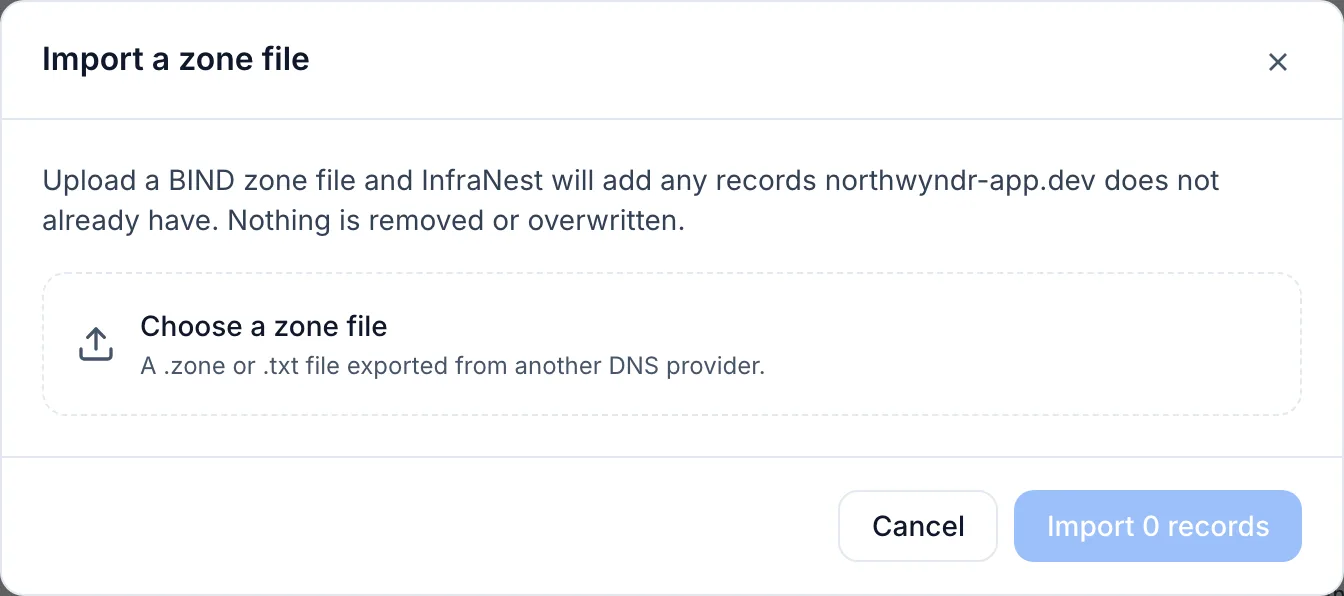
- Read the summary, then click Import.
#Import while adding a new zone
If you're setting the zone up for the first time, do it as part of adding the zone:
- Open DNS → Add zone and enter the domain name.
- At How do you want to set up DNS, choose Upload a DNS zone file and pick your file.
- The wizard tells you how many records it found and how many lines it will skip.
- Finish the wizard — the zone is created and the records are imported in one go.
NoteIf the file is for a different domain than the one you typed, the wizard stops and tells you. This is deliberate — importing it anyway would put every record under the wrong name.
#What the preview tells you
Before anything happens, the preview shows:
- To add — records in the file your zone doesn't have yet. These are what gets imported.
- Already present — records that match something in the zone exactly. Left alone.
- This provider will not accept — record types your DNS provider doesn't support.
- Skipped — lines that can't become records, each listed with its line number and the reason.
Common reasons a line is skipped, none of which mean anything is wrong:
- SOA and nameserver records at the top of the zone — your DNS provider owns these and creates them itself.
- Records for a different domain — names outside this zone are refused rather than silently renamed.
- Record types InfraNest doesn't support — rare, and always named so you can add them by hand.
One reason does mean the line needs fixing: a value that doesn't fit its record type, such as an A record whose value is a hostname instead of an IP address. Some providers export special records this way (such as AWS Route 53's alias records). Recreate those by hand at your new provider, or correct the line and import it again.
#Move from another provider, start to finish
- Export the zone file at your old provider.
- Create the zone in InfraNest (DNS → Add zone) if it doesn't exist yet.
- Import the zone file and check the records look right.
- Only then point your domain's nameservers at the new provider.
TipDo the nameserver change last. Until you change it, the old provider is still answering, so there's no outage while you get the records right.
#Tips
- It's safe to try more than once: import, review your records, fix the file if something was missing, and import again. Anything already there is simply skipped.
- If a record exists in both places with a different value — say your MX points somewhere new — you'll end up with both, since InfraNest won't guess which one to delete. Check your MX and TXT records after importing and remove anything you no longer want.
#Troubleshooting
- "Could not read that zone file" — the file may not be a BIND zone file. CSV or a provider's own export format won't work; look for a "BIND" option when exporting.
- Records are read-only — the zone belongs to a provider InfraNest can't write to. Add the records in the provider's own control panel, then use Sync this zone.
- Some records didn't arrive — the message tells you how many and why. Your provider may have rejected them, or rate-limited a large import. Import the same file again; anything that already landed is skipped.
Was this article helpful?
Thanks for your feedback!
Thanks, this goes straight to the docs team.