

Over time, zones pick up records nobody needs any more — an old verification code for a service you dropped years ago, an address that hasn't answered in months, or a second copy of a record that was already there. These leftovers make the zone harder to read and every change riskier, and an address nobody answers on any more may even belong to someone else now. InfraNest finds these and lets you remove them, one record at a time, with a way back if you change your mind.
#Overview
- InfraNest checks every zone for records that look left over and groups them on the zone's page.
- You choose which ones to remove — nothing is removed automatically.
- Every removal can be undone, and you can tell InfraNest to stop suggesting a record you want to keep.
#Find them
- On the DNS page, open the Overview tab. Any zone with leftovers appears under Tidy up and complete, showing how many records it has.
- Click Review to go to that zone.
- On a zone's own page, look for a card above the records that says how many records look left over and what kinds they are, such as old verification codes.
- Click Tidy up on that card.
If you don't see either of these, there's nothing to tidy up right now.
#Review and remove
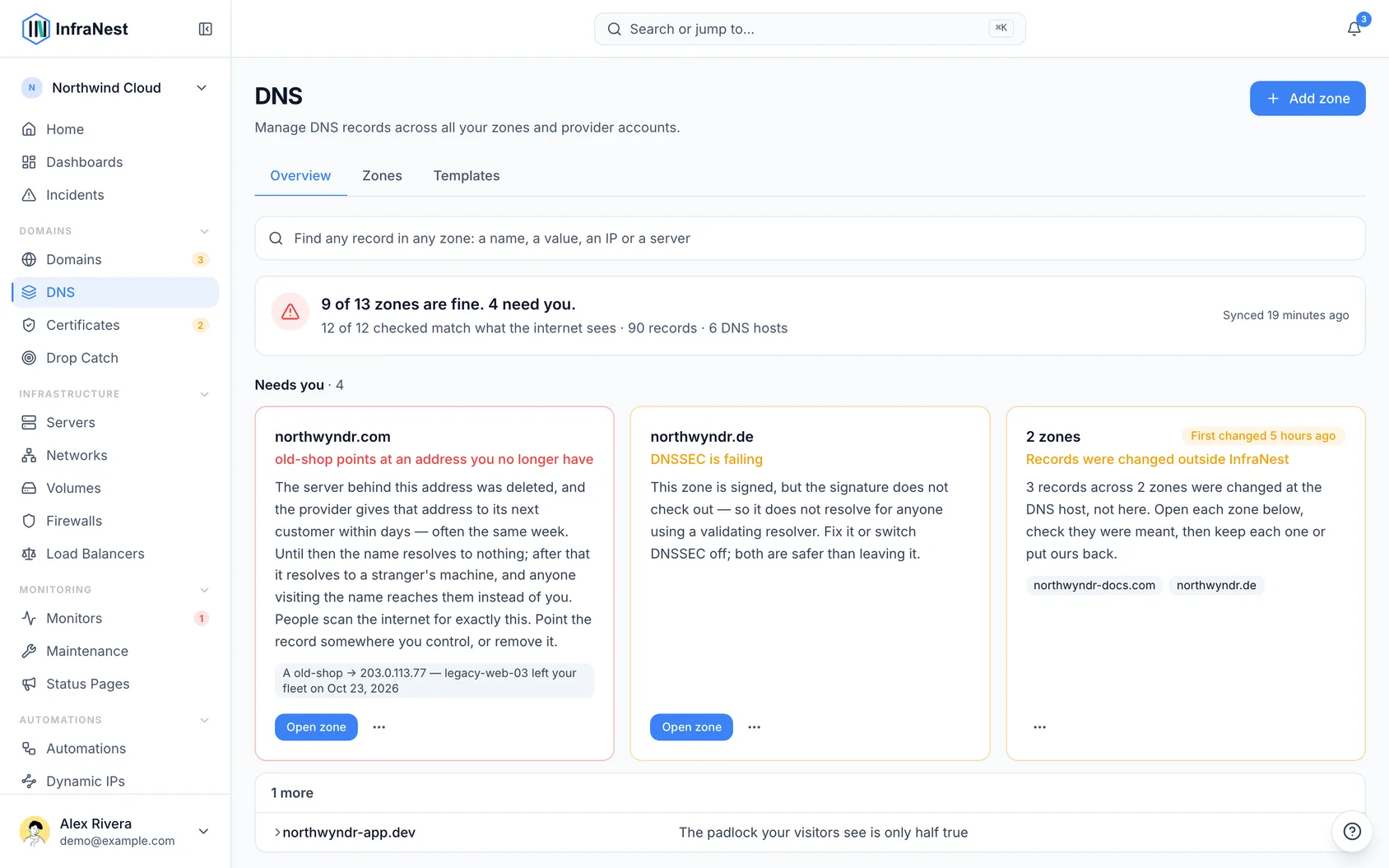
- Click Tidy up on the zone's card. Every record is listed along with the reason InfraNest thinks it's left over.
- Tick the records you want to remove. Nothing is ticked for you by default.
- Click Remove, then confirm by clicking Yes, remove.
The records are removed from your DNS provider right away, just like deleting them by hand.
#Changed your mind?
Right after removing, the card shows an Undo option that puts the records back. The removal also appears as one entry in the zone's History tab, where Undo all does the same thing later.
NoteA second copy of a record can't be "put back" while the first copy still exists — nothing was actually lost, so History shows it as already back.
#Keep a record on purpose
Click Keep beside any record you want to hold on to. InfraNest won't suggest that record again.
#What InfraNest looks for
- Old verification codes — a code a service once asked you to add to prove you own the domain, where nothing else in the zone still uses that service. One-time codes from a certificate order are suggested once they're more than a month old.
- Addresses that stopped answering — a name that InfraNest's daily checks and your monitors have tried to reach for 90 days, failing on many separate days, without answering once.
- Second copies — the same name, type and value appearing twice. The oldest copy is the one kept.
#What InfraNest never suggests
- Records kept up to date by a dynamic IP — a home or office connection often doesn't answer from the outside on purpose, so a quiet address there doesn't mean anything.
- Codes that services keep checking for, such as Google Search Console, Facebook and Atlassian. Removing these would quietly un-verify your domain.
- An address you no longer have — if a record points at a server address you've given up, InfraNest already flags this separately as a problem on the zone's Mail & security tab, since someone else could take that address over.
- Anything without enough evidence — an address nobody has checked, or a record that changed recently. When InfraNest isn't sure, it stays quiet.
#Get a weekly reminder
You don't have to remember to check manually.
- Go to Automations.
- Start from the template Weekly reminder to tidy up leftover DNS records.
- Choose where the reminder should go.
- Click Save.
Every Monday morning, InfraNest looks through your zones. If it finds leftover records, it sends a short message with how many there are and a link to each zone's review. If there's nothing to tidy up, you won't hear anything.
TipThe reminder only points the way — it never removes or keeps anything on its own. You still decide in each zone's review, record by record.
#Who can remove
Anyone can see the review, but removing or keeping a record needs permission to edit DNS records. Without it, the review explains this and hides the buttons. If a zone's provider doesn't let InfraNest change records directly, remove them in the provider's own dashboard instead.
Was this article helpful?
Thanks for your feedback!
Thanks, this goes straight to the docs team.