

This article introduces the DNS tools in InfraNest, for anyone who manages domains but isn't a DNS expert.
#Overview
- InfraNest manages DNS for all your domains in one place, no matter which provider hosts them.
- Import your zones, edit records in a single consistent editor, and InfraNest pushes the changes to the provider for you.
- Zones from Cloudflare, Amazon Route 53, Hetzner, TransIP, GoDaddy, IONOS and Namecheap all live together, edited the same way.
- Records you change in InfraNest are pushed to the provider, and records changed at the provider are pulled back. If something changed outside InfraNest, it's flagged for you.
- The Security section checks each zone for SPF, DMARC, DKIM, MX, DNSSEC and CAA, and tells you what's missing.
- You can save a working set of records as a template and apply it to any zone.
- InfraNest regularly checks what the internet actually sees for your records and compares it with what's stored here. If they differ, you get an email naming each record, and a link straight to the zone. Nothing is changed automatically — the email just tells you what visitors and mail servers are being told.
- You can discover, create and delete whole zones, copy records between zones, or import by scanning live DNS.
NoteMissing extras like CAA, DMARC or DNSSEC don't show up as urgent problems — you'll find those checks on each zone's Security tab.
#Find the DNS page
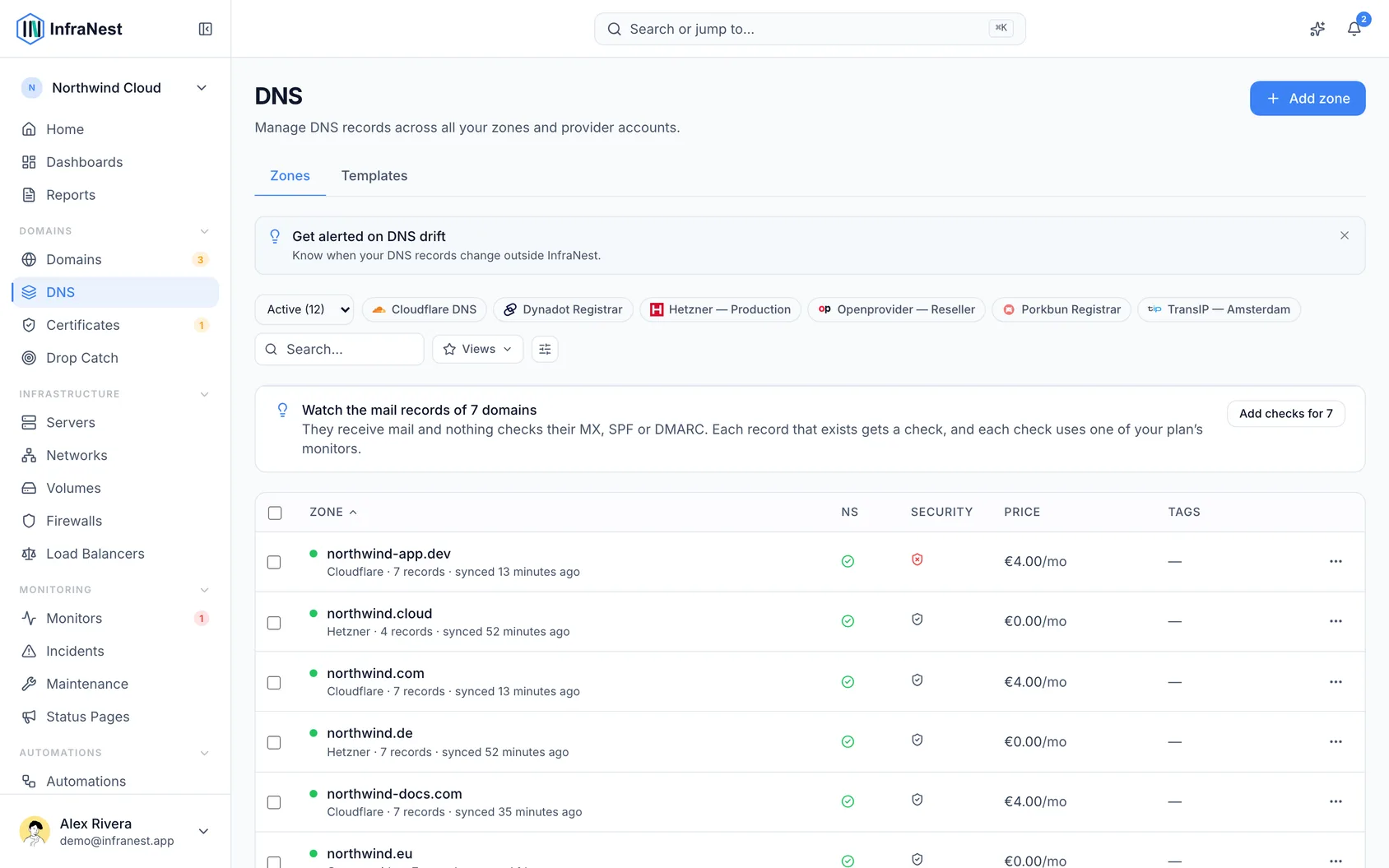
- In the sidebar, select DNS. This always opens the Overview tab.
- The page has three tabs: Overview answers "does anything need me?" across all your zones; Zones is the full list of zones; Templates holds your saved record templates.
- The other tabs keep their place in the address bar, so reloading the page or going back returns you to the tab you were on.
#Search for a record across every zone
- On the Overview tab, use the Search box at the top. You can also press ⌘K (or Ctrl+K on Windows) from anywhere in the app.
- Type part of a name (like
api), a value, an IP address, the name of one of your servers, or a service such as Cloudflare or Google Workspace. - Review the results — they're grouped by zone, and each one explains why it matched, for example "Points at your server web-1".
- Select a result to open its zone with that record highlighted.
- Clear the search box to return to the overview.
TipAn IP address finds records pointing at exactly that address. An IPv6 range such as
2a01:4f8:c0c:1::/64finds every record inside it.
#Check what needs your attention
- On the Overview tab, look at the top line — it shows how many zones are fine, how many need you, your total record count, how many zones match what the internet sees, and how many DNS hosts you use.
- Review the Needs you section, which lists only things that are broken or about to break, most urgent first. This can include records pointing at addresses you no longer own, dynamic IP problems, zones whose nameservers point elsewhere, DNS hosts that stopped syncing, or records where the internet sees something different than what's stored.
- If the same problem affects several zones, it appears as one card listing them all. Select a zone in the list to open and fix it there.
- To set a card aside, choose This is intentional or Snooze until tomorrow. A line under the cards shows how many are set aside, with a Bring back option to undo it.
- Check the Changes, last 7 days list to see every DNS change across your zones, what changed, and who did it. Changes made directly at your provider are marked Outside InfraNest.
- Look at Where your DNS lives to see each DNS host, how many zones it holds, and whether it's connected.
- Review Tidy up and complete for suggestions, such as removing old zone copies or lowering a TTL. Nothing listed here is broken. Choose Not needed to dismiss a suggestion.
#Browse all your zones
- Select the Zones tab to see every zone across all your providers, with its status, provider, record count and last sync time.
- Use Search and Filter to narrow the list, or add Tags to organize zones.
- Select Add zone or Add DNS zone to discover zones from a provider or create a new one.
- Select a zone to open it and manage its records.
#Tips
TipEvery card in Needs you also appears on the Home page, in the same words — so you don't have to check both places separately.
Was this article helpful?
Thanks for your feedback!
Thanks, this goes straight to the docs team.
Still stuck? Contact support
Related articles
DNSCloudflare settings the advisor checksSome of the most important security settings for a website are not DNS records at all.DNSCheck DNS and email securityEach zone has a Security Advisor that checks the DNS records that matter for email delivery and security — reading your domain's live DNS, so it's accurate…DNSDownload a zone fileYou can download any DNS zone as a zone file — a plain text file in the standard BIND format that almost every DNS provider, registrar and hosting control…DNSImport a zone fileIf you're moving DNS to InfraNest from somewhere else, the fastest and most complete way to bring your records across is to import a zone file — the standard…