

Download a copy of any DNS zone as a standard zone file — useful for backups or for moving your DNS to another provider.
#Overview
- Produces a plain text file in the standard BIND format, which almost every DNS provider, registrar and hosting control panel can read.
- The usual way to move a zone to a new provider, and a handy way to keep your own copy of what your DNS looked like on a given day.
- Downloading is read-only — nothing changes in your zone, and nothing is sent to your DNS provider.
#Download it
- Open DNS and click the zone you want.
- Click Actions (top right) → Download zone file.
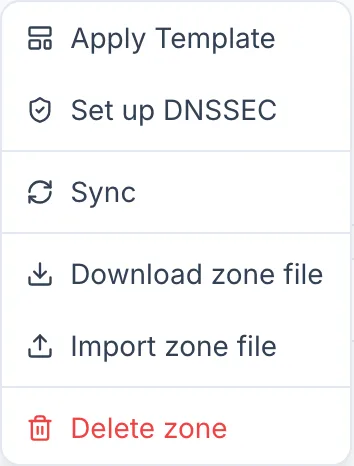
- Your browser saves it as
yourdomain.com.zone.
#What's in the file
Every record InfraNest holds for that zone — A, AAAA, CNAME, MX, TXT, SRV, CAA and the rest — along with their TTLs. Open it in any text editor and it looks like this:
$ORIGIN example.com.
$TTL 3600

@	3600	IN	A	192.0.2.1
@	3600	IN	MX	10 mail.example.com.
www	300	IN	CNAME	example.com.
A few things worth knowing before you load it somewhere else:
The SOA record and your apex nameservers aren't included. Those belong to whichever provider hosts the zone, and they'll be created for you at the new provider. Every importer expects this.
Notes you've added to a record appear as comment lines starting with
;. They're for you — DNS itself ignores them.Cloudflare-proxied records are marked with a comment. The address in the file is your real origin server, not the Cloudflare address the world currently sees. If you're moving away from Cloudflare, that origin address is the one you want.
ALIAS records are written as comments. ALIAS isn't a standard DNS record type — only some providers offer it — and many importers refuse the whole file if it contains one. Each ALIAS record appears under a short explanation, as the complete record line with
;in front:; @ 300 IN ALIAS lb.example.net.Importers skip comment lines, so recreate it at the new provider: a CNAME works for a name like
www, and for the domain itself (@) use the provider's own version — often called ALIAS, ANAME or CNAME flattening. If the new provider does accept ALIAS records in an import, delete the;at the start of the line before you upload the file.URL forwarding is listed as a comment, not as a record. Namecheap's URL Redirect records (unmasked, permanent 301, and masked) aren't DNS at all — Namecheap's web servers send your visitors on to the address you gave. Zone files have no way to write that, and many importers refuse the whole file if they find one, so each forward appears as a comment line with its name, its kind and the address it goes to:
; URL forwarding — not exported as a record: it is a web redirect (Namecheap's URL Redirect Record), not DNS, and zone files have no form for it.
; Set it up again at your new host, as URL forwarding or a redirect on your web server:
;    @    URL301    permanent (301) redirect to https://example.org/
Importers skip comment lines — InfraNest's own import included — so the forward won't come across with the file. Set it up again at the new provider if it offers URL forwarding, or as a redirect on your web server, before you move the nameservers. Until you do, that name stops forwarding once the new provider is answering.
Records with an Auto TTL are written with 300 seconds, which is what Cloudflare's Auto works out to. A zone file has to give every record a number.
Route 53 alias records are listed as comments, not as records. An alias is an Amazon feature: Route 53 answers with whatever the target (a load balancer, CloudFront, an S3 bucket) points at right now. Zone files have no way to write that, so instead of guessing an address or a TTL, the file shows each alias on a comment line with its name, type and target:
; Route 53 alias — not exported as a record: zone files have no form for it and it has no TTL of its own.
; Recreate it at your new provider (a CNAME, or ALIAS/ANAME/CNAME flattening at the apex):
;    @    A    alias to dualstack.my-lb-1.eu-west-1.elb.amazonaws.com.
Importers skip comment lines, so add these by hand at the new provider. For a name like
www, a CNAME to the target works. For the domain itself (@), use your new provider's equivalent — often called ALIAS, ANAME or CNAME flattening.Records that use the zone's default TTL (OVHcloud shows these without a TTL of their own) are written with your zone's default TTL, the same number as the
$TTLline at the top of the file. If InfraNest doesn't read a zone-wide default from your provider, that line says 3600 seconds (one hour). InfraNest reads the default each time it syncs the zone, so if you've just changed it, use Actions → Sync from provider before you download.Records still need checking. A zone file is a faithful copy of what InfraNest knows, not a promise that everything in it is correct. Give the MX and TXT records a read before you rely on them.
NoteSome things — ALIAS records, URL forwarding and Route 53 aliases — can't be written as real DNS records in a zone file, so they appear as comments with instructions. Set these up by hand at your new provider.
#Moving a zone to another provider
- Download the zone file here.
- At the new provider, look for Import zone file (sometimes called "Import BIND file" or "Import records").
- Upload it and review what the provider says it will create.
- Only once the records look right, point your domain's nameservers at the new provider.
TipDo the nameserver change last. Until you change it, the old provider is still answering, so there's no rush and no outage if something needs fixing.
#Troubleshooting
- The download doesn't start — check your browser hasn't blocked it; some browsers block files that start automatically.
- The file looks empty — a zone with no records still downloads, it just contains the header and nothing else. If that's a surprise, the zone may not have finished syncing yet: use Actions → Sync from provider first.
Was this article helpful?
Thanks for your feedback!
Thanks, this goes straight to the docs team.