

If a DNS change caused problems — or someone else made a change you didn't expect — InfraNest keeps a full History for every zone, so you can see what happened and undo it. This is for anyone who manages DNS zones and needs to review or reverse a change.
Overview
- Every change to a zone — one record, a bulk change, or a change made outside InfraNest — is kept in History.
- You can undo a single change, undo a whole bulk change, or restore the entire zone to an earlier point.
- Changes made at your DNS provider directly (not through InfraNest) are flagged so you can decide whether to keep them or put your own values back.
See what changed
- Open DNS and click the zone.
- Open the History tab.
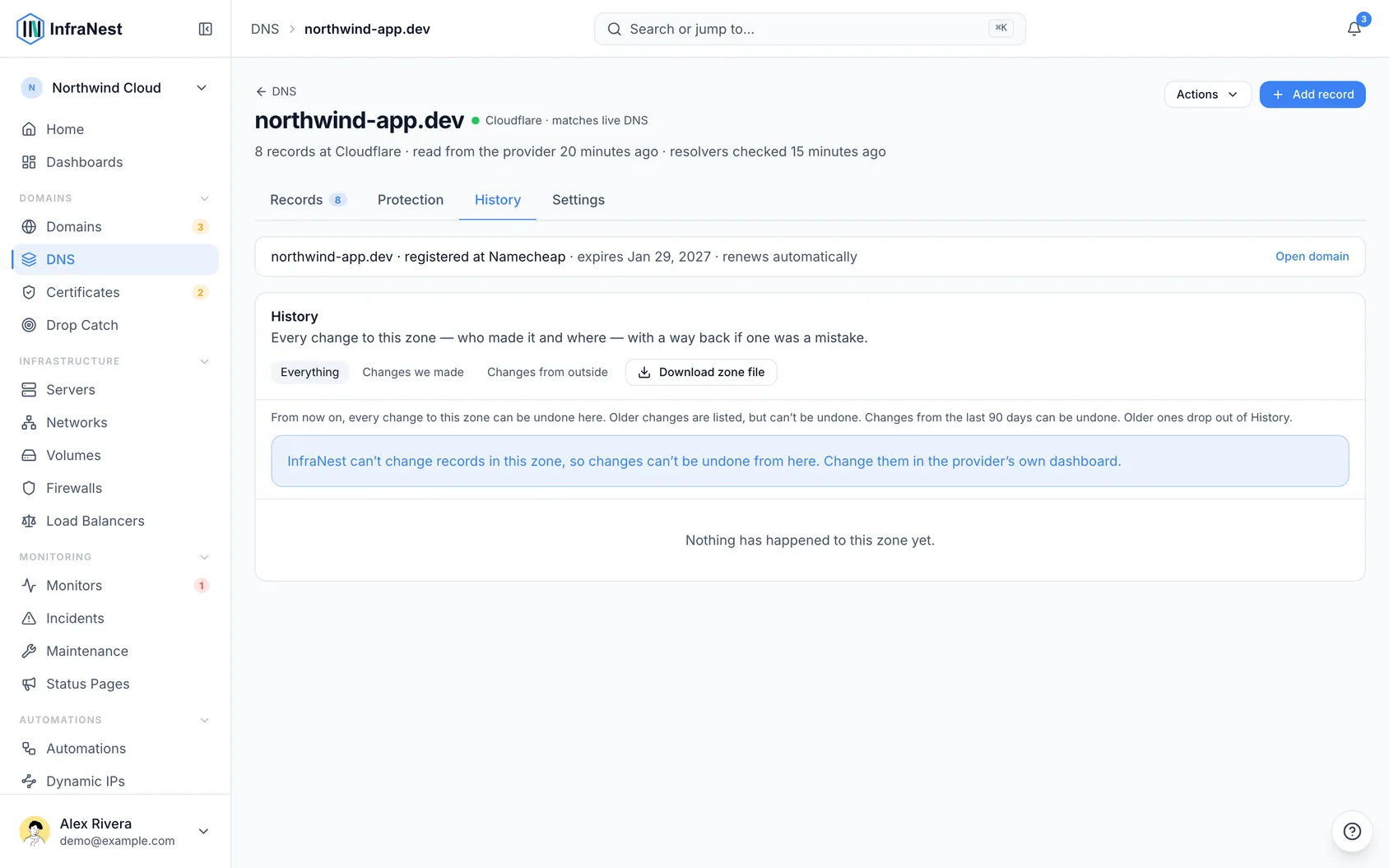
Each entry shows when it happened (Today, 14:02, Yesterday, 21:14, or a date — hover for how long ago), what happened in plain words (for example "Moved 11 records to web-02" or "Lowered TTL to 5 minutes"), and who did it — you, your team, an automation, a Dynamic IP, or a change made Outside InfraNest.
Use Changes from outside at the top to see only the changes nobody made in InfraNest — a good first check after an outage.
Decide on a change made at your provider
When a record is changed directly at your DNS provider, InfraNest notices on its next sync and won't decide for you.
- Open the zone. Under Changed outside InfraNest, each record shows what it was and what it is now.
- For each record, choose:
- Keep theirs — the change was meant; nothing more is sent, the record stops being flagged.
- Put ours back — InfraNest shows what will happen, then sends the original value back to your provider.
- If every change listed was meant, click Keep all theirs to accept them all at once.
NoteRecords kept up to date by a Dynamic IP are never listed here — they follow your changing address automatically.
A change left undecided stays listed for as long as your plan keeps History (see below), then is accepted automatically, as if you'd clicked Keep theirs.
Undo one change
- Find the change in History and click Undo beside it.
- InfraNest tells you exactly what will happen — for example "The A record www goes back to 203.0.113.1."
- Click Undo. The change is sent to your DNS provider straight away.
TipJust saved a change? The panel that appears above the records right after saving has its own Undo — no need to open History.
An undo itself shows up in History as a new change, so you can undo the undo if needed.
Undo a bulk change
- Find the bulk change (from a template, a zone file import, or a provider sync) in History.
- Click Undo all beside it.
If some records in the bulk change can't be undone, the rest still are, and InfraNest lists which ones it left alone and why.
Restore the zone to a moment
- In History, find the last change that was still good and click Restore to here.
- Review the preview of which records will be added back, changed back, and removed.
- Click Restore to confirm.
Nothing changes until you confirm the preview.
Troubleshooting
- Changed since — the record was edited again after this change. Undoing would overwrite the newer edit, so InfraNest shows the current value instead. Edit the record by hand if you still want the old value.
- Kept up to date by a dynamic IP — the record follows your changing address, so undo and restore leave it alone.
- Already removed / Already back — there's nothing left to undo.
- Older changes — undo only works for changes made after History was switched on for your zone. The tab shows the date undo became available.
- Buttons greyed out — Undo, Restore, Keep theirs, and Put ours back need permission to edit DNS records. If your provider doesn't let InfraNest change records, make the change directly in the provider's dashboard instead.
How far back you can go
History keeps changes for as long as your plan allows: 30 days on Free, 90 days on Pro, and 365 days on Business. The History tab and the Restore to here preview both show the exact number of days for your organization.
Each night, changes older than your plan's limit are removed from History a whole bulk change at a time, so Undo all always puts back everything it lists. Dynamic IP updates are kept for only 7 days and are never undone, since the next check-in would set the address again anyway.
Keep a copy first
Click Download zone file at the top of History to save the zone exactly as it is right now, before working back through its changes.
Was this article helpful?