

Placeholders let your automations speak in specifics — this article is for anyone writing messages, titles or webhook content inside an automation.
#Overview
- Placeholders pull live details from the event into your text, so instead of a generic message you get something like "example.com expires on Jan 15 (7 days left)".
- You write them as
{{name}}. Click Insert value anywhere you can type a message to see every placeholder available for the trigger you picked, along with an example of what it will contain. - Sensitive fields — passwords, tokens, secrets — are never offered and never resolve, so they can't leak into a message by accident.
#Browse the available placeholders
- Open the step where you want to add a placeholder (a message, a title, or a field like Payload (JSON, optional)).
- Click Insert value.
- Look through the groups to find what you need:
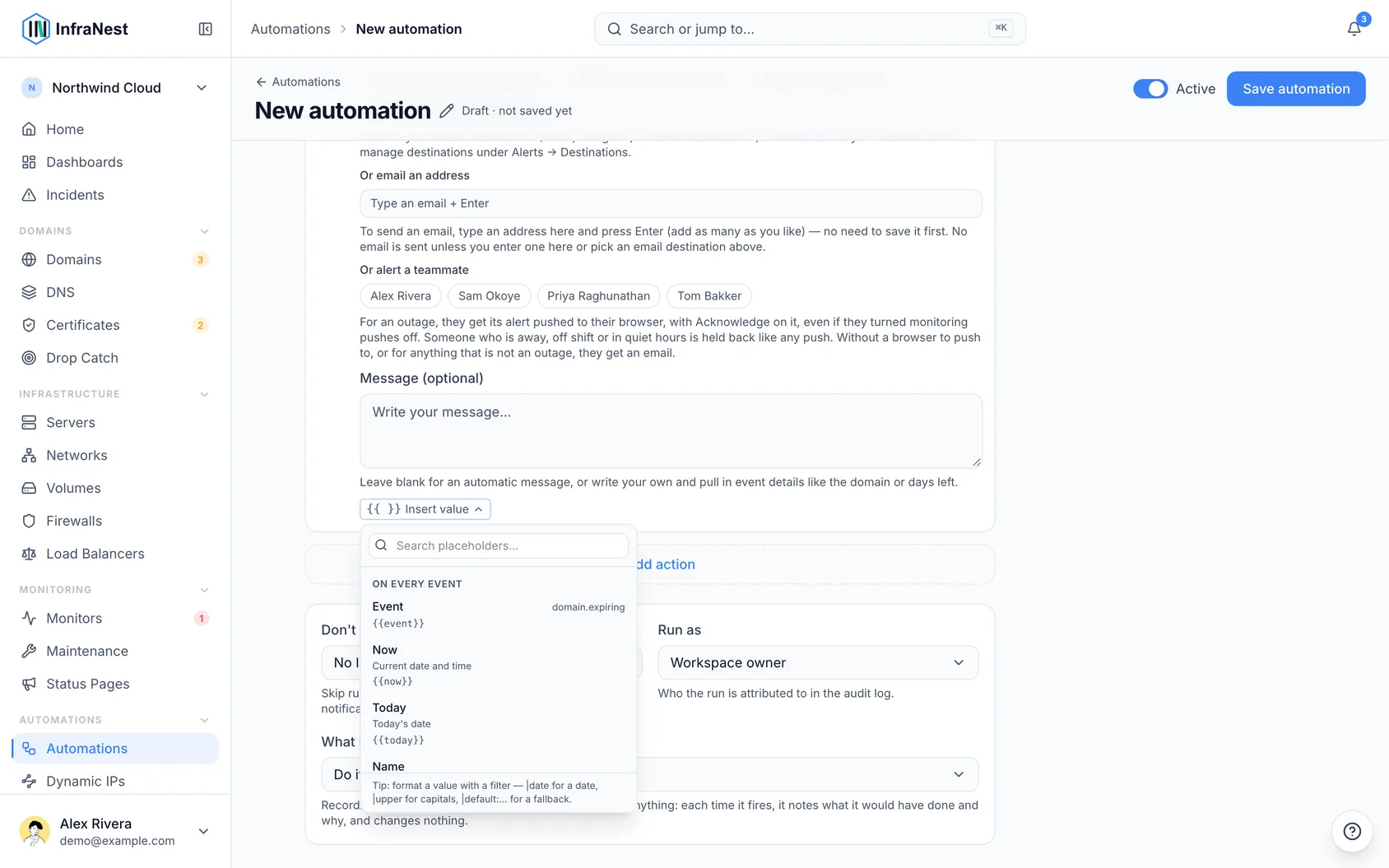
- Trigger data — details the event itself carries. For a Domain expiring trigger, that's things like the domain, the TLD, the registrar, and days left.
- Subject (labeled with the object's type, like Server, Certificate, or Monitor) — every field of the thing the event is about, even ones not included in the trigger data.
- Workspace — your organisation's name and slug.
- User — the rule owner's name and email.
- Date & time — the current date and time, or just today's date.
- Earlier values — anything an earlier Set a value step in the same rule saved.
- Select a placeholder to insert it where your cursor is.
#Format a placeholder value
- After the placeholder name, add a filter using a pipe, for example
{{expires_at|date}}. - Chain more filters if needed — each one changes how the value is displayed:
dateordate:Y-m-d— show a date in a chosen formatupperorlower— change the case of textdefault:—— show a fallback when the value is emptynumber— format a numbertruncate:80— shorten long textjson— show the raw list or object
- Save your changes.
NoteTyping a filter that doesn't exist won't break anything — unknown filters are simply ignored.
#Use placeholders in JSON fields
- Open a JSON field, such as Payload (JSON, optional) or Inputs (JSON, optional).
- For text values, put the placeholder inside quotes, for example
"title": "{{title}}". - For numbers or lists, leave out the quotes, for example
"number": {{number}}. - Save your changes.
InfraNest automatically escapes each value, so a quote mark or a line break inside something like an issue title or comment can't break the JSON or change what else it says. If the JSON has a genuine mistake, the step fails and tells you, rather than sending something unexpected.
#Use placeholders in conditions
- Open Add condition (or Only if) on the step you want to gate.
- Use the same placeholder names to build a condition — for example, checking that a certificate's tags contains "production", that the rule owner's email is a certain address, or that today's date matches what you expect.
- Choose an Operator such as contains, equals, or is set.
- Save your changes.
TipYou don't have to fill in a message at all — leave it blank and InfraNest writes a sensible default for you. Add placeholders only when you want to phrase it yourself.
Was this article helpful?
Thanks for your feedback!
Thanks, this goes straight to the docs team.