

A set of ready-to-copy automation ideas for anyone getting started with InfraNest automations.
#Overview
- Each example below is a complete automation you can build in a few minutes.
- Use them as-is, or tweak the trigger, conditions, or actions to fit how you work.
- Build any of these under Automations → New automation, or start from the Templates tab.
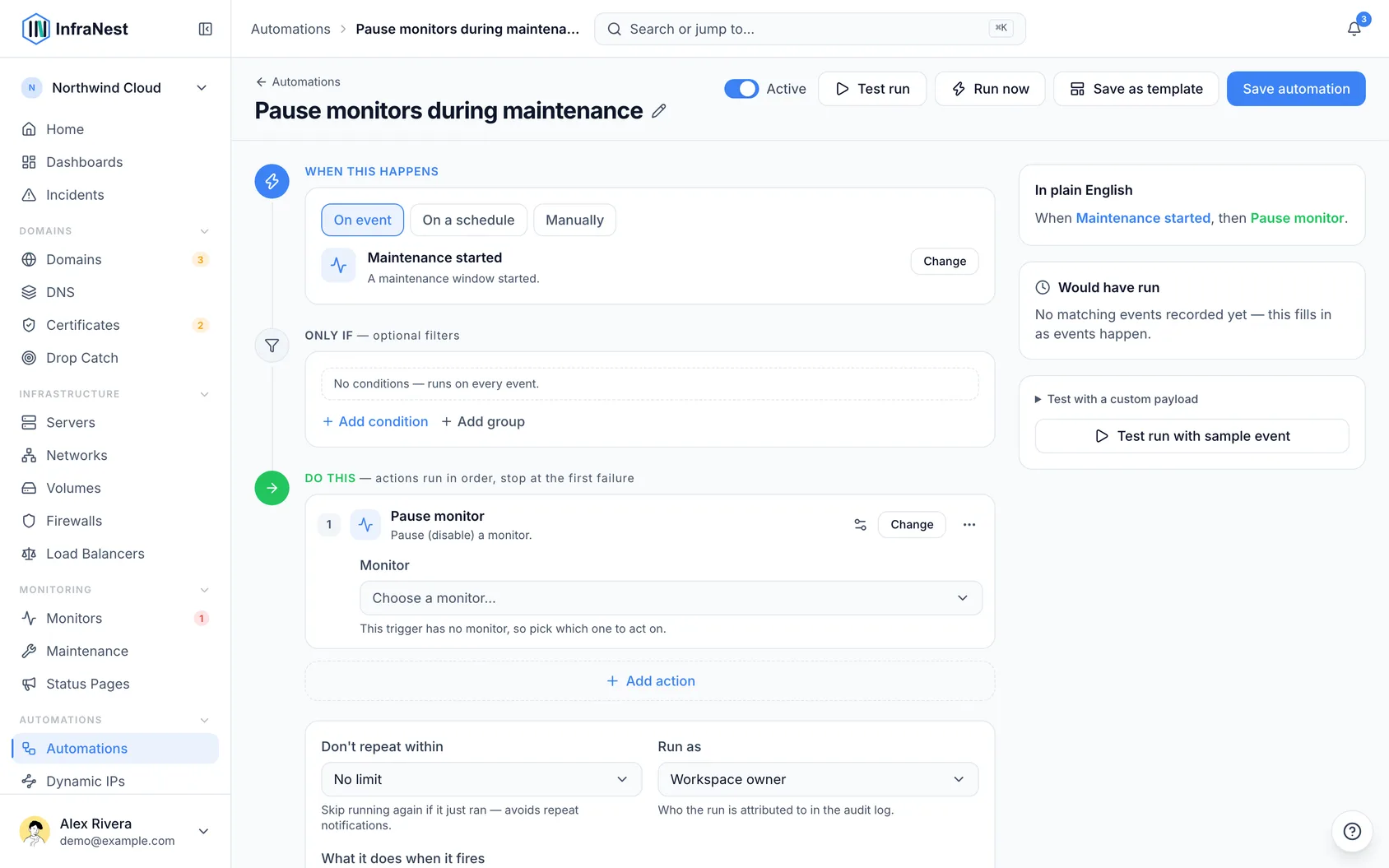
#Warn the team about expiring domains
- Go to Automations and select New automation.
- Set the trigger to Domain expiring.
- Add a condition: Days left less than 14.
- Add the action Send notification.
- Add the action Open maintenance window.
- Select Save automation.
#Tag and announce a monitor outage
- Go to Automations and select New automation.
- Set the trigger to Monitor alert.
- Add the action Set a value to add the tag "incident".
- Add the action Post status-page announcement.
- Select Save automation.
#Auto-resolve a recovered incident
- Go to Automations and select New automation.
- Set the trigger to Monitor alert.
- Add the action Resolve incident.
- Select Save automation.
#Keep new domains protected
- Go to Automations and select New automation.
- Set the trigger to Domain added.
- Add the action Set auto-renew.
- Select Save automation.
#Push events to your own tools
- Go to Automations and select New automation.
- Choose On event and pick All events in a category or a specific event, such as Server removed or Certificate expiring.
- Add the action Call webhook.
- Fill in the URL and, if needed, the Payload (JSON, optional) and Custom headers.
- Select Save automation.
#Harden every new server
- Go to Automations and select New automation.
- Set the trigger to Server added.
- Add the action to enable backups.
- Add the action to enable delete protection.
- Select Save automation.
#Reboot a server when its monitor goes down Pro
- Go to Automations and select New automation.
- Set the trigger to Monitor alert.
- Add a condition: Monitor status now equals "down".
- Add the action Reboot server.
- Add the action Send notification.
- Select Save automation.
See the Control servers from automations article for the full how-to on building server-reboot automations.
TipAdd conditions to keep rules focused — for example only domains with a certain tag, or only certificates flagged as weak.
Was this article helpful?
Thanks for your feedback!
Thanks, this goes straight to the docs team.
Still stuck? Contact support
Related articles
Automation rulesAbout automationsAutomations let InfraNest react to things happening across your infrastructure on its own.Automation rulesProControl servers from automationsAutomations can act on your cloud servers — so a rule can power a server on, reboot it, or turn on backups without you lifting a finger.Getting startedGetting started with InfraNestWelcome to InfraNest. When you sign up, a short setup wizard gets your workspace ready, and Home then guides you through the first few things to do.Automation rulesLet InfraNest fix known failures for youSome failures have a fix that is always the same: take a broken server out of the load balancer, restart a server that has frozen, give a filling disk more…