

InfraNest can automatically fix a few common problems for you — this is for anyone who wants servers and storage to self-heal without waiting on a person to notice first.
#Overview
- Some failures always have the same fix: take a broken server out of the load balancer, restart a server that has frozen, or give a filling disk more room.
- InfraNest offers three ready-made recipes for these under Automations.
- Every new fix starts out only watching — it notes what it would have done so you can check it's right before it ever touches your servers.
#What the three fixes do
- Server down everywhere → take it out of the load balancer, put it back when healthy. When a server's monitor has been down from every location for 2 minutes, the server is taken out of the load balancers that send it traffic. When the monitor recovers, it goes back into exactly those.
- Server frozen → reboot it, at most once a day. When none of a server's monitors gets a reply and its InfraNest agent has been silent for 10 minutes, the server is restarted through its cloud provider. It's taken out of its load balancers first where possible.
- Volume forecast to fill within 7 days → grow it by 25%, up to a limit. When the disk forecast says a volume will be full within a week, it's made bigger — never past the size and the monthly cost you set. The message tells you the new size and what it costs.
Each fix tells your team what it did and why.
#Add a fix
- Open Automations.
- Go to Template library (or check Suggested) and find one of the three recipes.
- Click Use.
- Fill in what it asks for — for the volume fix, set Never past (GB) and Never costing more than (a month).
- Click Save automation.
- Leave What it does when it fires set to Only record what it would have done at first, so it only watches.
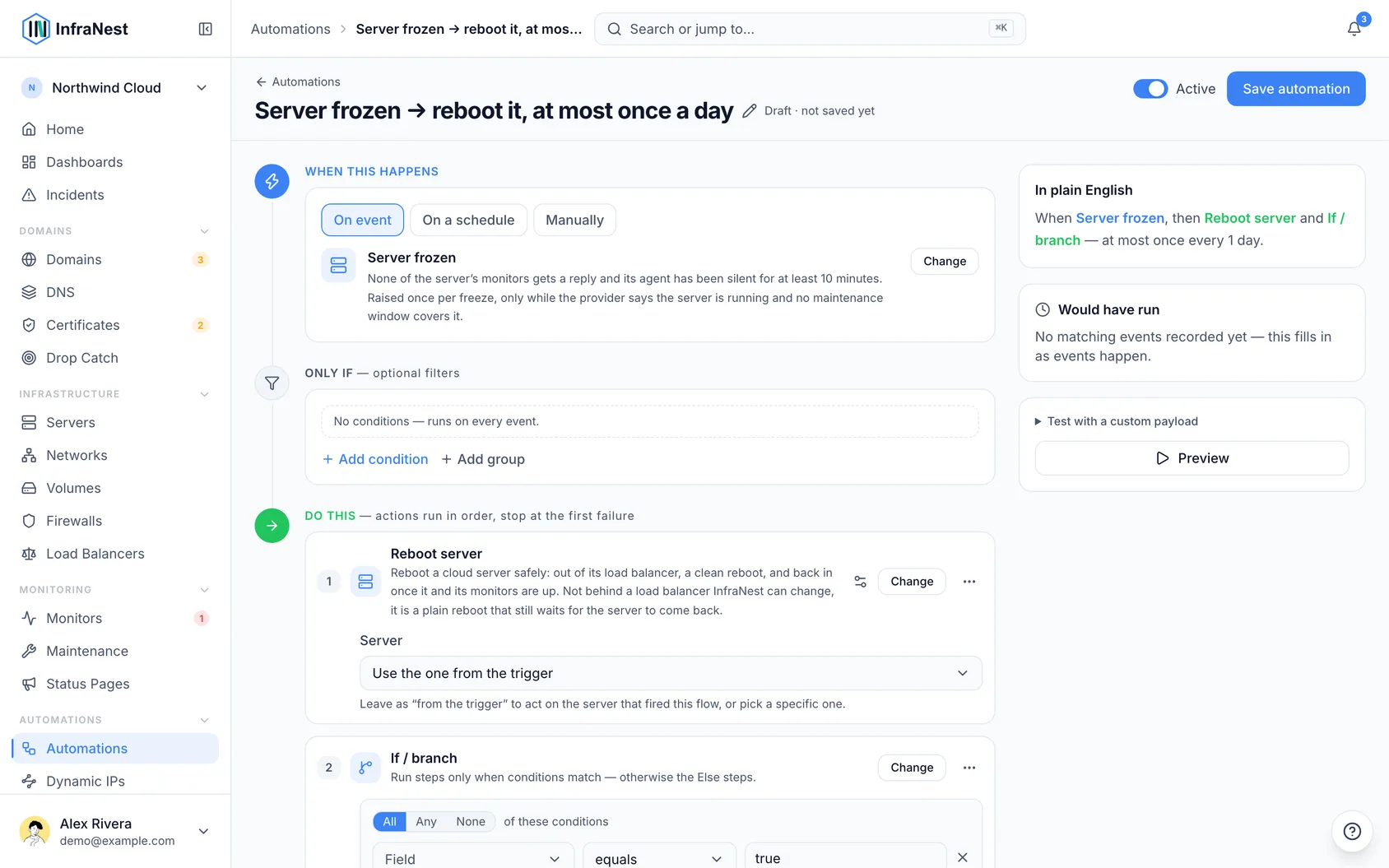
#See what it would have done
- Open the automation from your list.
- Read the box at the top — it lists the latest times it fired, what it would have done, and why (for example, Would have taken web-02 out of lb-web — web-02 https was down).
- In the list of automations, a watching fix shows a Watching badge and says how often it would have acted in the last 30 days.
#Let a fix act
- Open the automation.
- Click Let it act in the box at the top, or set What it does when it fires to Do it.
- Click Save automation.
#Go back to watching
- Open the automation.
- Set What it does when it fires to Only record what it would have done.
- Click Save automation.
NoteWatching is available on every plan. Letting a fix actually act is part of the paid plans. If your plan changes, a fix that was acting switches back to watching instead of failing — you'll see the Watching badge again, and the box on the automation explains that your plan no longer allows it to act.
#Tips
- A frozen server is only restarted once a day at most. If it freezes again within a day, the fix leaves it for a person to look at instead of restarting again.
- A database is never restarted automatically unless you allow it on that server's page — InfraNest recognises which servers are databases from what runs on them.
- Everything a fix does is recorded in your Audit Log, under the automation, along with the server, load balancer or volume it changed.
#Troubleshooting
- The frozen-server fix never fires. It needs a monitor on that server — without one, InfraNest never calls it frozen. It also only acts when the server's monitors and its agent go wrong at the same time; if the agent went silent hours ago and a website on the server only just went down, that's not treated as frozen, and it also waits while a maintenance window covers the server.
- The volume fix won't switch to Do it. You must set Never costing more than (a month) first. If InfraNest doesn't know what the volume costs, it won't grow it at all.
- The volume grew but the server still shows low space. Growing the volume only resizes the disk — the filesystem on it isn't resized automatically. The message from the fix tells you the command to run on the server to finish it.
Was this article helpful?
Thanks for your feedback!
Thanks, this goes straight to the docs team.
Still stuck? Contact support
Related articles
Load BalancersBusinessLoad balancersLoad balancers spread incoming traffic across several servers, so a service stays up and responsive.Automation rulesAutomation examplesA few ready-to-copy automations to show what's possible. Build any of these under Automations → New automation, or start from the Templates tab.Automation rulesPlaceholders and formattingPlaceholders let an automation drop live details from the event into a message, title or webhook — so instead of a generic "A certificate is expiring" you…Automation rulesCheck your automation runsOnce a rule is live, InfraNest records every time it runs — so you can confirm it's working and see exactly what each action did.