

Learn how automations can safely power on, reboot, or shut down your servers — and manage their backups and delete protection — all without manual work. This is for anyone running servers in InfraNest who wants routine server tasks to happen automatically.
#Overview
- Automations can act on your cloud servers, so a rule can power a server on, reboot it, or turn on backups without you lifting a finger.
- Every server action is reversible — there is no rebuild, restore or delete, so a rule can never wipe a server.
- Every action is logged in your Audit Log and in the automation's run history, so you can always see what ran and when.
NoteServer actions are part of a paid plan. On a free plan they appear in the builder but are greyed out until you upgrade.
#What a rule can do to a server
- Power on server — turns the server on
- Reboot server — a graceful restart
- Shut down server — graceful, power it back on whenever you like
- Enable or disable backups (the provider's automatic backups)
- Enable or disable delete protection
#Add a server action
- Open Automations, then New automation (or edit an existing rule).
- Pick a trigger — what should set this off (for example a monitor going down, or a server being added).
- Under Do this, choose a server action — they're grouped under Servers.
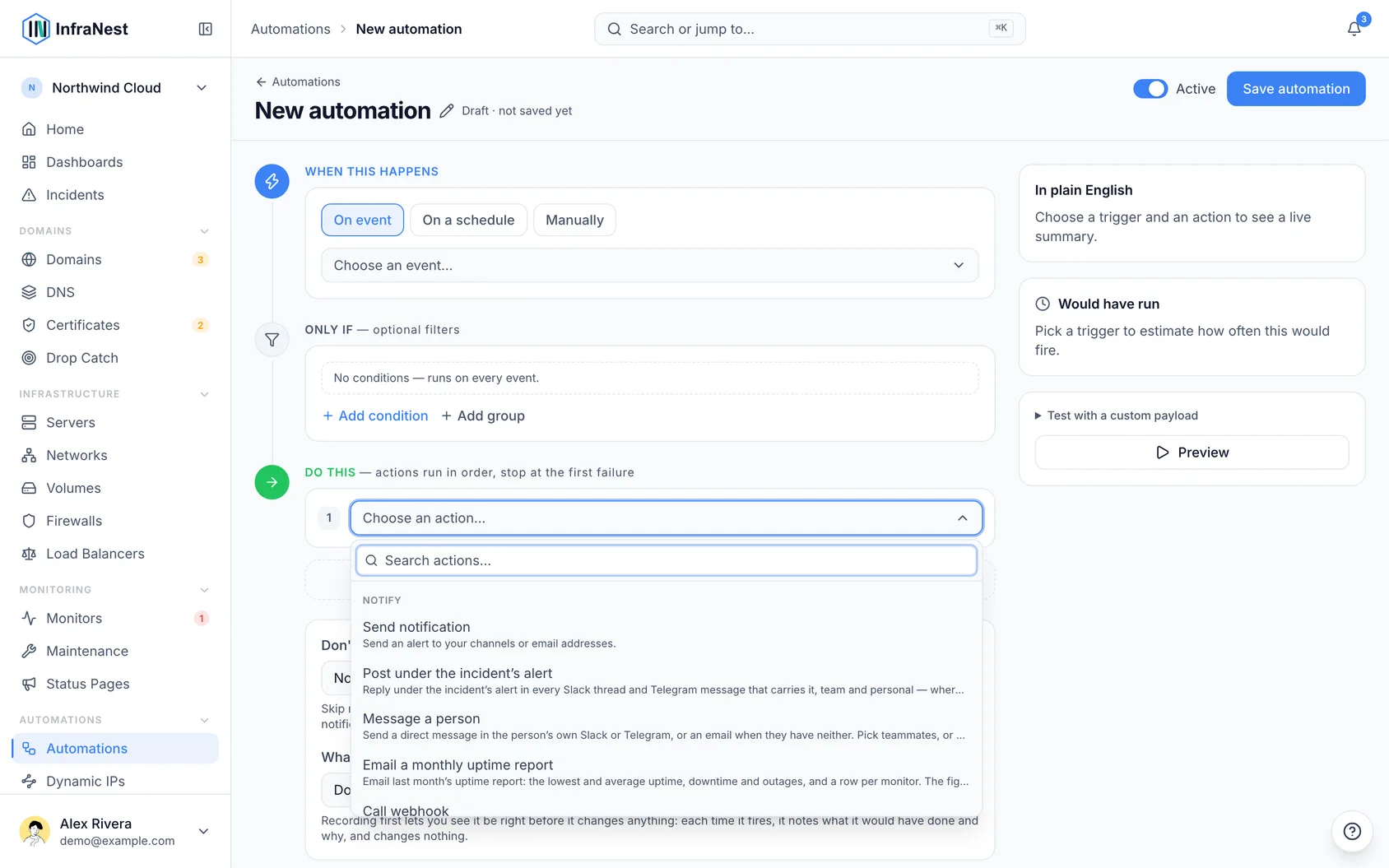
- Choose which server to act on:
- Leave it on Use the one from the trigger when the trigger already involves a server (like Server added) — the action uses that server automatically.
- Otherwise, search and pick a specific server using Choose a server….
- Click Save automation.
#Start from a template
The Template library has ready-made recipes you can use as a starting point:
- New server → monitor it — every server you add is automatically watched and protected.
- Monitor down → reboot the server — self-healing: if a monitor fails, the server reboots and the team is told.
Click Use, adjust anything you like (for the reboot recipe, pick which server under Choose a server…), then click Save automation.
TipFor a "reboot when down" rule, keep the built-in cooldown (Don't repeat within) so a flapping monitor can't reboot the server over and over. Add conditions, like a tag, under Add condition to keep the rule pointed at the right servers.
#Troubleshooting
- If a server action looks greyed out in Choose an action…, check your plan — server actions require a paid plan.
- If a rule didn't run as expected, open the automation and check Run history to see what happened on each run.
Was this article helpful?
Thanks for your feedback!
Thanks, this goes straight to the docs team.