

Create rules that run actions automatically whenever something happens in your infrastructure — built for anyone who wants routine work handled without lifting a finger.
#Overview
- A rule follows a simple pattern: When → If → Then.
- When an event happens, if your conditions match, then your actions run in order.
- You can start from a blank rule or use a ready-made template.
- Rules can be paused, edited, or deleted at any time, and every run is logged so you can check what happened.
#Create a rule
- Go to Automations and select New automation.
- Under When, pick a trigger — the event that starts the rule.
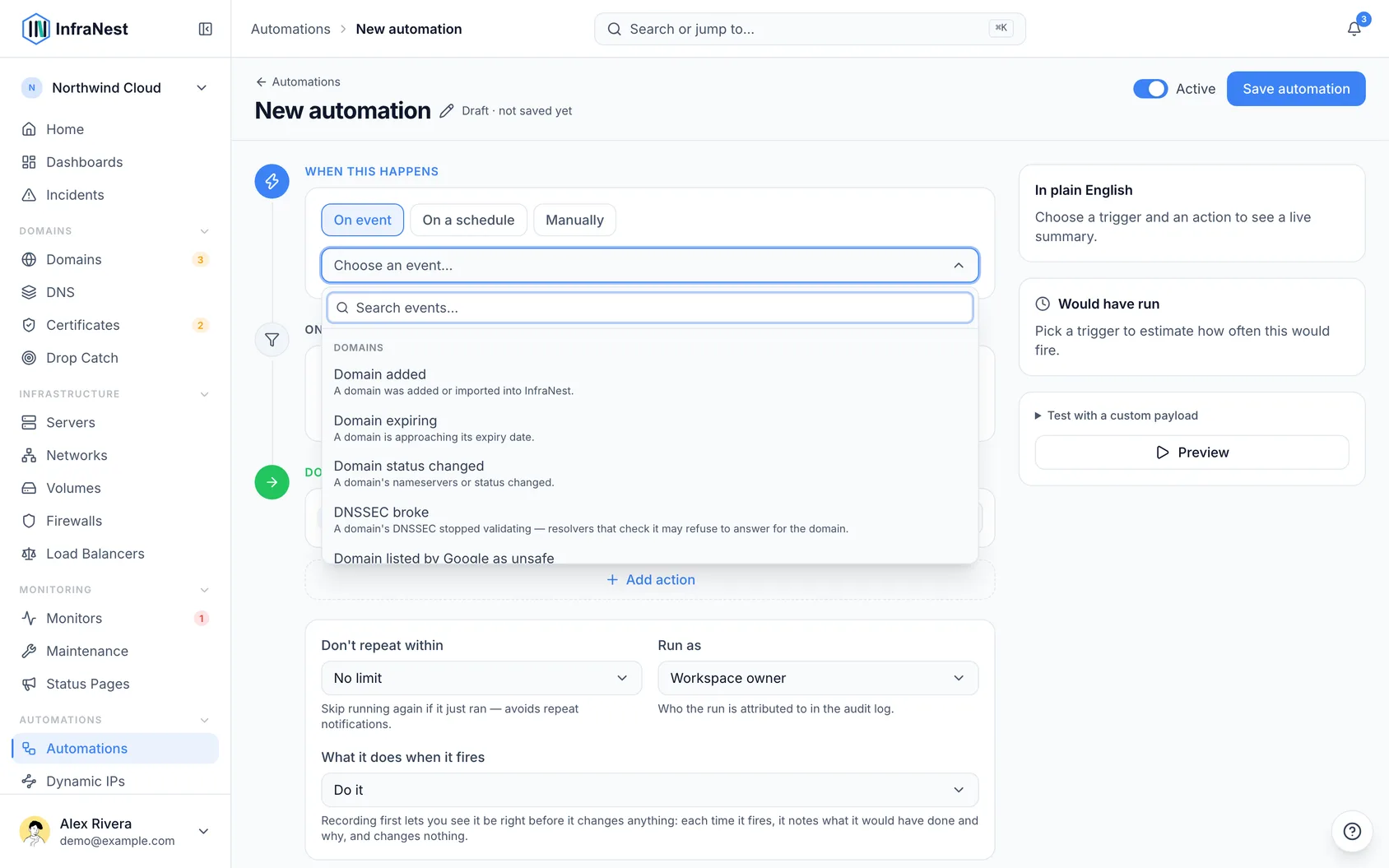
- Under If (optional), add one or more conditions to narrow down when the rule runs. All conditions must match for the rule to continue.
- Under Then, add one or more actions. They run in order, from top to bottom.
- Select Preview to see what the rule would do against a real example, then select Save.
#Start from a template
- Open the Template library tab.
- Select Browse all templates to see ready-made recipes.
- Pick one to use as your starting point.
- Adjust its trigger, conditions and actions to fit your needs, then save.
#Manage a rule
- Use Enable or Disable to pause a rule without deleting it.
- Select Edit to change the trigger, conditions or actions.
- Set a Cooldown so a rule doesn't fire again too soon for the same thing. A rule covering fifty domains still handles all fifty — the cooldown applies per domain, so one being dealt with never holds up the others. The same applies to Linear and Jira issues and PagerDuty incidents: the cooldown applies to each issue or incident on its own.
- Select Delete to remove a rule you no longer need.
TipUse Preview (dry run) before saving a new rule so you can confirm it behaves as expected without actually running any actions.
#After it runs
Every run is recorded. Check the Runs tab on your automation to confirm it worked and see each step's result. Runs are also listed in your Audit Log.
NoteIf a rule fails repeatedly, it may show Auto-disabled after repeated failures so it stops trying on its own.
Was this article helpful?
Thanks for your feedback!
Thanks, this goes straight to the docs team.
Still stuck? Contact support
Related articles
DomainsWhen your domain is on a spam listIf your domain was ever linked in spam, mail filters may treat every email that links to it as spam: your newsletters, your invoices, even an ordinary reply…Automation rulesAbout automationsAutomations let InfraNest react to things happening across your infrastructure on its own.Automation rulesLet InfraNest fix known failures for youSome failures have a fix that is always the same: take a broken server out of the load balancer, restart a server that has frozen, give a filling disk more…Automation rulesAutomation conditionsConditions decide when a rule actually runs. Without them, a rule runs on every matching event; with them, it runs only when the event's details match.