

If your team doesn't react fast enough to an outage, this feature makes sure the alert keeps moving up the chain until someone takes ownership. It's for anyone who wants outages to escalate automatically instead of going unnoticed.
#Overview
- When a monitor goes down, an escalation chain alerts a first person, then a second, then your whole team — waiting between each step.
- It checks before every step: if someone has already acknowledged the outage, or it has recovered, the chain stops and nobody else is bothered.
- It doesn't matter where the acknowledgement happens — In InfraNest, From a browser notification, From an email, In Telegram, or In PagerDuty all count.
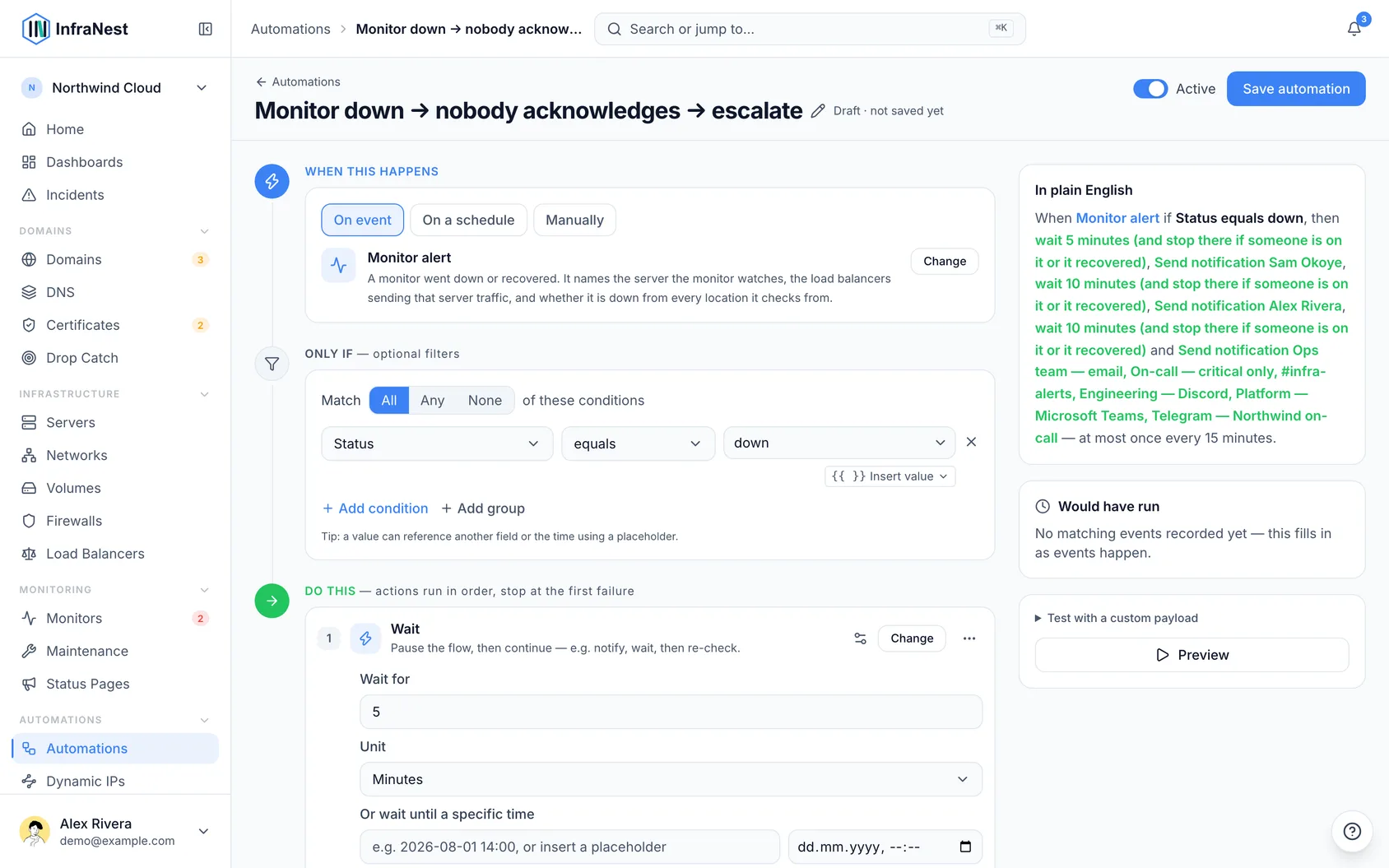
#Set up an escalation chain
- Open Automations.
- Choose the recipe Monitor down → nobody acknowledges → escalate and click Use.
- Under Or alert a teammate, pick the first and second people in the chain.
- Under Send to, choose where the final step goes (your team's destinations, such as Slack, Teams or email).
- If 5 and 10 minutes don't suit you, change the wait times on the Wait steps.
- Click Save automation.
#Escalate only some monitors
- Open the automation and click Add condition.
- Set it up to match, for example, a tag that only production monitors carry.
- Click Save changes so only matching monitors trigger the chain.
#Check whether a monitor is covered
- Open the monitor and go to its Alerts & Dependencies tab.
- Look for the line describing what happens if nobody acknowledges it — it names the automation that escalates it, confirms PagerDuty does, or shows a Set up escalation link if nothing does.
- Click Set up escalation if you need to add coverage.
#Tell the team who is on it
- Open Automations and choose the recipe Outage acknowledged → tell the team who is on it.
- Click Use and confirm where it should Send to.
- Click Save automation. From now on, when someone acknowledges an outage, your destinations hear a message like Anna is on API., so nobody else starts working the same outage.
#Check what a chain did
- Open the automation and view its run history.
- A chain that stopped early shows as Skipped, with the reason shown on the wait step — for example, Stopped: Anna acknowledged it.
#Tips
TipWorking alone? A chain needs a second person to make sense. Instead, turn on escalation in your own notification settings — InfraNest will push an unacknowledged outage to your browser after a delay you choose.
NoteIf you use PagerDuty, its own escalation policies already handle this, so InfraNest won't suggest a chain for monitors that page through PagerDuty — this avoids paging people twice.
#Troubleshooting
- An outage from a provider's status page never stops escalating — this is expected. It can't be acknowledged in InfraNest, so the chain only stops once the provider's own incident is marked resolved.
- A step ran even though the outage recovered — this stop check only works on monitor and incident triggers. On other trigger types, a Wait step always carries on regardless of what happened.
- Someone didn't get notified — if they set themselves as away, or the outage fell in their quiet hours, the notification is held back for them and the chain moves on to the next person in line.
Was this article helpful?
Thanks for your feedback!
Thanks, this goes straight to the docs team.
Still stuck? Contact support
Related articles
Automation rulesAbout automationsAutomations let InfraNest react to things happening across your infrastructure on its own.Automation rulesLet InfraNest fix known failures for youSome failures have a fix that is always the same: take a broken server out of the load balancer, restart a server that has frozen, give a filling disk more…Automation rulesAutomation conditionsConditions decide when a rule actually runs. Without them, a rule runs on every matching event; with them, it runs only when the event's details match.Automation rulesAutomation examplesA few ready-to-copy automations to show what's possible. Build any of these under Automations → New automation, or start from the Templates tab.