

Firewalls control which traffic can reach your servers. This article is for anyone who needs to review, edit or clean up firewall rules across their cloud providers from InfraNest.
#Overview
- Manage firewalls from every connected provider in one editor.
- See at a glance which servers a firewall protects and how many rules it has.
- Get warned about risky rules — like remote access open to the whole internet — before they cause trouble.
#Edit a firewall
- Go to Firewalls and open one (or open a server's Firewall tab).
- Edit the inbound and outbound rules — direction, protocol, port, and the source or target IP ranges.
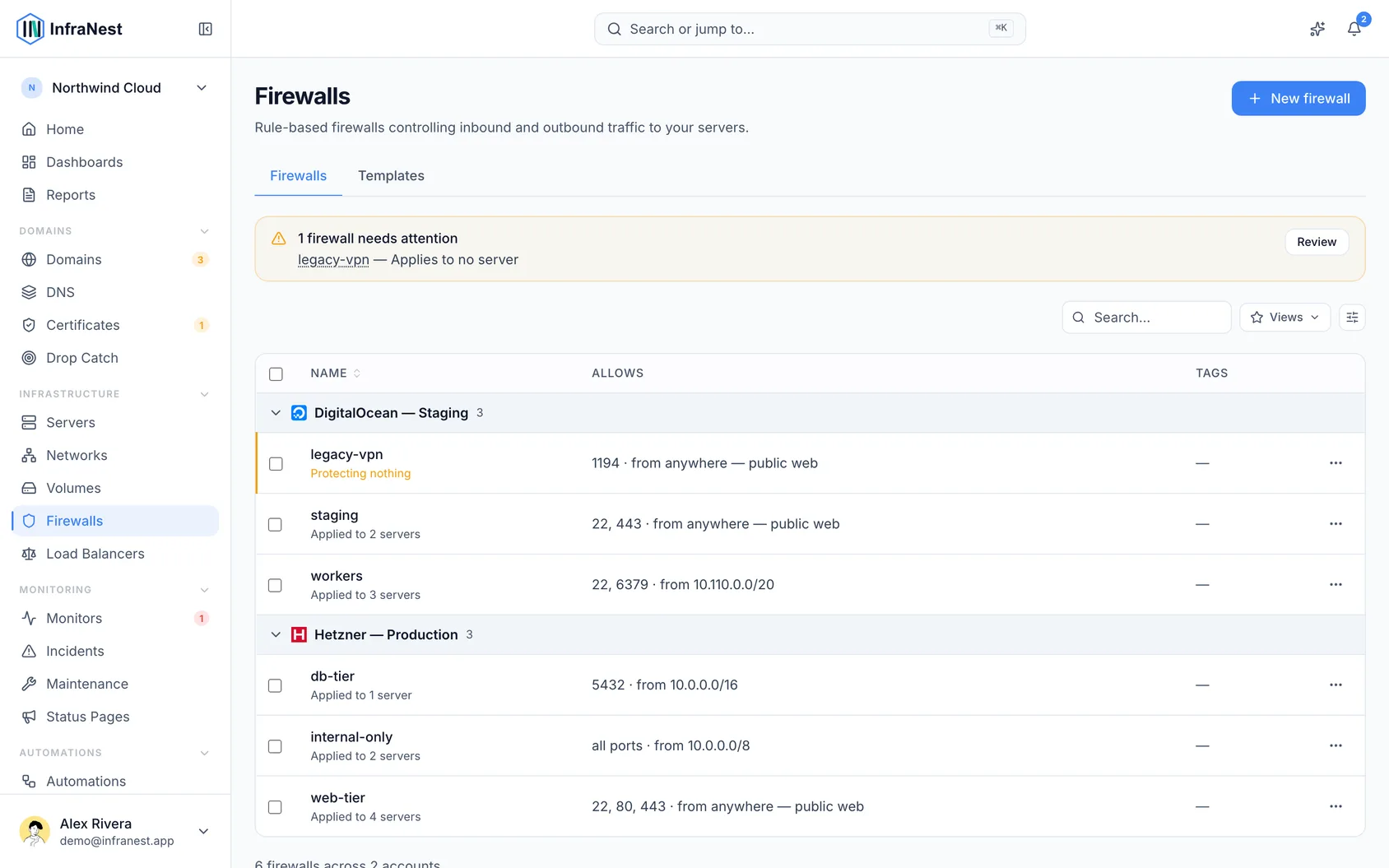
- Select Save. Each firewall shows how many servers it's applied to.
From a server you can also enable, disable, reset or edit the firewall applied to it.
#What a firewall's page shows
Open a firewall from the list and you see the same layout every cloud page uses:
- The header says its status, how many rules it has and how many servers it is applied to, which provider and location it is in, and what it costs a month when we know. The main action sits beside it; everything else is under Actions.
- Overview starts with anything that needs you, then How each rule is used — each inbound rule against what the agent sees listening on the servers it applies to (for example "8080: nothing listens on any of the 3 servers"), with an option to remove a rule nothing uses — then Used by — one line each for the servers it protects, the dynamic IPs that keep its rules up to date, and the automations that act on it — and a Details card with its facts, each with the switch that changes it.
- Rules is the rule editor. Unsaved edits stay while you look at another tab; Save rules appears in the header as soon as you change something.
- Activity lists what was done to it, by whom and when — the audit log for just this firewall.
A firewall applied to no server protects nothing, and the page says so at the top with a button to apply it.
#Remove every rule
A firewall with no rules at all is allowed, and it means exactly what it says: nothing gets in.
- Delete the rules you don't want and select Apply.
- The confirmation lists every rule being removed, and warns you first if one of them is what lets you reach the server over SSH or remote desktop.
This is not the same as deleting the firewall. The firewall stays, stays attached to the servers it protects, and simply stops permitting anything — which is what you want if you're locking a server down while you sort something out.
On DigitalOcean, rules written against tags rather than IP addresses aren't ours to remove, so they stay. They're listed separately in the editor, and the firewall still enforces them.
#Rename a firewall
- Click the firewall's name at the top of its page.
- Type the new name.
- Press Enter.
The name changes at your provider too, so it stays the same everywhere.
TransIP firewalls can't be renamed — each one belongs to a single VPS and carries that server's name.
#Protect another server with a firewall you already have
- Open the firewall and select Attach a server in the Applied to panel — or open the server and choose Attach a firewall under Actions.
- Pick the server (or the firewall, from the server side) and confirm. It starts protecting straight away.
- To stop protecting a server, select the ✕ next to it in the Applied to list.
You can only combine a firewall and a server from the same provider account, so anything you can pick will work.
#The Firewall Advisor
As you review a firewall, InfraNest flags risky exposure — like SSH open to the whole internet, remote desktop open to the world, or a database port exposed publicly — with an explanation and a fix, so dangerous rules are caught before they cause trouble.
TipA firewall rule can follow a changing IP automatically — see Set up Dynamic IP.
#Addresses we can't account for
When a Dynamic IP keeps part of a firewall up to date, we also look at what else that rule allows — and tell you about anything we didn't put there.
You'll see one of two things:
- An address we used to keep up to date, named, with the date we stopped. This is the one worth acting on: it was yours under an old internet connection, it isn't maintained any more, and providers hand old addresses to other customers.
- An address we didn't write. Nothing is wrong with it as far as we know — it may be a colleague, an office, or a monitoring service — we simply can't tell you what it is.
Nothing is ever removed for you. An allow-entry we didn't write isn't ours to delete, so we show it and leave the decision with you; edit the rule yourself if it should go.
Say what it is. Use Say what this is to write a short note — "Berlin office", "Pingdom probe". The entry stops being a question, and the next person to look (including you in six months) doesn't have to work it out again. Clearing the note marks it unexplained again.
You'll be emailed once about an address we used to maintain, because that one we can be sure about. We don't email about addresses we simply don't recognise — you'd hear about every entry you already know about, on the first check.
Rules that nothing tracks are left alone, and a rule where your Dynamic IP is the only address stays quiet.
#What a firewall rule does and does not cover
When a rule is open to the whole internet, the fix is to restrict its source to the addresses that need to reach that port — your own IP, your office range, or the address of the server that calls it. Select Limit to My IP on the warning to do that in one step.
A private network is not a narrower source to put in that box. On some providers — Hetzner among them — firewall rules only cover traffic that arrives on the server's public address. Anything sent over a private network reaches the server without being checked against any rule you write here, so a rule whose source is a private range like 10.0.0.0/24 matches nothing and blocks nothing. Where that is the case, the editor says so above the inbound rules.
NoteThis doesn't make a private network unsafe — it means a different thing controls it. There, who is attached to the network decides who can reach the server, and you manage that on the network itself rather than with rules.
#Tips
- Use the Firewall Advisor's suggested fix as a starting point, then narrow the source further if you can.
- A note on an unrecognised address saves the next person (including future you) from re-investigating it.
Was this article helpful?
Thanks for your feedback!
Thanks, this goes straight to the docs team.